The quick answer
Open the purchase order and compare Quantity, Received, and Billed on the item line. Click Bill and verify that the proposed quantity matches the received units on the supplier invoice. Enter the invoice number in Reference No., save, and check the amount and approval status.
Before you start
Start with an approved purchase order and a saved item receipt. This example uses Advanced Receiving with Bill in Advance of Receipt disabled. The supplier invoice covers two of six seal kits ordered. The names and numbers are fictional.
1. Find the partially received purchase order
Search for PO-6428 and open the purchase order for Northline Industrial Supply. In this example the order shows Pending Billing/Partially Received.
2. Compare the order and receipt quantities
On Items, find SK-220 Seal Kit. The order shows Quantity 6, Received 2, and Billed 0. The supplier invoice covers the two units received. If you need to trace the receipt, check Related Records on the purchase order.
3. Check the proposed vendor bill
Click Bill on the purchase order. Enter NIS-38047 in Reference No. On Expenses and Items > Items, check that the draft shows 2 kits at 180.00 each and an amount of 360.00. Compare the item, quantity, and rate to the supplier invoice before saving.
4. Save and verify the bill
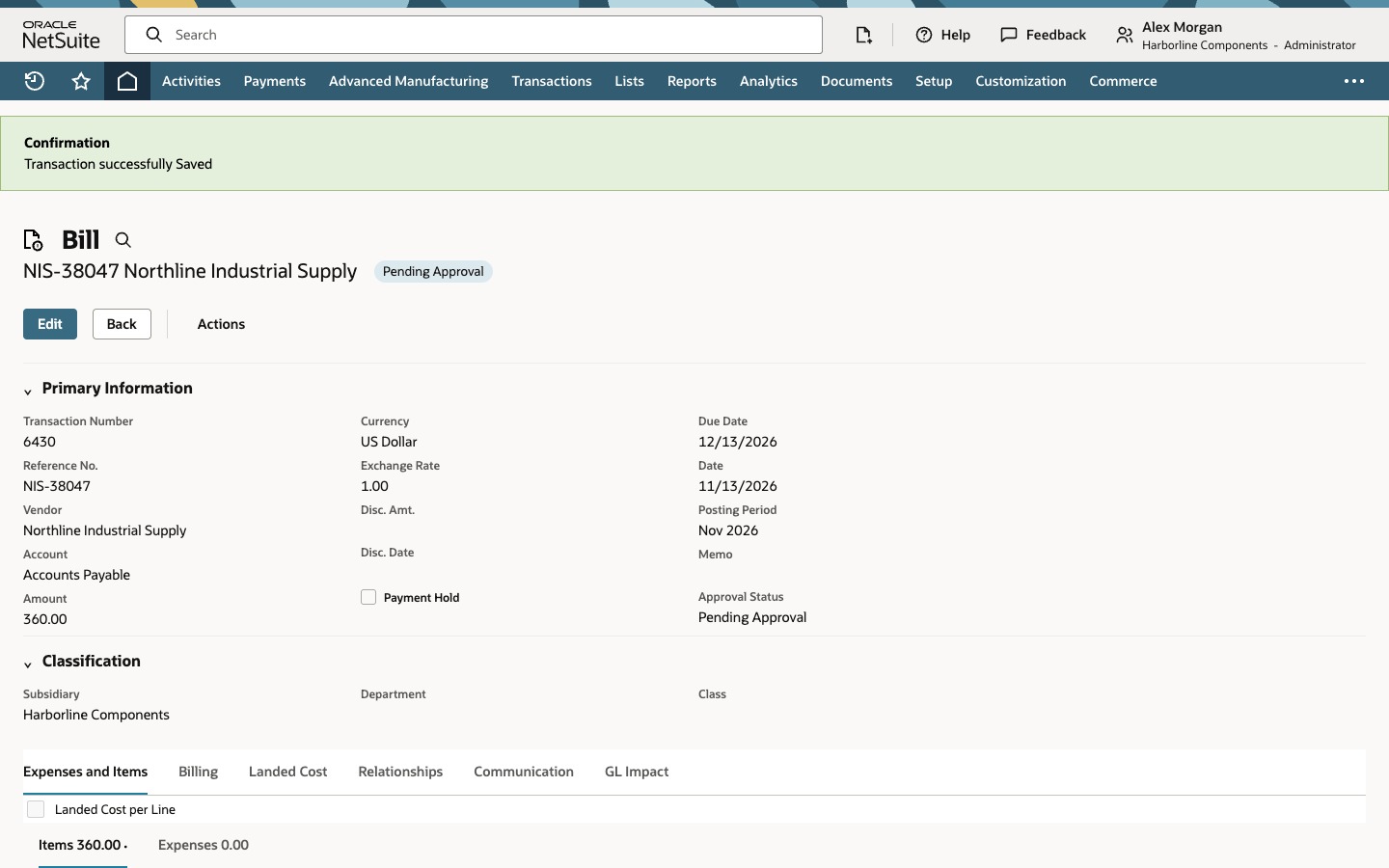
Click Save. The confirmation should say Transaction successfully Saved. Verify NIS-38047 in Reference No., an amount of 360.00, and the approval status. In this account the saved bill shows Pending Approval.
Common questions
Why did NetSuite propose all the units on the order?
Check Bill in Advance of Receipt. If it is enabled, the draft can include unreceived units. Compare the proposed line to the receipt and supplier invoice before saving.
How is Match Bill to Receipt different?
When Match Bill to Receipt is enabled on the purchase order line, use the bill line’s Receipts column to select the applicable item receipt. The purchase order’s related records show which transactions share that order.
Where can I find the bill after saving it?
Open the purchase order and look in Related Records > Receipts & Bills. Use the vendor, reference number, and amount to identify the saved bill.
What does Pending Approval mean?
The bill is saved and awaiting approval under this account’s approval rules. The status you see depends on the account’s approval configuration.