The quick answer
In the installed blendAPPS Manufacturing Scheduler, read the work order named by Must be after and check that prerequisite's finish time. Acknowledge Invalid Placement, then drag the same child order to a time that satisfies the dependency. Hover the accepted event to check Orders Before, its start, end and duration.
This example uses fictional person, company and planning data. A packaging order placed at 1:00 PM is rejected because its prerequisite finishes at 2:00 PM. Placing it at 2:00 PM is accepted in this example. Its buildable quantity remains zero.
Before you start
Your account needs the blendAPPS Manufacturing Scheduler and a role allowed to place events. Its menu entry, dependency rules, available columns and color settings depend on the installed version and configuration. This is an extension workflow, separate from native NetSuite MRP and Manufacturing Scheduler controls.
Begin with Blend - MFG Scheduler already open in Day view. The prerequisite relationship and scheduled batch already exist. This walkthrough does not configure dependencies, work centers or colors.
Alex Morgan is scheduling WO-7412 for CLEAN-500ML at Example Supply Co. on 11/19/2026. The order belongs on Packaging Line A, with 36 Each and a planned duration of 01:15. Its prerequisite BWO-7408 runs on Mix Tank B from 10:00 AM to 2:00 PM.
01. Find the order and prerequisite
Type 7412 in the scheduler's work-order search. Scroll the order table horizontally to read Total Qty, Units and Total Duration, then return to the order number and drag handle.
Read BWO-7408 on Mix Tank B. Its displayed finish is 2:00 PM, so a 1:00 PM packaging start would precede completion of this prerequisite. Open the full starting image to inspect the calendar alongside the order row.
02. Read the placement warning
Drag WO-7412 to 1:00 PM on Packaging Line A. Read Invalid Placement and Must be after BWO-7408. Click OK to close the message, then check that no early packaging event was added. Acknowledging the message does not force the rejected placement.
03. Correct the placement
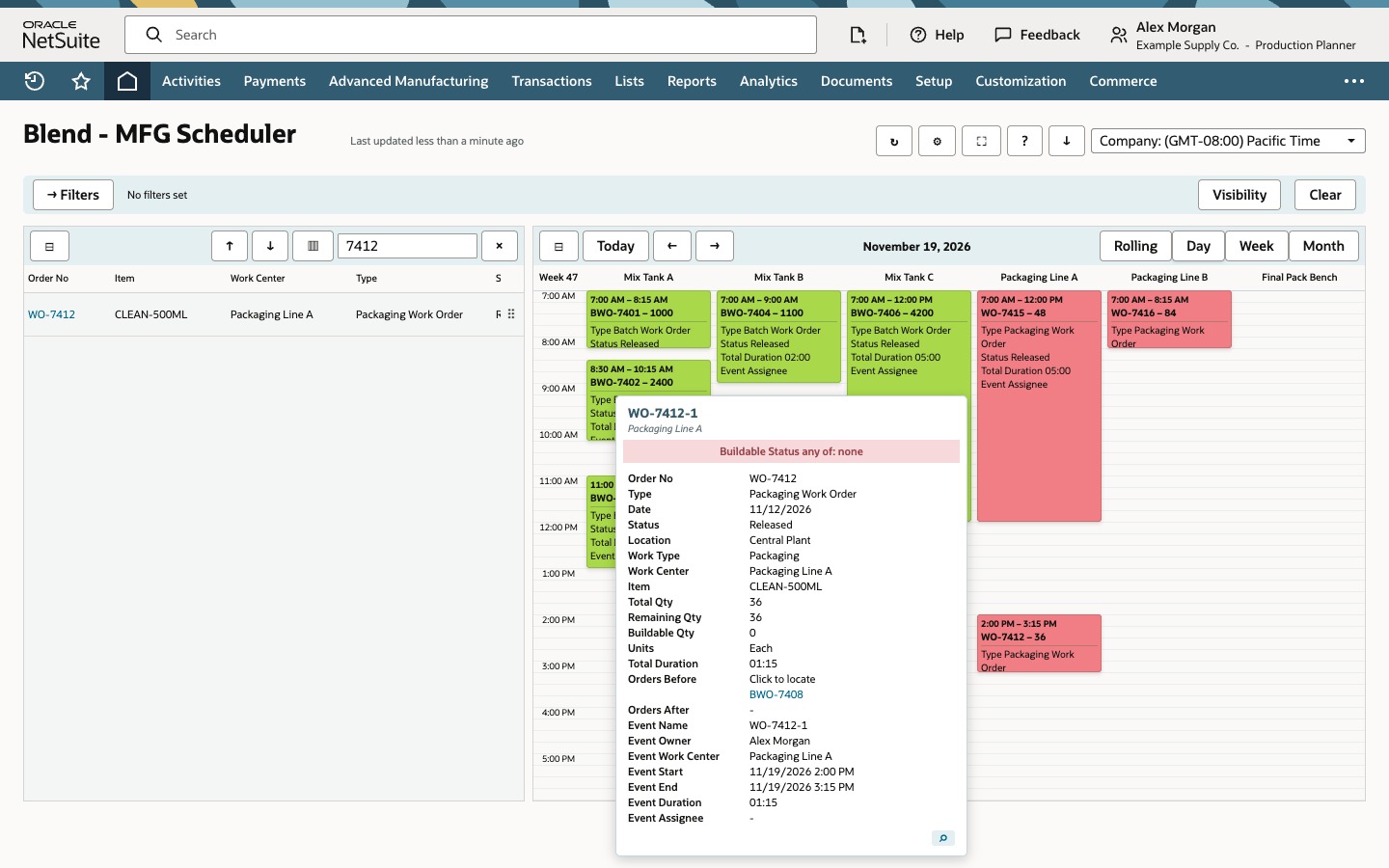
Drag the same order to 2:00 PM on Packaging Line A, when the displayed prerequisite finishes. The calendar accepts WO-7412 from 2:00 PM to 3:15 PM. Its quantity and planned duration remain unchanged.
Verify that only one accepted WO-7412 event is present, spanning 2:00 PM–3:15 PM. The order-list row now has its fully scheduled color. The calendar event remains red while Buildable Qty is 0; these are separate displayed signals in this configuration. No extra time buffer is demonstrated, and this placement does not prove native work-order dates were saved.
04. Check the event
Hover the accepted packaging event. Read Orders Before: BWO-7408, Event Start 11/19/2026 2:00 PM, Event End 11/19/2026 3:15 PM and Event Duration 01:15. Compare Total Qty 36, Units Each and Buildable Qty 0 with the planned order.
The calendar placement now satisfies the demonstrated prerequisite condition. Buildable Qty remains 0. This walkthrough does not identify which inventory, material or other condition determines that value. The walkthrough does not verify saved native NetSuite work-order dates, completed production or every capacity and routing constraint.
Common questions
Why does the scheduler say Must be after another work order?
In this example, the message names the prerequisite batch that has not finished at the attempted start time. Check that batch's displayed interval and the child event's proposed start. Dependency rules depend on the installed extension and configuration.
Does OK approve the invalid placement?
No. OK closes the warning. The early event was rejected, and the order must be placed again at an acceptable time.
Can the child start exactly when its prerequisite finishes?
The demonstrated placement is accepted at the prerequisite's 2:00 PM finish. This example does not establish a universal equality rule or an additional buffer for every account or dependency type.
Why is the accepted event still red?
In this example, the accepted event remains red while Buildable Qty is 0 and the order row has its fully scheduled color. These are separate displayed signals; the example does not establish that red always means a particular material or inventory condition.
Does accepted placement prove native work-order dates were saved?
No. The visible result establishes the event's placement in this scheduler. Verify what the installed version persists before relying on changes to native NetSuite work-order dates.