The quick answer
In the legacy Exactor invoice form, click Calculate beside Tax Total and read the tax on the unsaved draft. Locate the row with matching visible details under Exactor Tax Calculation Requests. Then save the NetSuite invoice, read its number and amounts again, and compare them with Exactor Committed Transactions. The request row, saved invoice, and committed row are three different pieces of evidence. A committed row alone does not show that tax was filed or paid.
The screenshots show sample data from a synthetic replay of a 2015 product walkthrough. Person and operating-company names in the replay are fictional. Your menus and connector behavior depend on your account and installed bundle.
Before you start
This walkthrough uses a legacy Exactor sales-tax bundle and an invoice form that exposes Calculate beside Tax Total. Confirm that this integration is active, that your role can create and view invoices, and that you can open Exactor's merchant-portal reports. Check the intended subsidiary, location, ship-to address, currency, accounting period, invoice date, customer and item tax setup before entering a real transaction. The example invoice is for Aaron Abbott, dated 08/12/2015, with location 01: San Francisco and the Exactor tax code on both item lines. Its tax is sample data, not a rate to expect for another transaction.
In a separately tested account, the standard invoice form did not expose the observed legacy Calculate control. That finding is limited to that account and form. The 2015 source shows this particular legacy form and portal; it does not establish how a modern SuiteTax connector works. If Calculate or either report is missing, confirm which integration and permissions your account actually has before following this sequence.
01. Enter the invoice
Open Transactions > Sales > Create Invoices in the demonstrated interface. Select Aaron Abbott and 01: San Francisco. Add one ACC00005 item at 379.99 and one ACC00004 item at 325.00. Both lines carry the Exactor tax code. Check the 704.99 subtotal before asking the connector to calculate tax.
02. Calculate tax on the draft
Click Calculate beside Tax Total. The draft's Tax Total changes from 0.00 to 53.94 and Total becomes 758.93. At this point the invoice is still unsaved. Record the displayed currency and amounts. If calculation fails or returns no tax, inspect the connector error before saving. The screen does not tell you whether the connector retained or will reuse its internal response when you save.
03. Inspect the calculation request
In the Exactor merchant portal, open Reports > Tax Calculation Requests. Use the report's available filters, then compare date, customer, currency and amounts to locate the demonstrated 2015-08-12 row for Aaron Abbott. It shows USD 704.99 gross, 53.94 tax, and 758.93 total. Record the visible transaction-ID prefix 1e68836f as a comparison clue, not a complete correlation key. This report row records a calculation request; it does not prove a NetSuite invoice was saved.
The provider displays Purchase in the row's Tx Type column. The video does not explain that label or its mapping, so do not treat it as NetSuite's transaction type. The saved NetSuite record shown later is an Invoice.
04. Save and read back the invoice
Return to the draft in NetSuite and click Save. The green confirmation says Transaction successfully Saved. On the saved record, check its number, status, customer, location, currency, lines, subtotal, tax and total. In the example, invoice INV10000136 for Aaron Abbott is OPEN, with 704.99 subtotal, 53.94 tax and 758.93 total. Use the saved figures for the downstream comparison. Save may recalculate tax or reject the transaction, so the draft alone is insufficient.
05. Compare the committed row
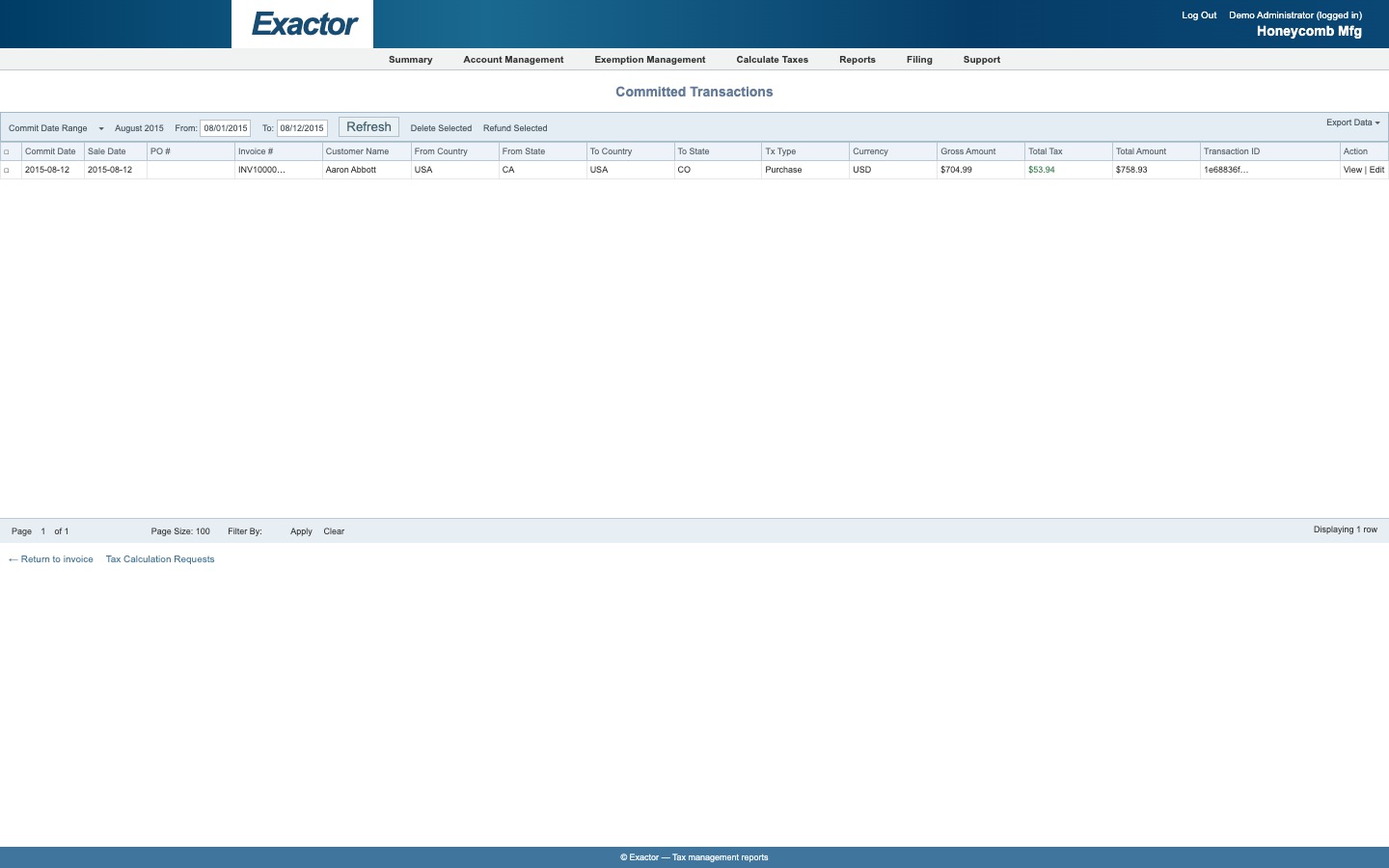
Open Reports > Committed Transactions in the Exactor portal. Use the report's available filters, then compare date, customer, currency and amounts. The demonstrated row shows Aaron Abbott on 2015-08-12, USD 704.99 gross, 53.94 tax, and 758.93 total. The visible invoice number begins INV10000, and the transaction ID begins 1e68836f, as in the earlier request row. The row is shown later in the walkthrough and is consistent with that invoice. The video truncates both identifiers, so it does not prove a complete ID match or reveal exactly which connector event created the row.
For an operational audit, open the full report row and compare its complete invoice/reference and transaction ID with your saved NetSuite record. If the row is missing, check report filters and permissions, then refresh after a reasonable processing interval and inspect integration errors. Do not create another invoice merely because the provider row has not appeared. Do not infer filing, payment, remittance, or tax-authority acceptance from the committed list.
Check the result
- The draft calculated 53.94 tax on a 704.99 subtotal.
- In the demonstrated sequence, the request report showed that calculation before Save.
- Saved invoice INV10000136 showed 53.94 tax and 758.93 total.
- The committed report showed matching visible customer, date, currency, amounts, and ID prefix.
Common questions
Does Calculate save or commit the invoice?
In the demonstrated sequence, Calculate returned tax while the invoice was still unsaved. Save later produced the NetSuite invoice. The source does not expose the connector's internal timing or prove whether it queued, cached or reused that earlier response.
What is the difference between Tax Calculation Requests and Committed Transactions?
In this walkthrough, the request report shows a pre-save tax calculation. A committed provider row is shown later with the same visible customer, date, currency, amounts and transaction-ID prefix. Neither report is the saved NetSuite invoice. Compare complete identifiers in your own provider detail view before claiming an exact match.
Why does the report say Purchase for an invoice?
The source labels the Exactor row Purchase under Tx Type but does not explain its mapping. NetSuite's saved record is an Invoice. Check the provider's full row and your integration configuration before interpreting that label operationally.
Does a committed row mean the tax was filed or paid?
No. The demonstrated committed row is a transaction report entry. The video does not show a return, tax payment, remittance, or tax-authority acceptance.
What if my invoice has no Calculate link?
This is a 2015 legacy-bundle example. A different custom form, installed integration, role, or current tax engine may use another control or no manual Calculate step. The separately tested standard form did not show this control, but that observation is limited to that account and form. Confirm your account's tax integration and permissions, then follow its actual invoice and provider-report workflow.
Source
- Exactor, NetSuite Sales Tax Bundle Usage (2015). The demonstrated sequence runs from about 0:17 to 2:01.