The quick answer
In the custom workflow shown here, click Reject, then Resubmit for approval on the same credit memo. The permitted approver can then click Approve. That changes the custom Status field to Approved; the native credit remains Open in this example because it has not been applied or otherwise consumed. Edit the approved credit, select the invoice under Items > Apply, confirm the application amount, and save. Using the full credit changes its native status to Fully Applied.
These screenshots use fictional person and operating-company names and sample transaction values. Use your own records when following the procedure.
Before you start
This procedure assumes an installed custom workflow, an inline custom field labeled Status, and a customer-selection client script. These are account customizations. The workflow must be active on the selected credit-memo form, and your role must have credit-memo permissions and meet its approval conditions. This example uses the Administrator role.
The customer must have an open invoice eligible for application under the account’s customer, subsidiary and currency rules. This example creates CM-10874 for Pine Harbor Retail, using North Warehouse, and applies 840.00 US Dollar to INV-50836, which initially has 5,600.00 due.
Hiding Refund and disabling Apply checkboxes constrain the demonstrated form. They do not establish a posting hold or enforcement across other forms, scripts or integrations. Review those paths separately if approval must enforce a financial control.
01 · Enter the credit memo
Open the credit-memo entry page available to your role. In this account, it is Transactions > Customers > Issue Credit Memos. Select Pine Harbor Retail and North Warehouse. Add Equipment Inspection, quantity 2, at 420.00 per unit. Confirm the line totals 840.00 and the custom Status reads Pending Approval.
02 · Check pending Apply and save
Open Items > Apply. INV-50836 has 5,600.00 due. After customer selection, the configured client script disables Apply while the custom field is Pending Approval. Leave the credit unapplied and click Save.
CM-10874 is now Open, its custom Status is Pending Approval, and Submit for Approval is available. This workflow hides Refund in its initial, pending and rejected states.
03 · Submit for review
Click Submit for Approval. The permitted approver now sees Approve and Reject. The native status stays Open and the custom field stays Pending Approval. The appearance of these buttons does not prove that an email was delivered.
04 · Reject and resubmit
Click Reject. Resubmit for approval replaces the approval buttons. In this design, rejection leaves the custom Status at Pending Approval. The available button identifies the next workflow action.
Click Resubmit for approval on CM-10874. Approve and Reject return. Resubmission does not create another credit or apply this one to an invoice.
05 · Approve the credit
Click Approve. The custom Status becomes Approved, while the native credit remains Open because nothing has been applied. Refund is available in this example while the credit has an unapplied balance and the role permits refunds. Availability also depends on the form and workflow. This procedure continues with invoice application.
06 · Apply the approved credit
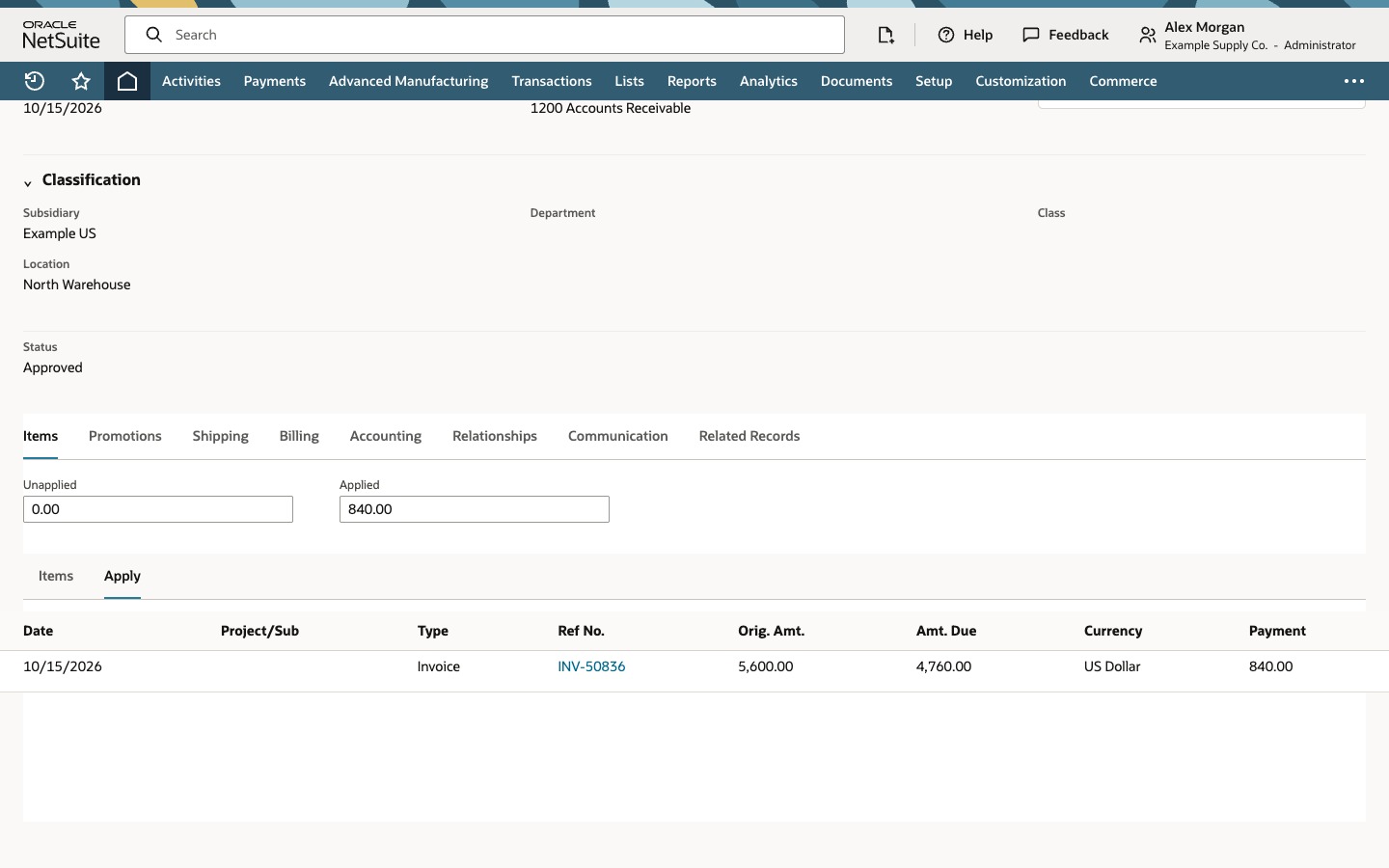
Click Edit, then Items > Apply. Select INV-50836. Confirm Payment = 840.00, using the full credit against the invoice's 5,600.00 balance. Confirm no other invoice is selected, then click Save.
07 · Verify the saved application
CM-10874 now reads Fully Applied, and its custom Status remains Approved. These describe different events: the custom review was approved, and the entire credit was subsequently consumed.
On Items > Apply, confirm Applied = 840.00, Unapplied = 0.00, and the saved application links to INV-50836. The larger invoice can remain partly unpaid even though this credit is fully applied. No cash refund was issued.
Common questions
Are these standard credit-memo approval buttons?
No. Submit for Approval, Approve, Reject and Resubmit for approval belong to the installed custom workflow in this example. Their labels, availability and role conditions depend on the account's configuration.
Why does Reject leave the custom Status at Pending Approval?
This workflow changes its path without setting another custom-field value on rejection. Resubmit for approval identifies the next action. A different workflow may update a rejection field or use another label.
Does approval apply the credit to an invoice?
No. Approval changes the custom field to Approved in this design. The credit remains unapplied and displays Open in the demonstrated state until it is applied, refunded or otherwise consumed.
Why is the credit Fully Applied while the invoice is not paid in full?
Fully Applied describes the credit memo. A smaller credit can be consumed completely while leaving part of a larger invoice unpaid.
Do hidden Refund and disabled Apply controls enforce approval through integrations?
They do not establish that protection. The demonstrated controls affect this form, including a client script triggered by customer selection. Validate other forms, scripts and integrations separately if approval must enforce a financial control.