The quick answer
On the Results subtab, add a row with Field Formula (HTML) and Summary Type Group. In its formula, join an anchor tag with the record's Internal ID and Number using ||, for example '<a href="/app/accounting/transactions/custinvc.nl?id=' || || '">' || || '</a>'. Give the column a Custom Label and the grouped rows show clickable invoice numbers.
The example is a saved search named Sales Orders and Their Invoices at Example Supply Co. Alex Morgan, an administrator, edits it so each grouped sales order opens the invoice that billed it. Both names are fictional example data.
Before you start
A Formula (HTML) column needs the HTML Formulas in Search feature, on the Analytics subtab of Setup > Company > Enable Features, and a role with the Create HTML Formulas in Search permission. Without them the column type is missing or can't be edited. Use Formula (HTML), not Formula (Text): Formula (Text) shows the markup as literal text in current releases.
The search in the example already selects sales orders with an applying invoice, and its results are grouped by Document Number. The link doesn't bypass permissions. Whoever runs the search needs permission to view the invoice record.
01. Open the saved search and preview it
Go to Reports > Saved Searches and choose Edit beside Sales Orders and Their Invoices. The Criteria subtab has three rows: Type is Sales Order, Main Line is false, and Applying Transaction : Type is Invoice. In your own search, add that third row by choosing Applying Transaction Fields... in the Filter list and then Type in the popup. The Filter list also has Applying Transaction and Applying Link Type, which are different.
Click Preview. The results are grouped by Document Number: SO5201, SO5202 and SO5203, with the Maximum of Date and the Maximum of Name. The applying invoice isn't on the page, so there's nothing to click to open it.
02. Add a Formula (HTML) column
Click Return To Criteria, open the Results subtab and click Add Row. For Field choose Formula (HTML). For Summary Type choose Group, so the column works inside the grouped results.
03. Write the link formula
Open the Formula popup and type the anchor. The href is the invoice record path followed by the applying transaction's Internal ID. The text between the tags is the applying transaction's Number. Literal markup goes in single quotes and the field tags go in braces, joined with ||. Pick the field tags from the popup's Field list instead of typing join names from memory.
'<a href="/app/accounting/transactions/custinvc.nl?id=' || {applyingtransaction.internalid} || '">' || {applyingtransaction.number} || '</a>'
A relative path like this works in production, sandbox and release preview, and it doesn't carry an account number. Click Set, enter the Custom Label Invoice and click Add.
04. Preview the invoice links
Click Preview. The Invoice column shows INV7731, INV7735 and INV7740 as links, one for each sales order. Every sales order in the example has exactly one applying invoice, so each stays one row. A row with no applying transaction would get an empty link, and an applying transaction of another type would open the wrong record, which is why the Applying Transaction Type criterion stays. A partially billed order with two invoices would produce two rows, one per invoice link, because the generated link is part of the grouping.
05. Save the search and open an invoice
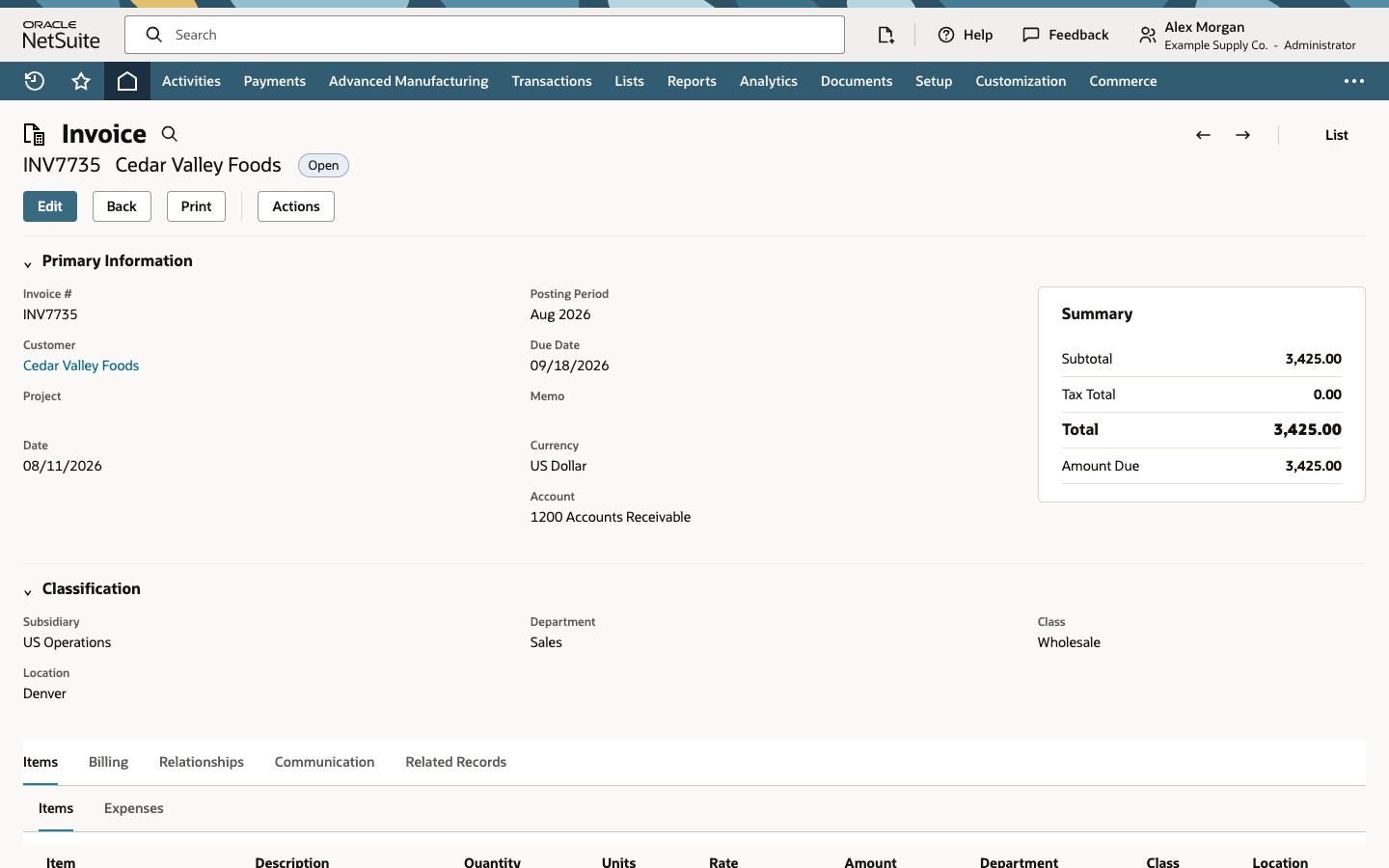
Click Return To Criteria and then Save. The saved results keep the Invoice links. Click INV7735. The invoice for Cedar Valley Foods opens, in the same tab because the anchor has no target.
You're done when:
- the Formula (HTML) row has Summary Type Group, the anchor formula and a Custom Label;
- every grouped row shows its invoice number as a link, not as markup text;
- clicking a link opens the matching invoice;
- you've previewed a sales order that has more than one invoice and decided how you want it to display.
Common questions
Why does my saved search show the HTML tag as text?
The column is probably Formula (Text). In current releases Formula (Text) shows markup as literal text. Use Formula (HTML), which needs the HTML Formulas in Search feature and the Create HTML Formulas in Search permission.
Can I use Maximum to link to the latest transaction?
Don't rely on it. Maximum on a formula takes the maximum of the generated text, which is an alphabetical comparison, not the latest date or the highest internal ID. To link the most recent record, order the formula column by the date with When Ordered By Field, and test it on records that share a date.
Why do I get two rows for one sales order?
The Group summary on the formula makes each distinct generated link its own group. An order with two applying invoices gives two links, so two rows. Decide whether you want one row per order and invoice, or choose an invoice with a rule you've tested.
Should the link use a full URL or a relative path?
A relative path such as /app/accounting/transactions/custinvc.nl?id= is better. It works in production, sandbox and release preview and doesn't carry an account number. The sales order path is /app/accounting/transactions/salesord.nl?id=.
Can the link be a button, or open the record in edit mode?
Yes. Put a button element inside the anchor, for example <a href="..."><button type="button">Edit ' || || '</button></a>, and the column shows a button that carries the link. Adding &e=T to the record URL asks NetSuite to open the record in edit mode. A live check showed the buttons rendering from a Formula (HTML) column; the example in this guide uses plain links.