The quick answer
On the RF-SMART handheld, open Work Order Completion, scan the work order, then scan the lot of the units you produced. Enter the good quantity in Build and the spoiled quantity in Scrap, and press Enter. RF-SMART returns to the order list with a green confirmation, and the order's Built quantity goes up by the Build quantity only. Then check the resulting transaction in NetSuite, because the handheld does not show it.
RF-SMART is a third-party handheld SuiteApp that runs against NetSuite, so these screens belong to RF-SMART and not to NetSuite itself. The example below uses fictional company, person and item data. Work order 176 is for 2 units of a lot-controlled item. One unit came out good and one was scrapped.
Before you start
RF-SMART must be installed and your handheld role needs the Work Order Completion menu item. The work order has to be eligible for completion in your setup, with its components available or already issued, and the item is lot numbered. This example uses a lot that already exists, ALS-Dog-LB-R0001.
Quantities, lot, bin, location and order numbers here are examples. The orders RF-SMART lists depend on its filters, your location, order status and permissions, and what you see depends on your RF-SMART version and configuration. Scrap handling also depends on your NetSuite manufacturing settings, so do not assume the handheld's Scrap field means the same thing as NetSuite's Quantity Scrapped until you have checked the saved transaction.
01. Open Work Order Completion
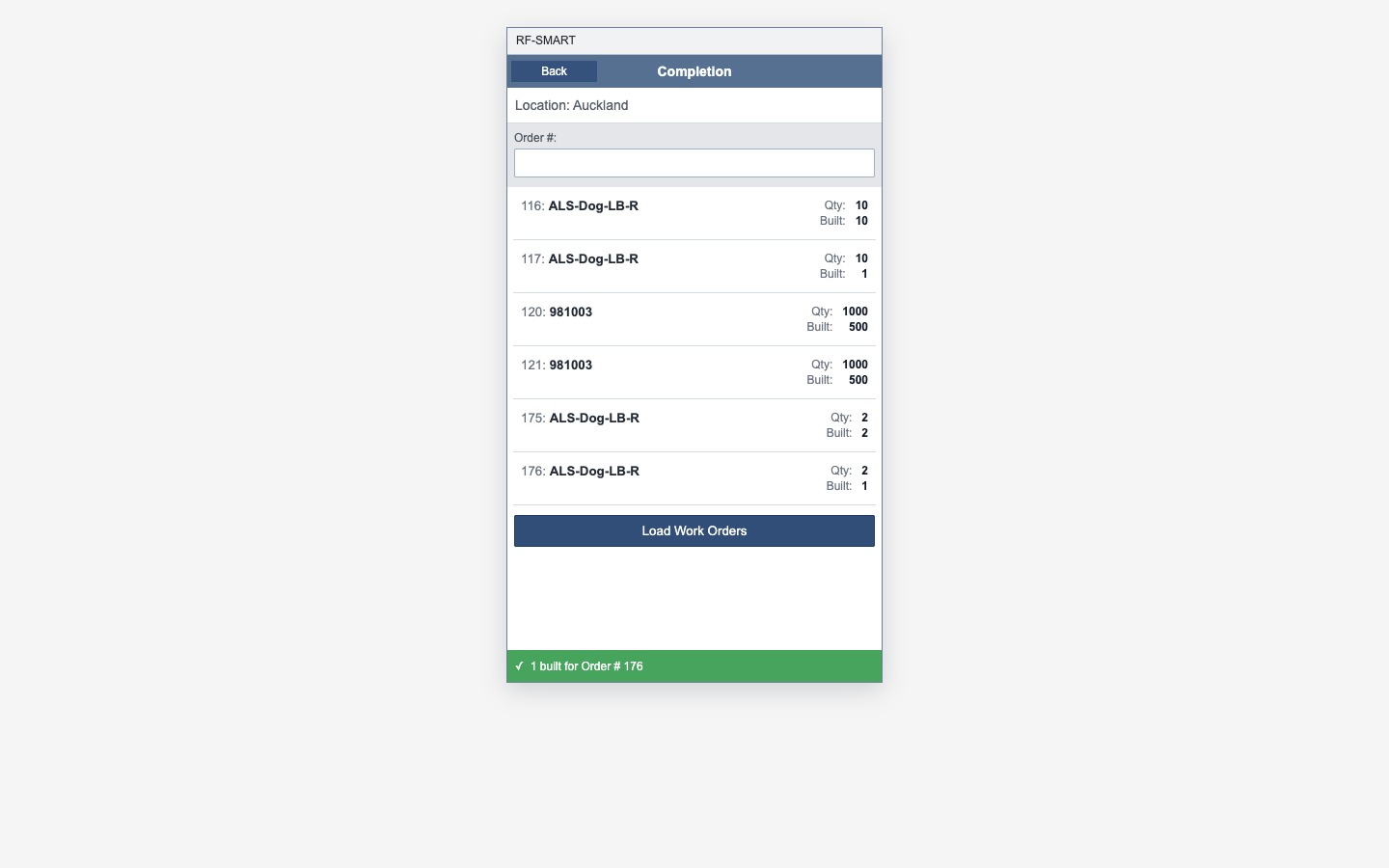
On the RF-SMART main menu, tap Work Order Completion. The Completion screen shows your location, here Auckland, an Order # field and a Load Work Orders button. Tap Load Work Orders to list the orders RF-SMART offers for completion. Each row shows Qty and Built. Order 176 has Qty 2 and Built 0.
02. Scan the work order
Scan the order barcode, or type 176 in Order # and press Enter. RF-SMART shows what the order produces: the item ALS-Dog-LB-R, the staging bin 001-STAGE where RF-SMART says it will place the finished units, and the quantity. It then asks for the lot because the item is lot controlled.
03. Scan the lot
Scan or type the lot ALS-Dog-LB-R0001 and press Enter. The lot already exists, so RF-SMART shows the expiration date stored on that lot and does not ask you for one. If the lot were new and the item tracked expiration, it would ask for a date. The Build field is now ready.
04. Enter Build and Scrap
Enter 1 in Build and press Enter. The screen now reads Build: 1 and shows a Scrap field. Enter 1 in Scrap and press Enter to submit. Build and Scrap are separate quantities. Together they account for the 2 units on the order.
05. Read the confirmation
After a brief Please Wait, the handheld returns to the order list with the green message 1 built for Order # 176. Order 176 now shows Qty 2 and Built 1. The scrapped unit is not counted as built.
The handheld confirmation is not proof of the posting. The green message shows that RF-SMART accepted the submission. It does not show that a NetSuite transaction posted the expected inventory and accounting effect. The vendor describes the flow as consuming components for the reported quantity, receiving one good unit and recording one scrapped unit, but the demonstration never opens NetSuite. Whether components are consumed for scrapped units also depends on your backflush and scrap settings, and components that were already issued should not be consumed again.
After you submit, check these in NetSuite:
- Open the work order and its Related Records, and identify the transaction RF-SMART created.
- Confirm the good quantity and the scrap quantity on that transaction.
- Review the inventory detail for the lot, bin, status and quantity.
- Review the GL Impact. If costing runs after saving, check it once costing has finished.
- Check the work order's Built, Quantity Scrapped, remaining quantity and status.
Buttons and subtabs differ by account and role.
Common questions
Do I have to enter an expiration date when I scan a lot on RF-SMART?
For the existing lot in this example, RF-SMART showed the stored expiration date and did not ask for a new one. A new lot can prompt for an expiration date when the item tracks expiration or your lot-numbering rules require one. Other fields, such as bin or status, can also be required depending on your setup.
What is the difference between Build and Scrap?
In this flow, Build is the good output and Scrap is the reported loss. In the example the order is for 2 units, Build is 1 and Scrap is 1, so together they account for the order quantity. The order list shows Built 1, so scrap did not raise Built. NetSuite can be configured to handle scrap differently, for example by counting it as built and moving it to a scrap bin, so check how your account treats it.
Which NetSuite transaction does RF-SMART create?
The demonstration does not identify it. In native NetSuite, a scrap quantity belongs to a Work Order Completion on a WIP work order, while a standard work order uses an Assembly Build, which has no native WIP scrap process. Which record RF-SMART creates depends on the work order type, enabled features and the SuiteApp configuration. Open the work order and its Related Records to see it.
Where does the scrapped quantity go in NetSuite?
For a WIP Work Order Completion posted as scrap, the good units generally go to the assembly's inventory account, the scrapped units go to the assembly item's Scrap Account, and Work in Process is relieved according to your costing method. The work order then shows Built and Quantity Scrapped. Labor, machine and overhead cost, backflush, earlier issues and Work Order Close can change the amounts, so confirm on the GL Impact. A third-party app can also behave differently from the native form.
Can I pick the work order from a list instead of scanning it?
In this RF-SMART flow, yes. Tap Load Work Orders to list the orders RF-SMART offers, with their Qty and Built, and choose one, or type or scan the order number.