The quick answer
On the shop-floor app, open Containers from the Components Reported screen, choose the kitted container and confirm it. Report each bulk component with its quantity and a lot the system recognizes, then record the production and Save. In NetSuite, Used in Build on the work order's Items subtab shows what was consumed, and the Work Order Completion's Inventory Detail lists the lot, bin, status and quantity for each component.
The example is work order WO4120 for 600 lb of TMB-300 Bulk Trail Mix Blend, built in two batches of 300 lb. Batch 1 uses a kitted container, 4120-1, for raisins, sunflower seeds and dark chocolate chips, and a bulk lot of roasted almonds. The shop-floor screens belong to a third-party add-on that posts to NetSuite. They are not a native NetSuite page, and your add-on may be named and laid out differently. The NetSuite pages in steps 06 and 07 are native. The people and company in the screenshots are fictional example data.
Before you start
The add-on has to be installed and connected to the account. Work Orders, Manufacturing Work In Process, Lot Tracking and Bins have to be enabled, and the components have to be lot numbered with stock in the staging bin at the work order's location. Your role needs to be able to post what the add-on creates.
A kitting container groups lots that were already weighed and moved. In this workflow the delivery of the container was recorded as a bin transfer. A bin transfer moves inventory between bins and does not consume it against the work order, so Used in Build stays unchanged until the add-on reports the components and its transaction posts. "Container" and "Items to Dispense" are the add-on's terms, not standard NetSuite ones.
01. Open the container issue
On the add-on's Components Reported screen for WO4120, the header shows Remaining 600 of 600, Batch No 1 and Batch Size 300. The list is empty, so nothing has been issued to this batch yet. Tap Containers.
02. Issue the kitted container
On Issue Container, open the Container list and choose 4120-1. Items to Dispense lists what is in it: RSN-120 lot RSN2610-04 quantity 45.2, SDS-130 lot SDS2610-02 quantity 31.6 and DCH-140 lot DCH2610-09 quantity 12.15. Check the lots and quantities against the container label, then tap Confirm.
Components Reported now lists the three components with their lots and quantities.
03. Report the bulk component and meet the lot check
Choose ALM-210 in the Component list. Batch/Run Needs shows 107.143. Type 108 as Qty Issued. Type a lot in Lot No. In the example the lot is cut short, ALM26, and a tap on Report brings up "NetSuite did not recognize the lot number provided. Please correct". No row is added for the almonds.
The quantity is the actual quantity used. 108 is slightly above the 107.143 the batch needs, so compare the difference with your tolerance. A refused lot is not always a typing error. A lot can exist and still be unusable for this item because of its location, bin, status or available quantity. Validation may run in the add-on, in integration code or in NetSuite when the transaction is submitted, and the message alone does not show which layer refused the value. Some add-ons also require an exact lot number rather than a prefix.
04. Correct the lot and report again
Replace the lot with the complete lot, ALM2610-31, and tap Report. The list now has four rows. The last is ALM-210 with quantity 108 and lot ALM2610-31.
05. Record the production and save
Tap Shop Floor to open Work Summary. Type 300 in Produced and tap Record. Progress shows Built 300 of 600 and Remaining 300.
Tap Details. Reporting Details shows Production 300 and the four components with their lots. Check them, then tap Save. The add-on syncs the run to NetSuite.
Sync timing and error handling depend on the add-on. Confirm the result in NetSuite before you rely on it.
06. Check Used in Build on the work order
In NetSuite, open work order WO4120. It is In Process. On the Items subtab, Used in Build shows 108 for ALM-210, 45.2 for RSN-120, 31.6 for SDS-130 and 12.15 for DCH-140. In this example Committed on each row fell by the Used in Build amount. Quantity 214.2857, 90, 63 and 24 minus Used in Build leaves 106.2857, 44.8, 31.4 and 11.85. That is what this account displayed, not a universal formula. Allocation, component yield, units, earlier issues and other transactions change Committed.
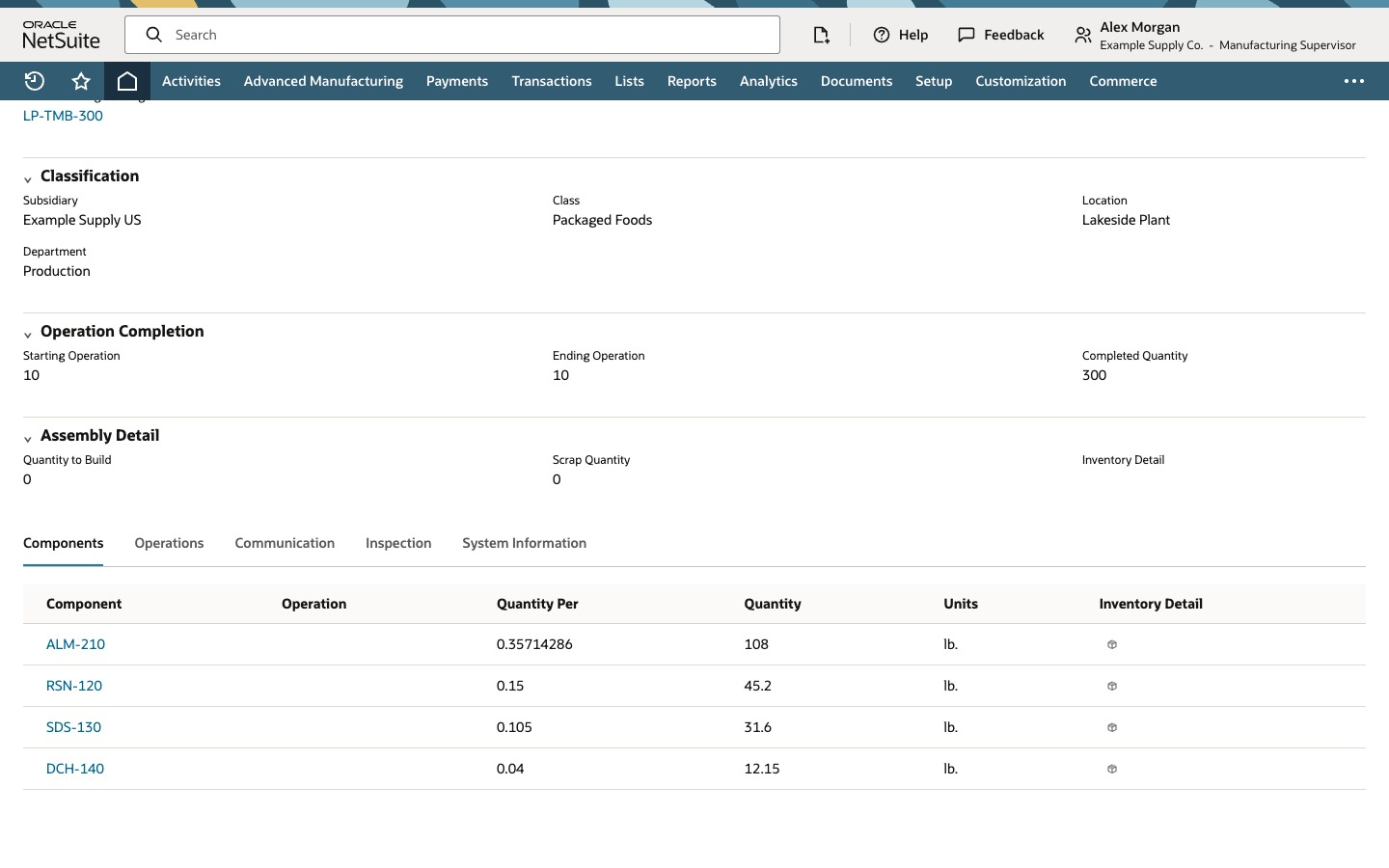
Built stays 0 here. The completion ended at operation 10, the first of two operations on the routing, so no finished assembly quantity was received. A completion that reaches the final operation normally records finished production. The operation range, scrap, routing and your add-on's configuration decide the exact result.
07. Read the lots on the Work Order Completion
Open the Related Records tab and click the Work Order Completion, WOC4125, under Builds. In this account and form that is where the completion is listed. The label and path can differ by form, role and enabled features. In this example Backflush is checked, and the component lots reach the completion that way. Before you rely on Backflush with an add-on, check that the add-on has not also created Work Order Issues for the same quantities. Doing both can consume the components twice. On the Components subtab the four components show quantities 108, 45.2, 31.6 and 12.15, each with an Inventory Detail icon.
Click the icon on ALM-210. The icon shows when a component needs inventory detail, and its fields depend on the item, bins, inventory status, form and your permissions. The popup lists lot ALM2610-31, bin PL-Staging, status Good, expiration date 06/30/2027 and quantity 108. That line is the audit trail: the lot you corrected on the shop floor is the lot NetSuite consumed.
Common questions
Does moving a kitting container to the production station consume the components?
In this workflow, no. Moving the container was a bin transfer. It changed where the stock was, and Used in Build on the work order did not change. The components were consumed when the add-on reported them and its transaction posted to NetSuite.
Why would NetSuite reject a lot number that exists?
A lot can exist in the account and still be unusable for a transaction. It can belong to another item, sit at another location or bin, have a status that does not allow the issue, be expired or restricted, or lack enough eligible quantity. An incomplete value such as a cut-off lot can also fail when the add-on needs an exact lot number. The message alone does not tell you which cause applies.
Is the lot check done by NetSuite or by the add-on?
It may happen in the add-on, in integration code, in NetSuite when the transaction is submitted, or at more than one layer. The displayed error does not prove which layer refused the value. Either way, a row on the shop-floor screen is not proof that NetSuite posted the transaction, so confirm the work order and the saved transaction in NetSuite.
What does Used in Build show on a work order?
Used in Build reflects the component consumption recorded against the work order, such as a Work Order Issue or the consumption from a backflushed completion, and it adds up across batches. Committed is NetSuite's commitment figure for the line. It often falls as components are issued, but allocation, availability, location and other settings affect it.
How do I see which lots were consumed?
Open the saved Work Order Issue or Work Order Completion and click the Inventory Detail icon on the component line. The popup shows the lot, bin, status, expiration date and quantity where your item and form use them. The Related Records tab on the work order lists the related transactions in many forms.