The quick answer
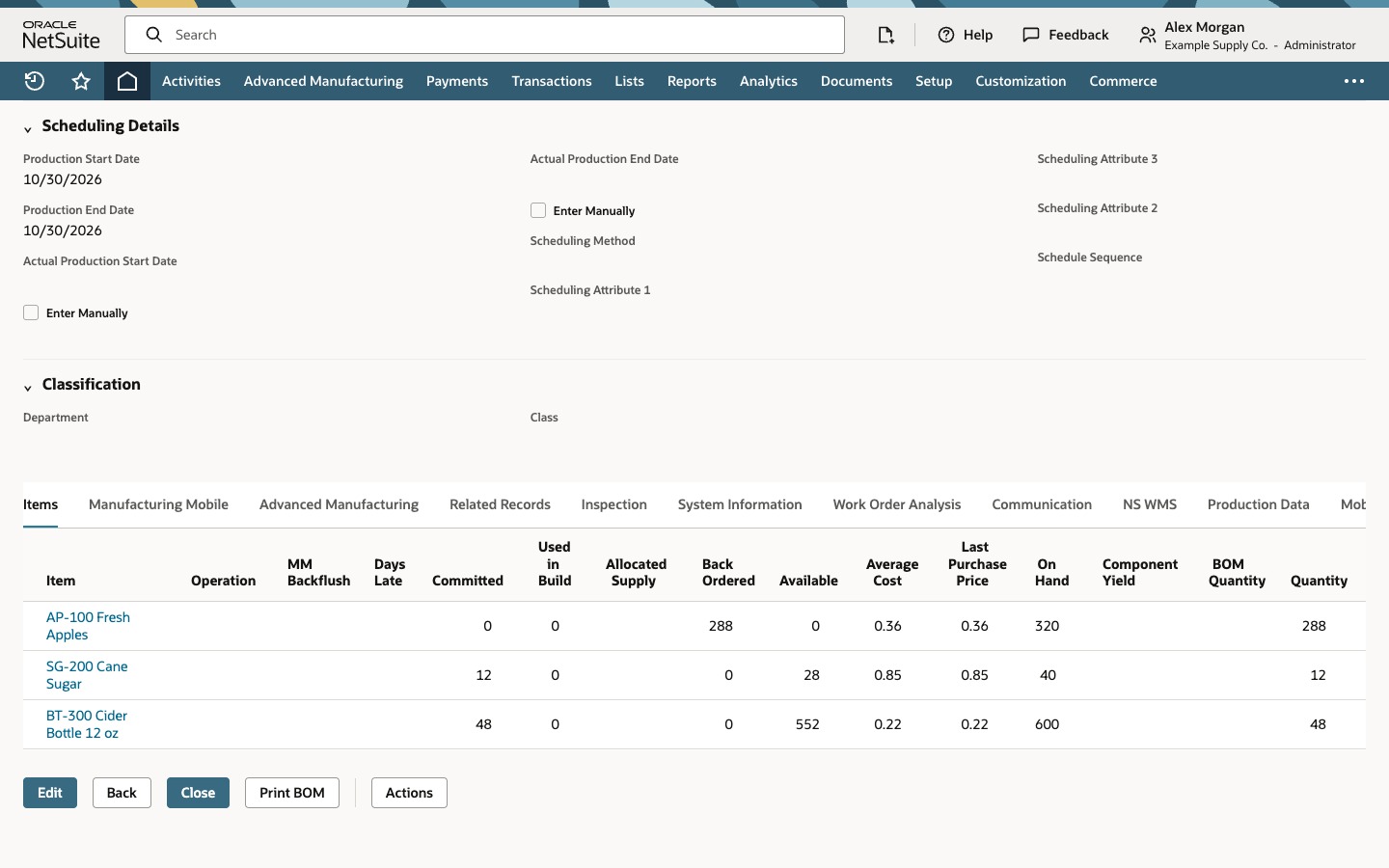
Open the purchase order, click Receive, and click the Inventory Detail icon on the lot-numbered line. In the popup enter the quantity, the Expiration Date, pick Quarantine in Status and enter the Lot Number. Click Add, OK and Save. The stock counts as on hand, but because Quarantine is not available for commitment, Available stays at 0. A released work order that needs the item then shows the new On Hand figure, with Committed still 0 and Back Ordered unchanged. In this example 320 apples are on hand and all 288 the work order needs stay back ordered.
The screenshots show sample data. Person, company, item, vendor and lot values are fictional.
Inline images show the field or column used in each step. Select Enlarge to see the complete recorded screen and its surrounding context.
Before you start
Example Supply Co. bottles apple cider. Released work order WO4821 builds 48 bottles of AC-120 Apple Cider 12 oz Bottle at Riverside Plant and needs 288 each of AP-100 Fresh Apples, which is a lot-numbered item. The apples are bought by the case: purchase order PO6123 to Orchard Valley Growers is for 8 cases of 40, so the receipt adds 320 each. The apples have to be checked before anyone uses them, so they are received into Quarantine first.
The account needs lot-numbered inventory, the Inventory Status feature, multiple units of measure, and work orders with the Manufacturing feature. The apples have to be set up at Riverside Plant, the purchase order line has to receive there, and the accounting period has to be open. The Quarantine status has to exist, and it only holds stock back from orders if its Make Inventory Available For Commitment box is cleared. The name Quarantine does nothing by itself, so check the status record under Lists > Supply Chain > Inventory Statuses. Good is the status NetSuite creates, with both availability boxes checked. Your role needs permission to receive purchase orders and view work orders and items.
The popup here is titled Lot Auto Inventory Detail. Where the Lot Auto Numbering SuiteApp is installed, the lot number can be generated for you. Without it, the popup asks for the lot number and may show other columns. If your location uses bins, the popup also asks for a bin. Column names, tabs and menu names depend on your release, role and forms, and the figures below are the results for this example. Units of measure, existing demand, bins and commitment settings can change them.
01. Read the shortage on the work order
Open work order WO4821. It is Released for 48 bottles at Riverside Plant. On the Items sublist, the AP-100 Fresh Apples line needs a Quantity of 288. On Hand is 0, Committed is 0 and Back Ordered is 288. This is the shortage you compare against at the end.
02. Start the item receipt
Open purchase order PO6123 to Orchard Valley Growers. Its status is Pending Receipt, and the order is for 8 cases of AP-100 Fresh Apples. Click Receive. The Item Receipt opens with Created From set to Purchase Order #PO6123 and the apple line selected to receive.
03. Enter the lot, expiration date and Quarantine
Click the Inventory Detail icon on the apple line. The popup shows the item, a Quantity of 8 and Units of CS40. Under Lot Auto Inventory Detail, type 8 in Quantity and 11/22/2026 in Expiration Date. The quantity matches the line's units. Here the line is in cases and the item converts 1 case to 40 each, so 8 cases will be 320 each on hand. Check the line's Units and the item's conversion before you enter the quantity.
Open the Status list. It shows Good, Quarantine, Repair and Suspect. In this example it starts on Good, so leaving it would receive the stock as ordinary stock. Check the status before you save. Select Quarantine.
Type LT-70418 in Lot Number, then click Add. The lot line now reads 8, 11/22/2026, Quarantine and LT-70418. The expiration date is stored with the lot. It does not change the status or the commitment, and it does not move a lot into Quarantine by itself. Whether expiration reminders or fulfillment warnings use it depends on the preferences and features in your account. Some items require an expiration date before the line can be saved.
04. Save the receipt
Click OK in the popup, then Save on the Item Receipt. NetSuite shows the confirmation "Transaction successfully Saved" above the new receipt, IR6138, with Created From pointing back to Purchase Order #PO6123. If your account uses Quality Management, a receiving specification and its workflow can also create an inspection or move the receipt for you. A specification alone does not guarantee that. That is separate from what this guide shows, so check for an existing quality workflow before you move the stock by hand.
05. Check the stock on the item
Open AP-100 Fresh Apples. On the Purchasing/Inventory tab, set the Locations View to Inventory. The Riverside Plant row shows Quantity On Hand 320, Quantity Committed 0 and Quantity Available 0. The apples are in the building, but none of them is available.
Then open the Inventory Detail tab. Lot LT-70418 is listed in Quarantine at Riverside Plant with 320 on hand. Its Available column shows 320 as well, which looks like a contradiction. That column is per status row and is not necessarily the quantity orders can commit. On production, a Damaged row showed Available equal to On Hand in the same way. Read availability from the Locations list, where Quarantine stock is left out. Bins and existing commitments can also make the two figures differ.
06. Open the work order again
Open WO4821 again, or refresh it if it is still open. On the Items sublist the apples now show On Hand 320. Available is still 0, Committed is still 0 and Back Ordered is still 288. The lot is held in Quarantine, so the work order has nothing it can commit.
Check the result
- The saved Item Receipt shows Created From Purchase Order #PO6123.
- On the item's Locations list, Riverside Plant shows On Hand 320 and Available 0.
- On the item's Inventory Detail tab, lot LT-70418 is in Quarantine with 320 on hand.
- On WO4821, the apples show On Hand 320, Available 0, Committed 0 and Back Ordered 288.
Receiving does not decide what happens next. When the lot passes inspection, an Inventory Status Change moves it to a status that is available for commitment. If the stock also has to change bins, use a bin transfer that sets the new status. Whether the released work order then commits it by itself depends on the account's commitment and allocation settings, order priority and scheduled processes, so open the work order again and, if it is still back ordered, run the account's reallocation process.
Common questions
Why does my work order still show a back order after I received the purchase order?
The stock was received into a status that is not available for commitment. Quarantine counts in On Hand and in inventory value, but it is left out of Available, so the work order cannot commit it. In this example the apples show On Hand 320 on WO4821, while Committed stays 0 and Back Ordered stays 288.
How do I receive a lot-numbered item into Quarantine?
On the Item Receipt, click the Inventory Detail icon on the line, enter the lot's quantity, expiration date and lot number, and select Quarantine in Status. Click Add, then OK, then save the receipt. The Quarantine status has to exist already.
What status does received stock get if I do not choose one?
In this example the Status list starts on Good, which NetSuite creates with both availability boxes checked, so leaving it there makes the stock available for commitment as soon as it is received. The default can depend on your form and setup, so check the status before you save. Without the Inventory Status feature there is no Status field.
Does stock in Quarantine count in On Hand and inventory value?
Yes. It is on hand and valued like any other stock. What changes is availability: it is not counted in Quantity Available, so orders cannot commit it.
Why is Available 320 on the Inventory Detail tab and 0 on the Locations list?
The Inventory Detail tab shows one row per lot and status and does not apply the status settings to its Available column. The Locations list does, so it shows 0 for stock held in Quarantine. Use the Locations figure when you want to know what orders can commit.