The quick answer
On the saved search's Results tab, add the same field three ways: Balance with the Function set to Rank, a Formula (Numeric) column with RANK() OVER (ORDER BY {balance} DESC) and a Formula (Numeric) column with DENSE_RANK() OVER (ORDER BY {balance}). In this example the Rank function and RANK() both give customers with the same balance the same number and then skip numbers, so two customers at 5 are followed by 7. DENSE_RANK() also gives them the same number but does not skip, so they are followed by 6. Direction matters too. In a formula, ORDER BY {balance} ranks the smallest balance first and adding DESC ranks the largest first.
The screenshots show sample data. Company, person and customer names are fictional. Use your own search and values when following the steps.
Before you start
This walkthrough starts from an existing Customer saved search that you can edit. In this example it is called Customer Balance Rank Comparison. Its criteria are Balance greater than 0.00, it is sorted by Balance ascending, and it returns 18 customers. To follow along you need a role that can edit saved searches and can view customers and their balances. The results follow the role's access to customers, so the same search can rank a different set of customers for a different role or subsidiary restriction.
The criteria decide which customers get a rank. Balance greater than 0.00 leaves out customers with no balance, and changing the criteria changes every rank. The ranks are calculated when the search runs, from the rows it returns. They are not stored on the customer record, so a rank in a saved search is not a fixed position on a master customer list.
The menu path and labels in this guide are the ones in the example. They can vary with your release, role and account setup.
01. Open the saved search
Go to Lists > Search > Saved Searches, find Customer Balance Rank Comparison and click Edit at the start of its row.
The editor opens on the Criteria tab. There is one filter on the Standard subtab: Balance is greater than 0.00. Only customers who owe something are ranked.
02. Check how the rank columns are defined
Click the Results tab. The Columns grid lists five columns:
- Name and Balance, which have no function or formula.
- Balance with Function set to Rank and a Custom Label of #1.
- Formula (Numeric) with
RANK() OVER (ORDER BY {balance} DESC)in Formula and a Custom Label of #2. - Formula (Numeric) with
DENSE_RANK() OVER (ORDER BY {balance})in Formula and a Custom Label of #3.
The two formula columns are ordinary Formula (Numeric) columns. The formula uses the field ID in braces, here {balance}, and the custom labels keep the three columns easy to tell apart in the results. OVER (...) belongs in a result column like these. It does not work as a criterion.
Look at the sort setting above the grid. Sort By is Balance and Descending is not checked, so the smallest balance comes first. In this example the Rank function column follows this sort, so with Balance ascending the smallest balance is rank 1.
03. Preview the results and read the first tie
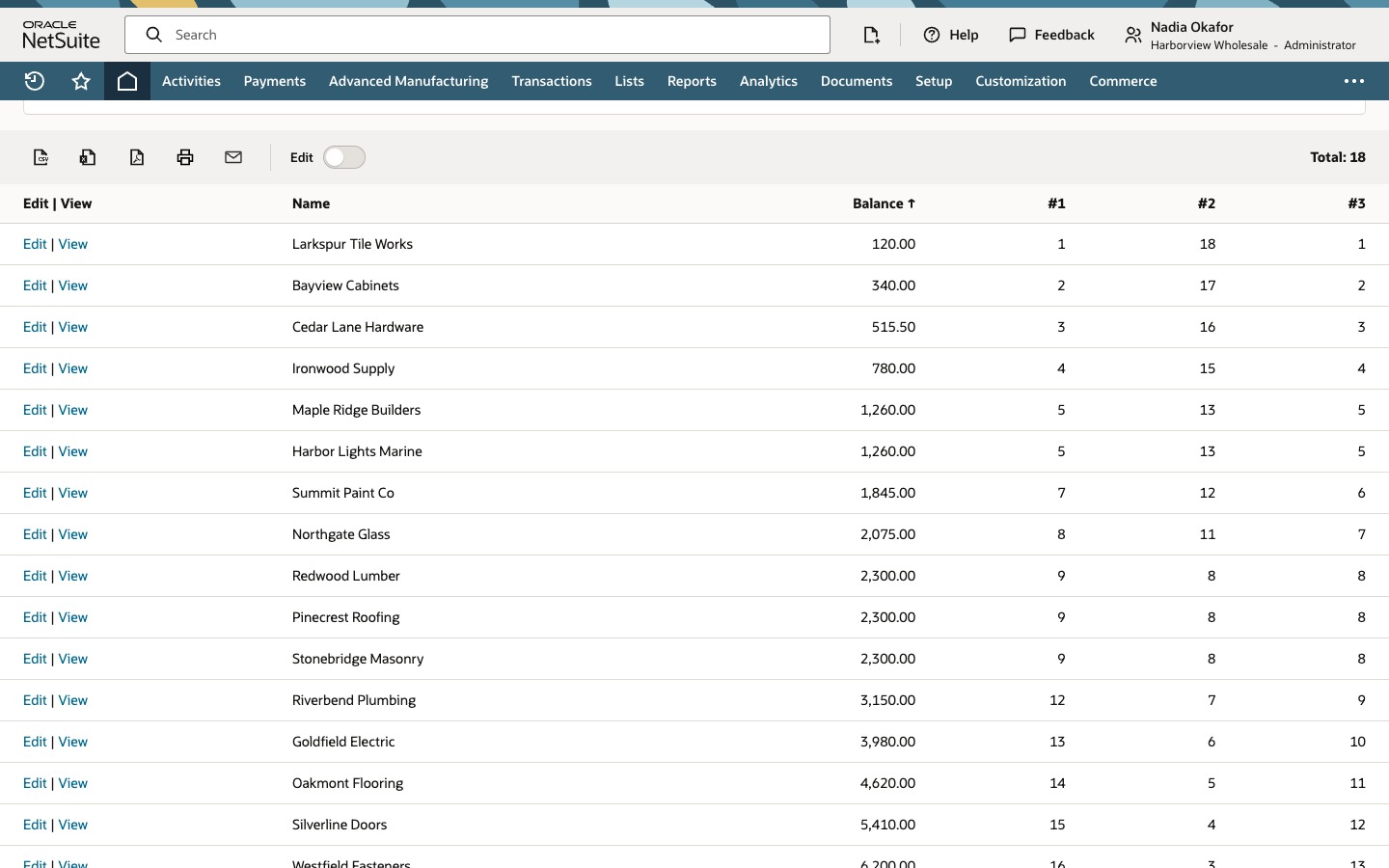
Click Preview. The results list the 18 customers by Balance ascending, with the rank columns labelled #1, #2 and #3 next to Balance.
Two customers owe exactly 1,260.00. Both read 5 under #1, 13 under #2 and 5 under #3. The next customer, at 1,845.00, reads 7, 12 and 6.
Compare #1 and #3. After the tie at 5, #1 jumps to 7 and #3 goes on to 6. #1 counts the two tied customers as two positions, so the next customer is the seventh. #3 counts the tie as one position, so the next customer is the sixth.
04. Compare the three columns on the larger tie
Scroll down the results to the three customers at 2,300.00. They read 9, 9, 9 under #1, 8, 8, 8 under #2 and 8, 8, 8 under #3. The next customer, at 3,150.00, reads 12, 7 and 9.
Check the result
- The results show Total: 18, sorted by Balance ascending, with #1, #2 and #3 next to Balance.
- The two customers at 1,260.00 read 5 and 5 under #1 and #3, and the next customer reads 7 under #1 and 6 under #3. #1 skips a number after the tie and #3 does not.
- The three customers at 2,300.00 read 9 under #1 and 8 under #3, and the next customer reads 12 under #1 and 9 under #3. The gap after the tie is now two numbers in #1 and none in #3.
- #2 counts down from the largest balance because its ORDER BY is descending while the rows are sorted ascending. The pair reads 13 and the next higher balance reads 12. The triple reads 8 and the next higher balance reads 7.
- If your numbers differ, check the criteria, the sort and the ORDER BY direction in each formula. A different criterion changes which customers are ranked.
Common questions
What is the difference between RANK and DENSE_RANK in a saved search?
Both give rows with the same value the same number. RANK skips numbers after a tie, so two rows at 5 are followed by 7. DENSE_RANK does not skip, so the same two rows are followed by 6. In this example the Rank function on a result column also left a gap after a tie, like RANK(). Each formula ranks by its own ORDER BY, so check the direction in each one before you compare their numbers.
Which one should I use?
Use DENSE_RANK() when you need consecutive rank numbers with no gaps, such as 1, 2, 3, where customers with the same balance share a number. Use RANK() or the Rank function when a gap after a tie is meaningful, because the number is then one more than the count of customers whose balances sort before it.
How do I rank customers from the highest balance to the lowest?
In a formula, put DESC in the ORDER BY, for example RANK() OVER (ORDER BY {balance} DESC). The direction in the formula decides the ranking, whatever the sort of the results. The Rank function follows the sort of its column, so for that column set the sort on Balance to Descending and check the first rows of the preview.
Why is a customer with a zero balance not ranked?
The search only ranks the rows it returns, and its criteria are Balance greater than 0.00. Customers with no balance are not returned, so they get no rank. Change the criteria and every rank changes with them.
Why does the rank restart on the second page of results?
In the account where this was built, the Preview showed ranks that restarted on the second page. A page held 50 rows there. Do not rely on a paged preview for a global rank until you have checked the behavior in your own account, for example by comparing the ranks on page two with the full list. Dashboards, scheduled emails and exports can also present a search differently, so test the one you use. If a rank has to cover every customer, test an approach that does not depend on paging.