The quick answer
Limit the search to the field you track with System Notes : Field is Ship Date, then add a Formula (HTML) result column with Summary Type Maximum: CASE WHEN <> THEN '<span style="color:#ff8853;font-weight:bold">' || || '</span>' END. Set the Custom Label and Summary Label to Previous Ship Date and the grouped rows show the old date in color.
The example is a saved search named Sales Order Ship Date Changes at Wexford Ridge Outfitters. Nadia Brandt, an administrator, edits it so each grouped sales order shows what its ship date used to be. Both names are fictional example data.
Before you start
A Formula (HTML) column needs the HTML Formulas in Search feature, on the Analytics subtab of Setup > Company > Enable Features, and a role with the Create HTML Formulas in Search permission. Use Formula (HTML), not Formula (Text), because only Formula (HTML) draws the markup.
System notes are a joined record. In a Transaction search, scroll to the bottom of the Filter list and choose System Notes Fields... to reach its Field, Old Value, New Value and Context filters. The same join supplies the formula references , and . Check them in the Formula popup's Field list instead of typing from memory.
01. Open the saved search and preview it
Go to Reports > Saved Searches and choose Edit beside Sales Order Ship Date Changes. The Criteria subtab has three rows: Type is Sales Order, Main Line is true, and System Notes : Field is Ship Date. Keep the third row. The formula below only compares old and new values, so without it a Terms or Status change on the same order would feed the new column.
Click Preview. The results are grouped by Date, Document Number, Customer, Location and Current Ship Date: SO3406, SO3412 and SO3419. Nothing shows what each date was before the change.
02. Add a Formula (HTML) column
Click Return To Criteria, open the Results subtab and click Add Row. For Field choose Formula (HTML). For Summary Type choose Maximum, so the grouped order keeps one value from its system-note rows.
03. Write the formula and label the column
Open the Formula popup and type a CASE expression. When the system note's old value is not equal to its new value, return the old value inside a span whose style sets a color and bold weight. A style can use a standard color name such as red or a hex code such as #ff8853.
CASE WHEN {systemnotes.oldvalue} <> {systemnotes.newvalue}
THEN '<span style="color:#ff8853;font-weight:bold">'
  || {systemnotes.oldvalue} || '</span>'
END
Click Set, enter Previous Ship Date as both the Custom Label and the Summary Label, and click Add. The Summary Label names the column on the grouped page and the Custom Label names it on the drill-down page. With only a Custom Label, the grouped heading would read Maximum of Previous Ship Date.
04. Preview the previous ship dates
Click Preview. The Previous Ship Date column shows 11/06/2026 for SO3406, 11/02/2026 for SO3412 and 12/15/2026 for SO3419, each in bold orange. Maximum on a text formula compares the generated text alphabetically, not as dates. Here every order's changes fall within one year, so the text order matches the date order. With MM/DD/YYYY text, a December 2026 date sorts after a January 2027 date, so check the column against the drill-down whenever an order's changes cross a year.
05. Drill into an order that changed twice
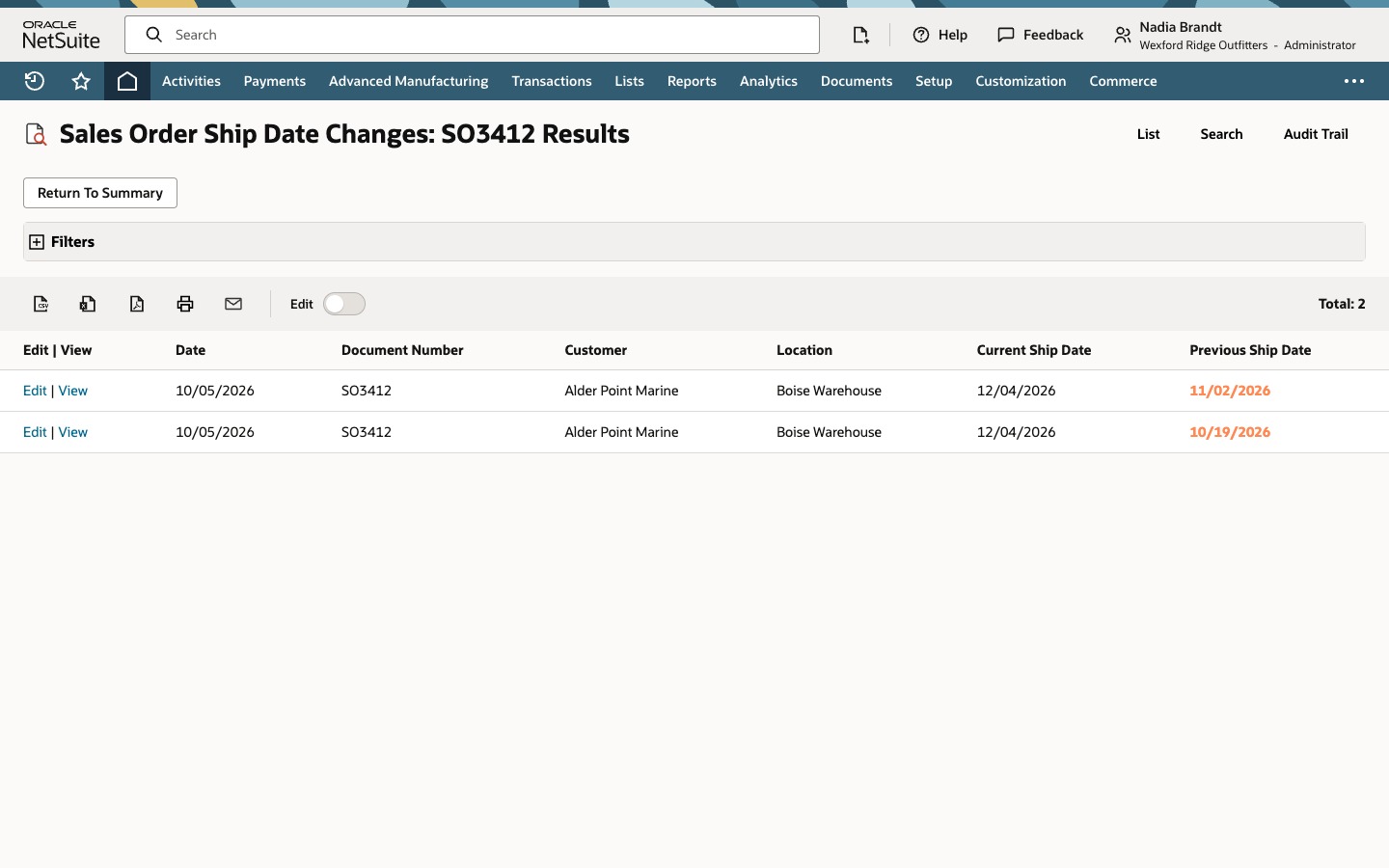
SO3412 changed twice, once through the UI and once through a CSV import, but the grouped row shows one date. Click its Document Number. The drill-down page lists one row per system note, newest change first, with Previous Ship Date 11/02/2026 and 10/19/2026 beside the Current Ship Date 12/04/2026. Return To Summary goes back.
The preview doesn't change the saved search. Click Save when you want the new column for everyone who runs it.
You're done when:
- the Formula (HTML) row has Summary Type Maximum, the CASE formula, and Previous Ship Date as both labels;
- every grouped order shows its previous ship date in color, not as markup text;
- the criteria still restrict System Notes : Field to Ship Date;
- you've checked an order that changed more than once against its drill-down.
Common questions
Why does Maximum sometimes show the wrong previous date?
Maximum on a text formula compares text alphabetically, not dates. In MM/DD/YYYY text, 12/15/2026 sorts after 01/12/2027, so an order whose changes cross a year can show an older date. Verify against the drill-down, and for a reliable history build a separate non-summary search that lists the system note Date, Old Value and New Value.
Why do I need System Notes : Field is Ship Date if the formula already compares old and new?
The formula only tests whether old and new differ. It does not say which field changed. A Terms or Status change on the same order also has an old and a new value, so without the criterion it could feed the Previous Ship Date column.
Why does my result show the tag as text?
The column is probably Formula (Text). Use Formula (HTML), which needs the HTML Formulas in Search feature and the Create HTML Formulas in Search permission.
Why does the saved search color the whole line when I use highlighting?
Highlighting in a saved search applies to the entire result line. Cell-level color comes from the HTML in a Formula (HTML) column, as in this guide.
Why are the grouped heading and the drill-down heading different?
The Summary Label names the column on the grouped page and the Custom Label names it on the drill-down page. Set both to the same text to keep one heading.