The quick answer
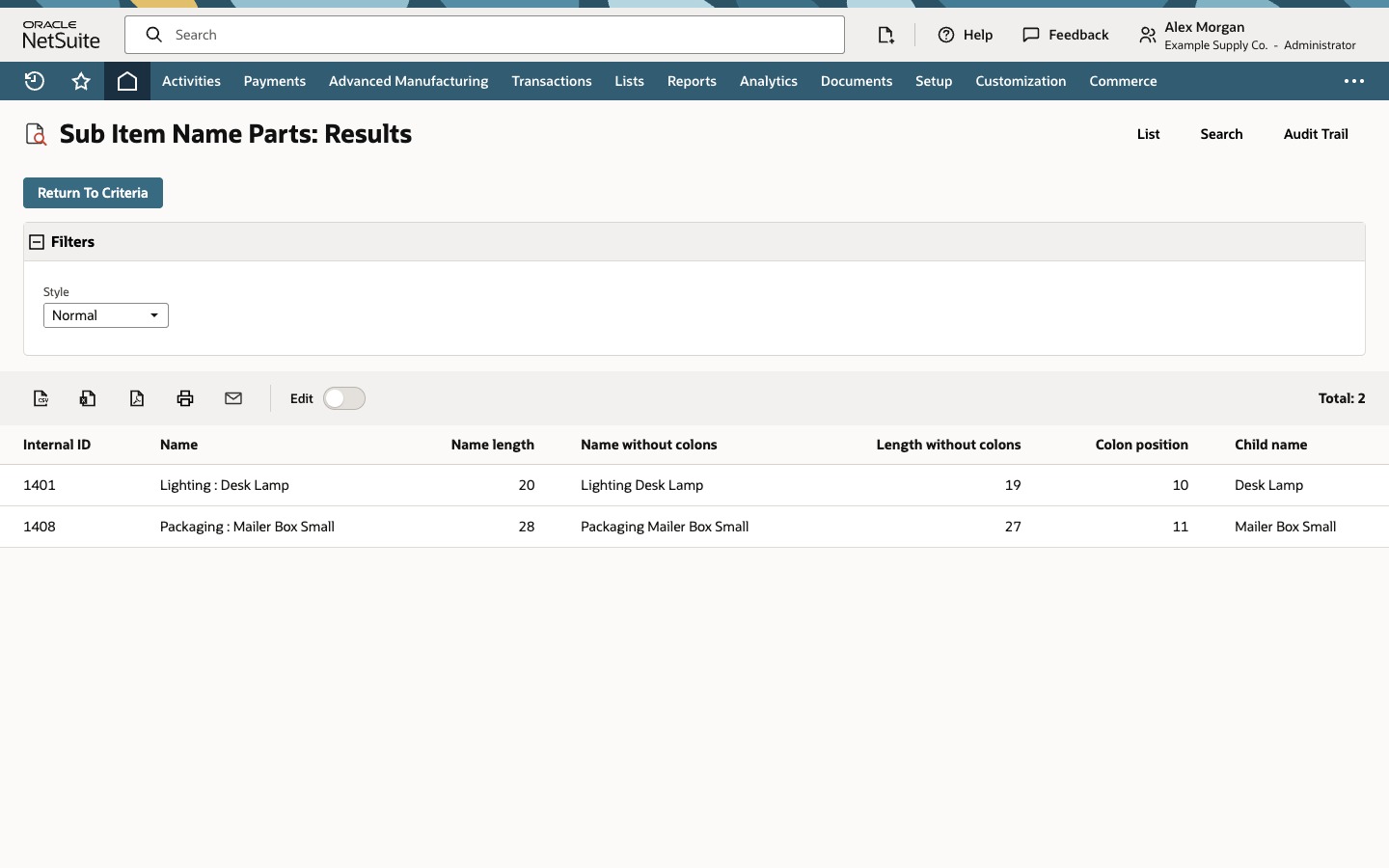
Add a Formula (Text) result column with TRIM(SUBSTR(, INSTR(, ':') + 1, LENGTH() - INSTR(, ':'))). INSTR finds the colon, SUBSTR reads everything after it, and TRIM removes the leading space. Build it in small steps first: a length, a colon position, then the extraction.
The example is a saved item search named Sub Item Name Parts at Example Supply Co. Alex Morgan, an administrator, wants the child part of names such as Lighting : Desk Lamp without exporting to a spreadsheet. Both names are fictional example data.
Before you start
On an item search, is the full hierarchical item name, for example Lighting : Desk Lamp. The functions follow Oracle rules: positions start at 1, and each function returns nothing when its input is empty. Use Formula (Numeric) when a formula returns a number, such as LENGTH or INSTR, and Formula (Text) when it returns text, such as REPLACE or SUBSTR.
This search only lists items whose Sub-Item Of field is filled in. Check first whether a native field already gives you the child name before you parse text, and expect the parsing to work only when names follow one pattern.
01. Open the saved item search and preview it
Go to Reports > Saved Searches and choose Edit beside Sub Item Name Parts. Click Preview. Two sub-items are listed by Internal ID and full name: Lighting : Desk Lamp and Packaging : Mailer Box Small. The name holds a parent and a child in one value.
02. Count the characters in the name
Click Return To Criteria, open the Results subtab and click Add Row. For Field choose Formula (Numeric), open the Formula popup, type LENGTH() and click Set. Enter the Custom Label Name length and click Add.
Click Preview. Name length is 20 for Lighting : Desk Lamp and 28 for Packaging : Mailer Box Small. Spaces and the colon are counted.
03. Remove the colons and measure again
Add a Formula (Text) row with REPLACE(, ':', '') and the label Name without colons. Add a Formula (Numeric) row with LENGTH(REPLACE(, ':', '')) and the label Length without colons. REPLACE removes every colon, not just the first, and it leaves the spaces around it, so a page may show a wider gap where the colon was.
04. Find the colon
Add a Formula (Numeric) row with INSTR(, ':') and the label Colon position. INSTR returns the position of the first colon, or 0 when there is no colon. The colon is at position 10 in Lighting : Desk Lamp and 11 in Packaging : Mailer Box Small.
05. Return only the child name
Add a Formula (Text) row with the extraction and the label Child name. SUBSTR(text, start, length) returns length characters beginning at start. Starting at the colon position plus 1 begins right after the colon. The length is the full length minus the colon position, which is how many characters are left. The separator is a colon with a space on each side, so that start leaves a leading space, and TRIM removes it.
TRIM(SUBSTR({name}, INSTR({name}, ':') + 1, LENGTH({name}) - INSTR({name}, ':')))
Click Preview. Child name returns Desk Lamp and Mailer Box Small.
An item with no colon gives INSTR 0, and this formula returns the whole name unchanged. Say that explicitly with CASE WHEN INSTR(, ':') = 0 THEN ELSE ... END if you want to be sure. A name with several levels, such as A : B : C, returns B : C because INSTR finds only the first colon.
You're done when:
- each length and position column matches a count you checked by hand;
- the Child name column returns the child part for every item in the search;
- you've decided how items without a colon and names with more than one level should look.
Common questions
Should I use Formula (Text) or Formula (Numeric) for LENGTH and INSTR?
Formula (Numeric) for LENGTH and INSTR, because they return numbers. Formula (Text) for REPLACE and SUBSTR, because they return text. A text result that is a number still sorts as text.
Why does my SUBSTR formula leave a leading space?
The separator is usually a colon with spaces around it, so starting one character after the colon begins at the space. Wrap the result in TRIM, or start at the colon position plus 2 when the separator is always exactly a space, a colon and a space.
What does INSTR return when the character is not found?
- With no colon, the formula above returns the whole name. Use a CASE expression to make that behavior explicit.
Does REPLACE remove only the first colon?
No. REPLACE removes every occurrence of the text you search for. It does not remove the spaces around it.
How do I filter a saved item search to sub-items?
Use the Sub-Item Of criterion, for example is not empty, or the Is Sub Item criterion where your Item search offers it. Check the Filter list in your account for the exact names.