The quick answer
On a sales order in a configured PayPack account, put the PayPack tax code on each relevant item line and confirm the shipping address, cost, and Shipping Tax Code. Click Save. Read the saved tax and total, then open PayPack Data → PayPack Tax Calculations to check the external calculation ID, response, and status.
This walkthrough reconstructs the add-on workflow with fictional example data. The inspected NetSuite account did not have the PayPack add-on, so its custom subtab and calculation behavior were matched to the demonstrated interface, not tested in that account. Screenshot account names are fictional replacements. The amounts and 9.75% rate belong to this example, not to every customer or destination.
Before you start
The demonstrated account had a working PayPack connection to Stripe Tax and prepared tax configuration. Before trying this in another account, check its Stripe Tax registrations, NetSuite nexus and tax setup, item and customer tax settings, and the add-on configuration. Exact requirements depend on the installed release and tax engine. If your form has no PayPack Data tab or no PAYPACK tax code, check the installed add-on, form, role access, and setup before following the steps.
Use a legitimate test order or sandbox when checking this behavior; a saved order can trigger other workflows or integrations. The example order, SO-0615, has two items totaling 600.00: a City Bicycle for 310.00 and a Road Bicycle for 290.00. Shipping to Beverly Hills, CA 90210 costs 5.00.
01. Check the item tax codes
Open the prepared sales order in edit mode. Confirm its customer, subsidiary, currency, date, item quantities and prices before changing tax. Both item lines have Tax Code PAYPACK. In this demonstration, the edit form still displays 0.0% and a 605.00 total; the external calculation has not returned its final amount yet. Do not treat that placeholder as a tax decision.
02. Check shipping
Open Shipping. Verify the ship-to address, 5.00 shipping cost, and PAYPACK in Shipping Tax Code. The demonstrated calculation request includes the destination and item amounts, so correct an unintended address or code before saving. Other versions may show different fields or use a different path.
03. Save and reconcile
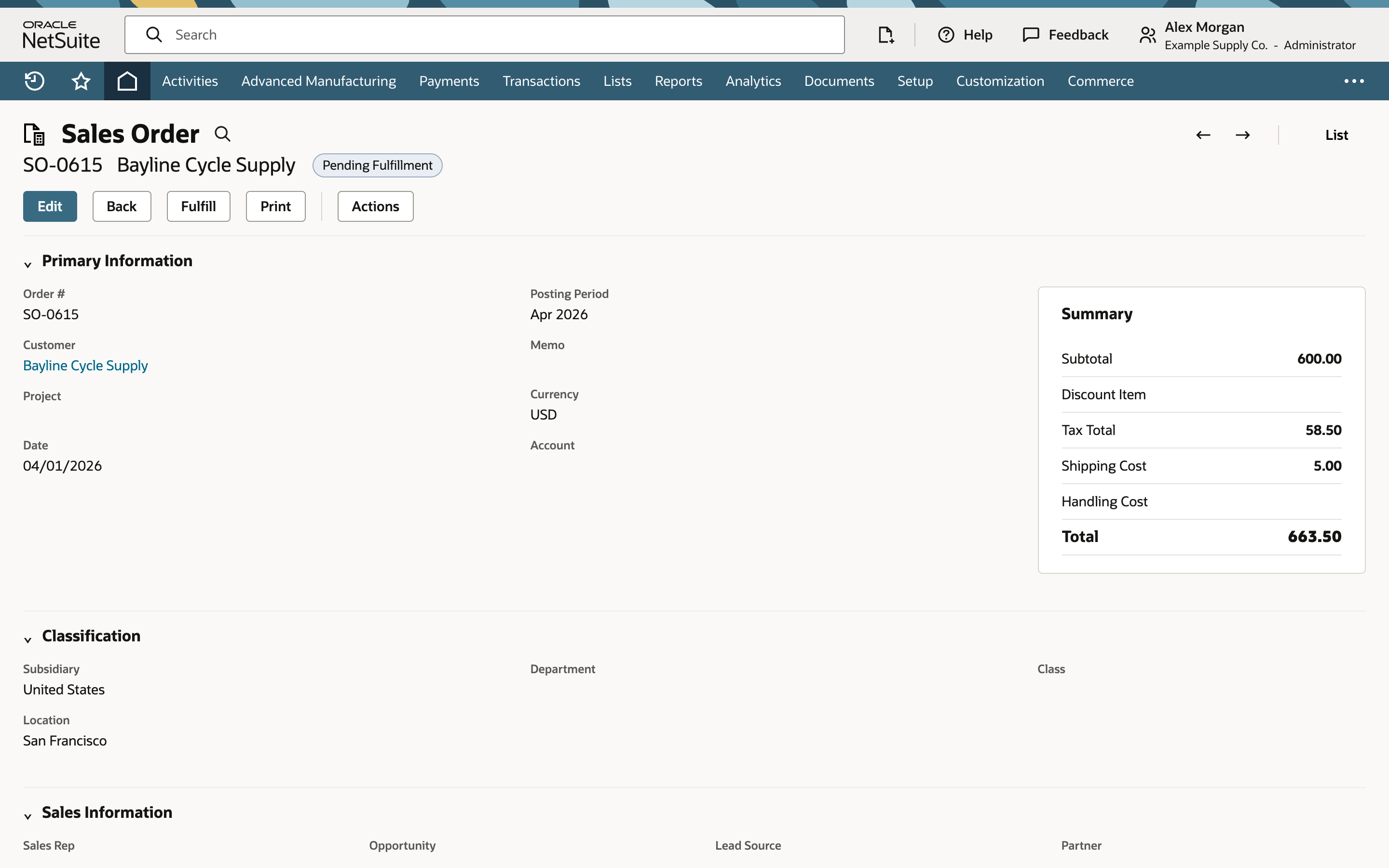
Click Save, then inspect the result before making another change or saving again. In the demonstrated flow, the saved order remains Pending Fulfillment. Its summary now reads 600.00 subtotal, 58.50 tax, 5.00 shipping, and 663.50 total. The item lines show a 9.75% calculated rate. The example's 58.50 tax equals 600.00 × 9.75%, while 5.00 shipping appears separately in the total. Those summary figures alone do not establish the shipping tax treatment or the underlying jurisdiction rows.
If your total differs, check the destination, item taxability, customer status, registrations, and the returned calculation. Do not replace a disputed external result with a manually typed rate just to match this example.
04. Check the calculation log
Open PayPack Data → PayPack Tax Calculations on the saved order. The row has an external calculation ID and the request and response. Its status is Success in this demonstrated account; the subtab name and exposed fields can vary by form, role, and add-on version. Read the response alongside the saved summary: this example reports 66350 in cents for the order total and 5850 in cents for tax. Keep the calculation ID for troubleshooting. Redact customer details and any sensitive payload data before sharing a request or response.
Common questions
Why does the item line show 0% before I save?
In this demonstrated PayPack setup, the edit form showed 0.0% before Save, and the saved order showed calculated tax. Other accounts may preview or calculate differently. Check the saved record and calculation row for the result.
Is the 9.75% rate fixed for every order?
No. This is the displayed effective rate for the prepared example. The rate and taxable base can change with destination, date, registrations, item tax codes, customer status, shipping treatment, and the external response.
Where can I tell whether the calculation succeeded?
In the demonstrated account, open PayPack Data → PayPack Tax Calculations on the saved order. Check the row's external ID, available request and response fields, and Success status. Other forms or roles may expose these details elsewhere. Reconcile the response amounts to the saved summary.
Does a successful calculation mean tax was filed?
No. It shows a tax calculation associated with the sales order. This walkthrough does not show a tax return, remittance, or filing confirmation.