The quick answer
Open the saved sales order, choose Edit, and return to Items → Withholding Tax. Confirm the eligible base, select the existing withholding Tax Code, check the recalculated Tax Rate and Tax Amount, then save. Reopen the withholding area on the saved order to confirm the new code and amount persisted.
In this example, a 7,000.00 eligible net base produces 350.00 at 5% and 980.00 at 14%. The screenshots use sample data and fictional person and operating-company names. They reconstruct a legacy Withholding Tax SuiteApp workflow from a 2020 product walkthrough; your account's availability, forms, codes, and calculation base may differ.
Before you start
Use an editable sales order in a legacy-tax account with SuiteTax disabled and the Withholding Tax SuiteApp installed and configured for the relevant nexus. Sales withholding must be enabled and sales orders allowed. Your role and form must show the withholding area. The replacement code must already exist and be valid for this transaction. For the numbers below, both codes belong to the same withholding tax type, the type uses Net Amount as its base, and each code uses 100% of that eligible base. Those are example conditions, not settings for every withholding workflow. Availability depends on the country, localization, nexus, subsidiary, form, role, and SuiteApp configuration.
Check the account's sales withholding Tax Point when you need to know when accounting impact is expected. The order display alone does not establish whether the configured workflow records withholding at invoice or payment time.
01. Inspect the starting amount
Open the saved sales order and select Items → Withholding Tax. This order starts with Service Withholding:5%, a 5.0% rate, and a 7,000.00 eligible base. Its withholding Tax Amount is 350.00.
02. Check the base in Edit mode
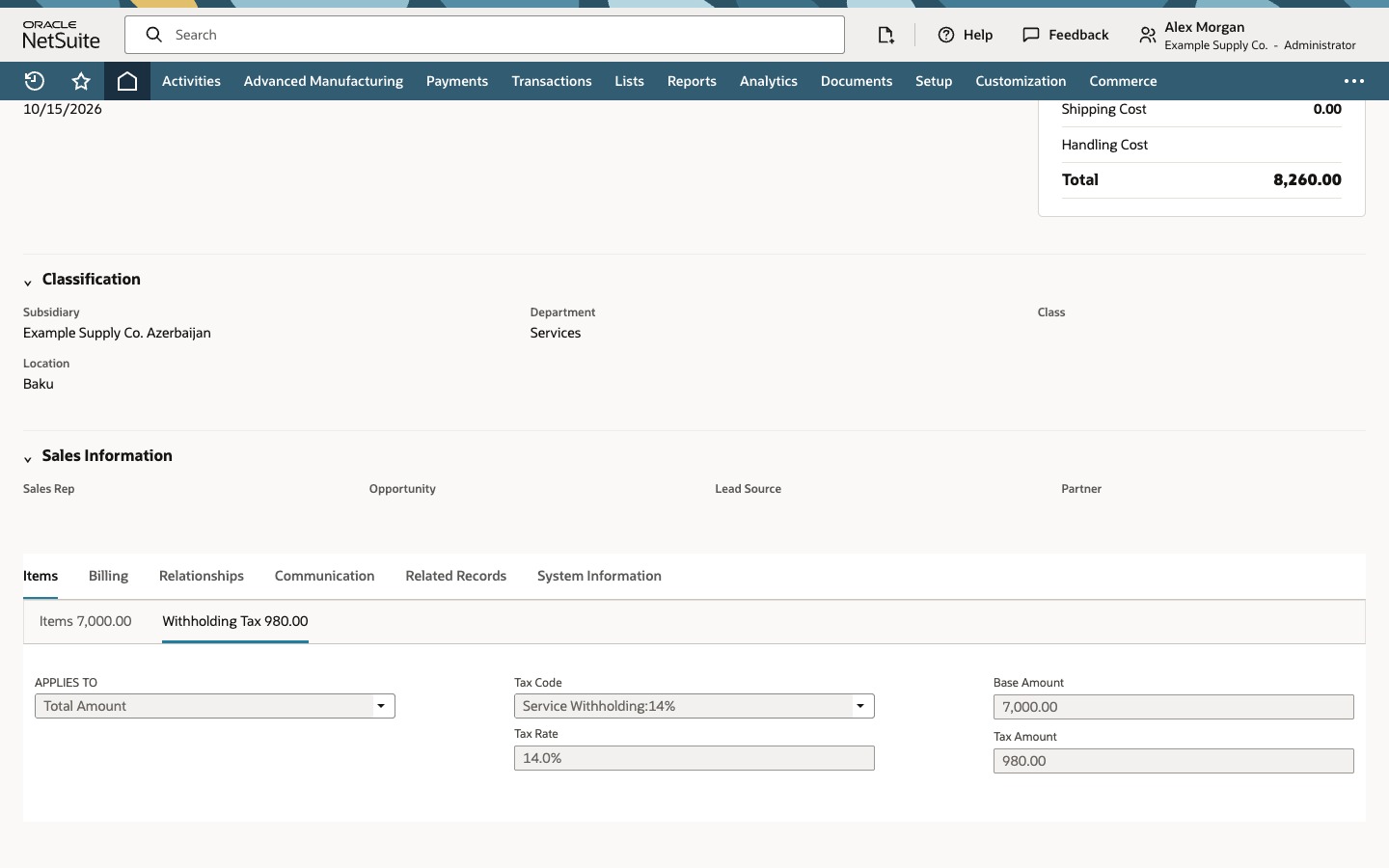
Click Edit and return to Items → Withholding Tax. Leave Applies To at Total Amount and confirm Base Amount is still 7,000.00. On this form, “Total Amount” chooses transaction-level application; the eligible base shown here is the net amount, not the VAT-inclusive order total.
03. Change the code
Open Tax Code and choose the existing Service Withholding:14% code. Before saving, confirm Tax Rate reads 14.0% and Tax Amount reads 980.00. On this order, 7,000.00 × 14% = 980.00. A different eligible base or percentage of base would produce a different result.
If the 14% code is missing, check whether it is active and valid for the order's nexus, subsidiary, date, and sales-order transaction type. Also check role and form access. Do not substitute a code for another withholding tax type just because it has the same rate.
04. Verify the saved order
Click Save. On the saved order, return to Items → Withholding Tax and confirm the 14% code, 7,000.00 base, and 980.00 withholding amount remain. The ordinary tax summary is 1,260.00 and the order total is 8,260.00 in this example. Those figures are separate from the withholding calculation shown here.
Check the result
- The saved Tax Code is the intended 14% code.
- The eligible base is still 7,000.00.
- The saved withholding Tax Amount is 980.00.
This check covers the order's displayed calculation and saved selection. It does not establish statutory treatment, GL posting timing, invoice or payment behavior, or remittance. Review the configured Tax Point and the relevant later transaction before drawing those conclusions.
Common questions
Why does “Applies To: Total Amount” show a 7,000.00 base instead of the 8,260.00 order total?
“Total Amount” selects transaction-level withholding application; it does not necessarily equal the visible order total. This example's tax type uses an eligible Net Amount base of 7,000.00. The ordinary tax summary of 1,260.00 and order total of 8,260.00 are separate values on this order. Another type or excluded line can produce a different base.
Why can't I see the 14% code?
The code may be inactive, outside its effective dates, unavailable on sales orders, or invalid for the order's nexus, subsidiary, or withholding tax type. Check that sales withholding is enabled and sales orders are allowed. The role or form may also hide the field. This legacy workflow requires SuiteTax to be disabled; accounts can expose these checks under different labels.
What if the amount changes before Save but not afterward?
Reopen the saved withholding area and compare the code, base, rate, and amount. An unsaved calculation is not proof that the selection persisted. If one changed, check the order's date, nexus, subsidiary, and code validity, then investigate account-specific recalculation, sourcing scripts, workflows, or integrations.
Does 980.00 reduce the VAT summary or post a liability immediately?
The replay proves only that the order displayed and saved a 980.00 withholding amount. It does not prove that the amount reduces the ordinary VAT summary, changes the customer-facing total, or posts immediately. Check the configured Tax Point and later invoice or payment. Where accounting impact is expected, inspect that saved transaction's GL Impact and withholding records.