The quick answer
Connect an Item Fulfillments dataset and an Invoiced Orders dataset in one SuiteAnalytics workbook and link them on Customer, Created From (the sales order) and the item. Put Sales Order and Item in the pivot rows, add Fulfilled Qty (Sum) and Invoiced Qty (Sum) as measures, and add a calculated measure named Difference that subtracts the invoiced quantity from the fulfilled one. A row where Difference is not zero is a line where the fulfilled and invoiced quantities differ, usually because it shipped with no invoice quantity yet or with fewer units invoiced than shipped. Sort by Difference to bring the biggest gaps to the top, then open each sales order to see what still needs an invoice.
The screenshots show sample data. Company, person, customer, item and order names are fictional. Use your own records and values when following the steps.
Before you start
You need the SuiteAnalytics Workbook feature turned on and a role that can open workbooks and datasets and see the item fulfillments and invoices they read. The workbook only shows what your role is allowed to see, so two users can get different numbers from the same workbook. Viewing a workbook, changing its layout and saving a shared dataset are separate kinds of access, and the steps below only need the first. Field names, menu labels and available commands depend on your release, features and role.
In this example the workbook Fulfillment to Invoice Check, its two datasets and the link between them already exist. The company is Harborline Supply Co., which ships from stock and invoices later, and the billing analyst is Priya Nair. These steps read the setup and sort the result. They don't build the datasets or create the link, and every dialog you open ends with Cancel, so nothing in the workbook or the datasets changes.
A workbook is an analytical view of your data. It points you at lines to check, but it doesn't replace the sales order, the item fulfillment or the invoice. A highlighted row is a lead to investigate, not a confirmed billing error.
Know what the sheet compares before you read it. It adds up fulfilled and invoiced quantities for each sales order and item. It doesn't match one fulfillment to one invoice, so it can say that a quantity is still open on an order but not which shipment is unbilled. If the same item sits on two lines of one order, those lines are added together. The two datasets also leave out returns, credit memos, cash sales, invoices created without a sales order and fulfillments that didn't come from a sales order, and neither dataset limits dates. If you add a date range or any other criterion, put it on both datasets, and check that the two quantities use the same unit of measure.
01. Open the workbook and read the Billing Gaps sheet
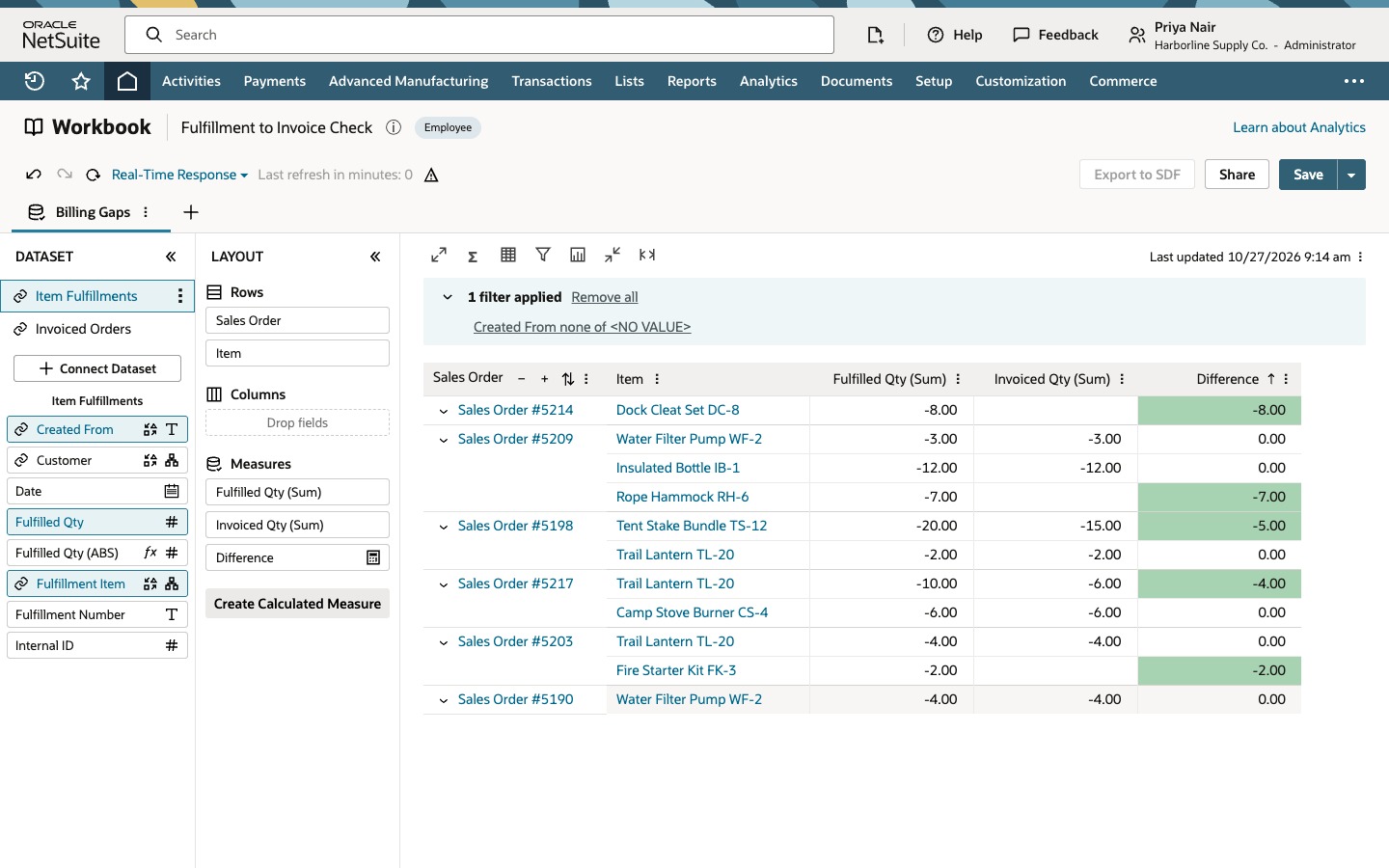
Click Analytics in the navigation bar and open Fulfillment to Invoice Check from the Workbooks list. It opens on one sheet, Billing Gaps. The Layout panel shows Sales Order and Item as the rows and three measures: Fulfilled Qty (Sum), Invoiced Qty (Sum) and Difference. The banner above the grid reads 1 filter applied and lists Created From none of <NO VALUE>, which hides rows that have no sales order.
The Last updated time at the top right of the grid tells you how current the numbers are. Rows where Difference is not zero are shaded green. Five of them stand out here. Dock Cleat Set on Sales Order #5214 was fulfilled for 8 and has no Invoiced Qty. Rope Hammock on #5209 was fulfilled for 7 and has none either. Fire Starter Kit on #5203 was fulfilled for 2 and has none. Tent Stake Bundle on #5198 was fulfilled for 20 and invoiced for 15, and Trail Lantern on #5217 was fulfilled for 10 and invoiced for 6. Rows with a Difference of 0.00 are not shaded.
02. Check the Item Fulfillments dataset
Before you trust the sheet, look at what each dataset includes. In the Dataset panel, click the three-dot menu beside Item Fulfillments. It lists Open Dataset, Save Changes, Discard Changes and, in this example, Edit Dataset Link. Choose Open Dataset.
The dataset opens as its own page, with a banner saying it is used in 1 other workbook and that a change made here affects those workbooks. The Criteria summary lists four conditions: Type is Item Fulfillment, Transaction Line: Item none of Freight Charge, Transaction Line: Tax Line is false, and Created From (Sales Order): Status none of Billed, Cancelled, Closed. The grid below shows the columns the workbook can use, starting with Customer, Transaction Line: Created From and Fulfillment Item.
Scroll the grid to the right. It ends with Fulfilled Qty (ABS), which is positive, and Fulfilled Qty, which holds negative numbers such as -4.00 and -12.00. The pivot uses the signed Fulfilled Qty, which is why the sheet shows -8.00 for Dock Cleat Set. Click Cancel to return to the workbook without changing the dataset. Don't use Apply to workbook or Save here, because editing a shared dataset affects every workbook that uses it.
03. Check the Invoiced Orders dataset
Click the three-dot menu beside Invoiced Orders in the Dataset panel and choose Open Dataset. Its criteria are Type is Invoice, Transaction Line: Tax Line is false and the same Created From (Sales Order): Status none of Billed, Cancelled, Closed. It has three criteria, not four, because only the fulfillment dataset excludes the freight item. The columns include Date, Transaction Line: Created From, Customer, Invoice Doc Number and Invoice Item.
Scroll right to find Invoiced Qty and Invoiced Qty (ABS). Invoiced Qty is negative here too, for example -4.00 and -10.00, so a fulfilled and an invoiced quantity that match give a Difference of 0. Click Cancel.
Because both datasets exclude sales orders that are Billed, Cancelled or Closed, an order that is fully billed or closed never reaches the sheet. A Difference of 0.00 therefore means the quantities match within this scope. It doesn't prove the order is fully billed, and the sheet isn't a list of every order, because it leaves out the ones that are already Billed or Closed.
04. Check how the datasets are linked
Click the three-dot menu beside Invoiced Orders again and open the dataset link. In this example the command reads Edit Dataset Link, and before a link exists it can read differently, for example Create Dataset Link. The Dataset Linking page shows Item Fulfillments as Dataset 1 and Invoiced Orders as Dataset 2. Under Common Keys there are three pairs: Customer with Customer, Created From with Created From, and Fulfillment Item with Invoice Item.
These keys decide which fulfilled quantity lines up with which invoiced quantity: the same sales order and the same item, with the customer on both transactions as a third check. Date, document number and quantity make poor keys. A fulfillment and its invoice normally have different dates and numbers, and linking on quantity can split a partial billing into two rows that never match. The item is not a line identifier either, so two lines for the same item on one order come out as one row. A field you put in the pivot rows generally needs a matching key pair, which is why Sales Order and Item are covered by Created From and Fulfillment Item with Invoice Item.
Click Cancel. You land back on the Billing Gaps sheet, and its rows and values are the same as before. Linking datasets doesn't change either dataset and doesn't create or change any transaction. It lets a pivot or chart in this workbook put measures from both datasets against the common fields. The link belongs to the workbook.
05. Sort the sheet by Difference
In the Layout panel, point at Difference, click its three-dot menu and choose Sort by Difference. The menu also offers Remove All Sorts, Conditional Formatting, Filter by, Edit and Format.
An arrow appears beside the Difference heading and the sales orders reorder. In this example the order is #5214 (-8), #5209 (-7), #5198 (-5), #5217 (-4), #5203 (-2) and #5190 (0), so the most negative orders come first. The sheet ranks each sales order by its Difference for the whole order, and the items inside an order stay in their own order. That is why Rope Hammock, at -7.00, sits below Water Filter Pump and Insulated Bottle, which both read 0.00. The five shaded rows are still the lines to look at. Check the direction of the sort on your own data, because a negative Difference sorts to the top only when the sort runs from the lowest value up.
06. Confirm how Difference is calculated
In the Layout panel, click the calculator icon beside Difference. The Calculated Measure page shows the name Difference and the definition Fulfilled Qty (Sum) - Invoiced Qty (Sum). It is worked out from the two measures at each row, subtotal and total, not stored on any record. With both quantities negative, Dock Cleat Set gives -8.00 minus a blank Invoiced Qty, which is -8.00, and Tent Stake Bundle gives -20.00 minus -15.00, which is -5.00. A negative Difference means more was fulfilled than invoiced. If you ever compare the (ABS) columns instead, the sign flips, so use signed quantities for both measures or the absolute ones for both.
Click Cancel to return to the sorted sheet. Then, outside this workbook, open the sales order for each shaded row and check whether it still needs an invoice.
Check the result
- Each shaded row is a line whose fulfilled quantity doesn't match its invoiced quantity: #5214 Dock Cleat Set (-8.00), #5209 Rope Hammock (-7.00), #5198 Tent Stake Bundle (-5.00), #5217 Trail Lantern (-4.00) and #5203 Fire Starter Kit (-2.00).
- For a blank Invoiced Qty, the fulfilled quantity and the Difference are equal, as for Dock Cleat Set (-8.00 and -8.00). For a partial invoice, Difference is the fulfilled quantity minus the invoiced one, for example -20.00 minus -15.00 for Tent Stake Bundle.
- Rows with a Difference of 0.00 are not shaded, and the Difference heading shows the sort arrow.
- Open each shaded line's sales order and its related fulfillments and invoices. Treat a gap as a lead until you see the invoice that is missing or short. A blank Invoiced Qty can also come from an invoice that a dataset criterion, a status, your role's permissions, a different item or a missing sales order link left out of the match.
Common questions
How do I compare fulfilled and invoiced quantities in a NetSuite workbook?
Connect an item fulfillment dataset and an invoice dataset to the same workbook and link them on the common fields. Build a pivot with the sales order and item as rows, add the summed fulfilled and invoiced quantities as measures, then add a calculated measure that subtracts one from the other. Sort by that measure to list the largest gaps first. The comparison is at the level of sales order and item, so treat each difference as something to investigate, not a final answer.
What does linking two datasets do, and does it change my transactions?
A link lets a pivot or chart show measures from both datasets against the common fields you chose on the Dataset Linking page. It doesn't change either dataset and it doesn't create or edit any transaction. The link belongs to the workbook. Saving a change to a shared dataset is a different action and can affect other workbooks that use it.
Does the workbook match each fulfillment to its invoice?
No. The datasets are related through the common key values, and the measures are added up for each row of the pivot. The sheet can show that 5 units of an item on an order are fulfilled and not invoiced, but it can't say which fulfillment is the open one when an order has several fulfillments and invoices for the same item. If keys are loose or not unique, quantities can be associated with the wrong row or show up more than once, so test an order that has several fulfillments and invoices before you rely on the sheet.
Which fields should I link item fulfillments and invoices on?
Link on what identifies the same line of the same order: the sales order the transactions were created from and the item, with the customer as an extra check. Date, document number and quantity are poor keys, because a fulfillment and its invoice usually have different dates and numbers and a quantity key can split a partial billing into rows that don't match. The item doesn't identify a line, so two lines for the same item on one order are combined. If your datasets expose a source line identifier on both sides, that is a stronger key.
Why is Invoiced Qty blank next to a fulfilled quantity?
A blank means no invoice row contributed a value at that row of the pivot. The most common reason is that the line hasn't been invoiced, but it can also be an invoice that a criterion or status excludes, one your role can't see, one for a different item, or one created without a link to the sales order. A blank is not the same as 0.00, and it isn't proof the line is unbilled. Open the sales order and its related records before you bill anything.