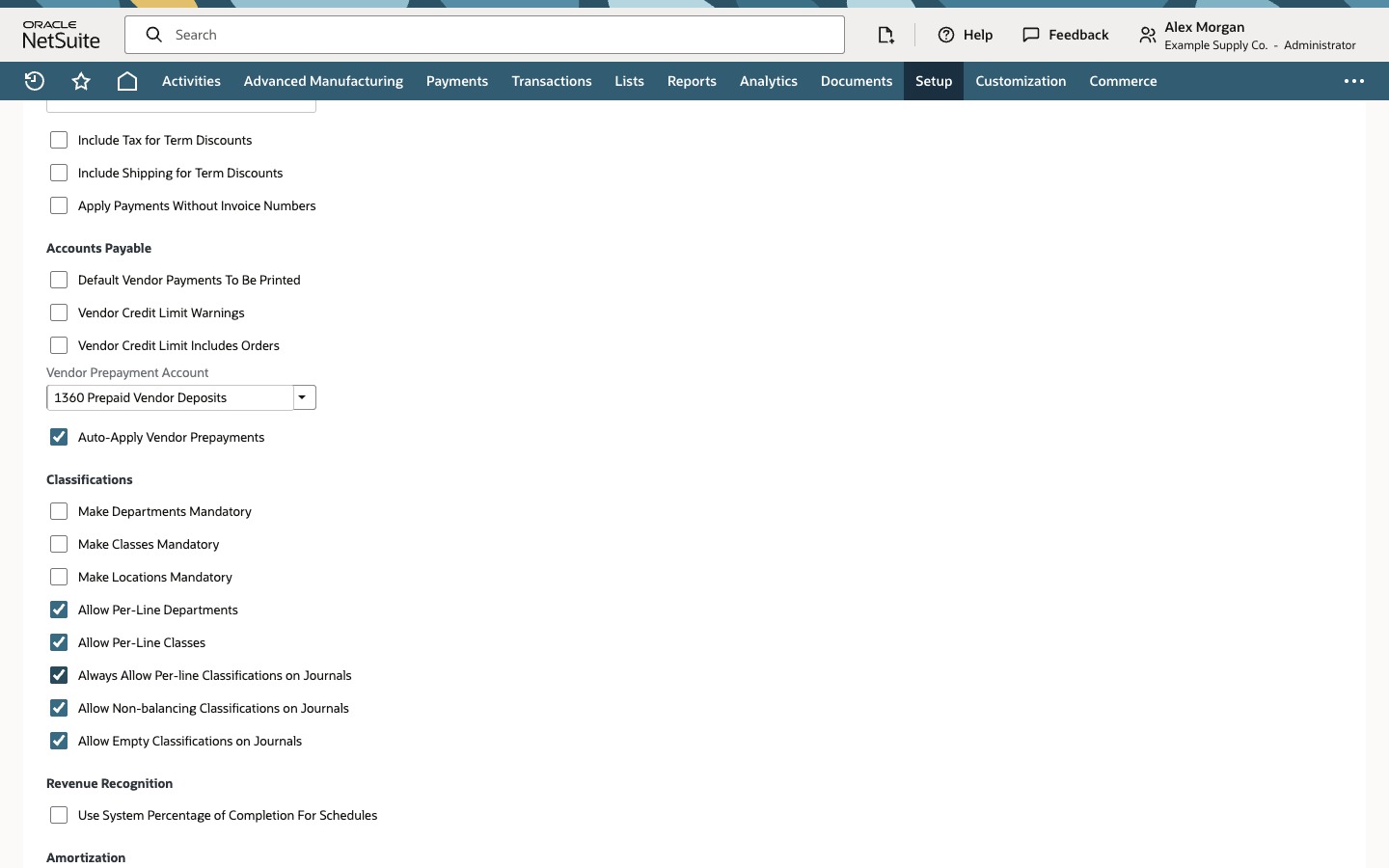
The quick answer
Go to Setup > Accounting > Accounting Preferences, stay on the General subtab, and scroll to Classifications. Check Allow Non-balancing Classifications on Journals and Allow Empty Classifications on Journals, then click Save. The non-balancing option can only be used while Always Allow Per-line Classifications on Journals is checked. All three are account-wide preferences, so they apply to every user.
The screenshots show sample data. The person and company names are fictional. Use your own account and values when following the steps.
Before you start
Department, Class and Location are NetSuite's classification fields. Three preferences in the Classifications group decide how journal entries handle them. Always Allow Per-line Classifications on Journals lets each journal line carry its own Department, Class or Location, whatever the ordinary per-line preferences say. Allow Non-balancing Classifications on Journals relaxes the rule that debits and credits must also balance within each classification. Allow Empty Classifications on Journals lets a journal line leave a classification blank even when a Make Departments Mandatory, Make Classes Mandatory or Make Locations Mandatory preference is on.
You need a role that can change Accounting Preferences. The Administrator role can, and another role typically needs the Setup Accounting permission, though the exact name can vary by role and account. Permission to create, import or approve journals is separate.
Check that Departments, Classes and Locations are turned on and actually used in your account. If users need to enter classifications on journal lines, check that your journal form shows the Department, Class and Location columns: the preference permits line-level entry but does not add the columns to a custom form. The ordinary per-line preferences also include Allow Per-Line Locations, which does not appear in the group in this example. NetSuite can hide it, for instance when Multi-Location Inventory is on, so a missing checkbox is not necessarily a problem.
These are account-wide preferences. A change applies to journals saved or generated afterwards and does not rewrite journals that already exist. Write down the current values first, and in a shared account set them back after testing unless your accounting owner wants them kept.
This walkthrough changes the preferences and shows that they saved. It does not save a journal under the new settings, so it does not show what a journal will or will not accept. Test that with your own journals before you tell users what to expect.
Menu paths below are the ones in the account used for this example. If a page is not where it says, search for its name in global search.
01. Open Accounting Preferences
Point to Setup in the navigation bar, choose Accounting, and then choose Accounting Preferences near the bottom of the list. The page opens on the General subtab with Save and Cancel above the subtabs.
02. Review the journal options
Scroll down the General subtab to the Classifications group. It lists the three Make ... Mandatory options, Allow Per-Line Departments and Allow Per-Line Classes, and then the three journal options.
The starting values depend on your account, so note them before you change anything. In this example the three Make ... Mandatory options are unchecked, both per-line options are checked, Always Allow Per-line Classifications on Journals is checked, and Allow Non-balancing Classifications on Journals and Allow Empty Classifications on Journals are unchecked.
03. Check what non-balancing needs
Clear Always Allow Per-line Classifications on Journals without saving. Allow Non-balancing Classifications on Journals turns grey and cannot be checked, while Allow Empty Classifications on Journals stays available. Check the per-line option again and the non-balancing option becomes usable.
If you try this yourself, put the checkbox back before you leave the page or click Cancel, so nothing is saved by accident. The dependency is what the account used for this example showed, so check it in yours.
04. Allow non-balancing classifications
With Always Allow Per-line Classifications on Journals checked again, check Allow Non-balancing Classifications on Journals. This is the option that relaxes the extra rule that a journal must balance within each Department, Class or Location. Total debits must still equal total credits on every journal, and subsidiary, intercompany, period, approval and custom validation rules still apply.
Classification-level balancing is not applied the same way on every journal path. In the account used for this example, a manual journal with its debit line in one department and its credit line in another saved even while this option was off. That does not show the option is ignored: the result can depend on the form, the classifications used, the account setup and the entry path. Journal imports and other processing paths can apply the check. Test the exact journal type and route you use.
05. Allow empty classifications
Check Allow Empty Classifications on Journals. This is the option that lets journal lines leave Department, Class or Location blank when a Make ... Mandatory preference is on. It is an exception for journals only. It does not make classifications optional on bills, invoices, time entries or expense reports, and it does not override mandatory fields or validation added by a custom field, workflow or script.
It matters most when Intercompany Time and Expense is on together with mandatory classifications, because journals created by that feature may not have a value for every classification. In this example all three Make ... Mandatory options are off, where blank classifications are already allowed, so the option changes nothing until one of them is turned on.
06. Save and confirm
Click Save. In the account used for this example NetSuite returned to the Setup Manager. Open Setup > Accounting > Accounting Preferences again and scroll to Classifications. Always Allow Per-line Classifications on Journals, Allow Non-balancing Classifications on Journals and Allow Empty Classifications on Journals are all checked.
Check the result
- Classifications shows Always Allow Per-line Classifications on Journals checked before you start.
- Clearing the per-line option greys out Allow Non-balancing Classifications on Journals, and checking it again frees it.
- After you check both new options and click Save, NetSuite opens the Setup Manager.
- Reopening Accounting Preferences shows all three journal options checked.
Common questions
What do the three journal classification options do?
Always Allow Per-line Classifications on Journals lets each journal line carry its own Department, Class or Location, whatever the ordinary per-line preferences say. Allow Non-balancing Classifications on Journals relaxes the rule that debits and credits must also balance within each classification. Allow Empty Classifications on Journals lets journal lines leave a classification blank even when a Make Mandatory preference is on. They apply to journals only.
Why is Allow Non-balancing Classifications on Journals greyed out?
It depends on Always Allow Per-line Classifications on Journals. With the per-line option cleared the non-balancing option is not available. Check the per-line option first. Allow Empty Classifications on Journals does not have that dependency.
Does Allow Non-balancing Classifications on Journals let a journal be out of balance?
No. Total debits must still equal total credits on every journal. The option only relaxes the additional balance within each Department, Class or Location where NetSuite applies that rule. It does not override subsidiary restrictions, intercompany due to and due from requirements, period rules, approvals or custom validation.
Why does my journal import say the amounts must balance by department or location?
The import is being checked for balance within each Department, Class or Location as well as overall. Turning on Allow Non-balancing Classifications on Journals removes that requirement where it applies, but it does not bypass other journal validation. Also check the three journal preferences, the classification values in the file, rounding and your import mapping. A manual journal in the account used for this example saved without the option, so how the rule applies depends on the path and the account setup.
When do I need Allow Empty Classifications on Journals?
When a journal has to save with a blank Department, Class or Location while a Make Mandatory preference is on. The usual case is Intercompany Time and Expense with mandatory classifications, where generated journals may not have a value for every classification. It is an exception for journals only and does not remove mandatory fields that custom fields, workflows or scripts add.