The quick answer
In the Advanced Bank Reconciliation (ABR) SuiteApp, open ABR Auto-Gen Template List and select New ABR Auto-Gen Template. In General, enter a Description, choose the Reconcile Account and set a Priority. In Matching Rules, enter the Transaction Type code and the Statement Reference Text that identifies the fee in the imported statement reference, with Statement Reference Match Option set to Contains. In Generation Rules, choose Journal Entry as the Posting Type, pick the Nominal Account and enter a Transaction Memo. Select Save. Saving the template does not by itself show that a journal was generated or posted. Test it against a real imported statement line and inspect the journal it generates before you rely on it.
This is an account-specific example of the Advanced Bank Reconciliation SuiteApp, a third-party add-on. The names of its list, form groups, fields, posting types and menus, and how it applies a template to imported statement lines, can differ by SuiteApp version, account, role and enabled features. They are separate from native NetSuite bank reconciliation, where an auto-create rule can be generated from a qualifying one-to-one match and creates a supported account transaction, such as a charge, that can stay pending until it is submitted. Person and operating-company names in the screenshots are fictional example data.
Before you start
You need the ABR SuiteApp installed, active and compatible with your NetSuite release, a bank account configured for statement import and reconciliation, and a role that can create Auto-Gen templates and view the journals they generate. You also need an active expense account for bank charges that is valid for the subsidiary and currency. Open the template list from the SuiteApp's own menu. In the demonstrated account that was ABR, then ABR Setup, then Auto-Gen Templates. Treat that as the path in one account and confirm the menu and record names in yours. Also confirm that you can create and edit templates and see the journals they generate.
The example creates a template named Account Analysis Fee for the reconcile account 1020 Checking - Operating 5538. It matches statement lines with transaction type 401 whose reference contains Analysis Fee, and posts a journal to 6240 Bank Charges. Those values are examples. Look at an imported fee line in your own account and use the transaction type value and reference text that ABR stored for it. Do not infer them from the bank's description.
01. Open a new template
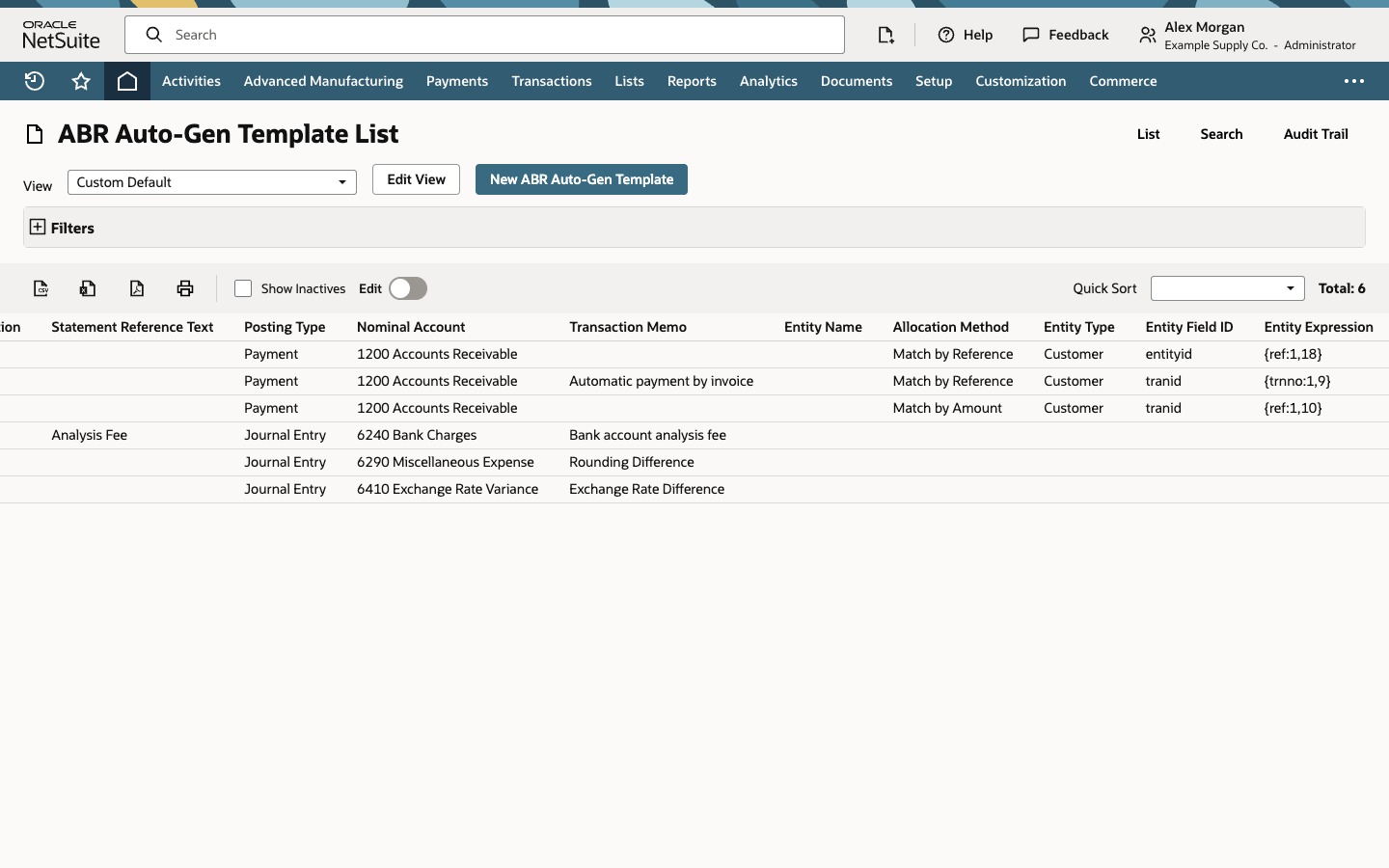
On ABR Auto-Gen Template List, read the templates that exist. Each row shows a Description, a Transaction Type, a Priority, the Statement Reference Match Option and Statement Reference Text, a Posting Type, a Nominal Account and a Transaction Memo. None of the values shown identifies an account analysis fee, so the fee would need a template of its own.
Select New ABR Auto-Gen Template. The form opens in groups: General, Matching Rules, Generation Rules and Allocation and Entity Search. In this version, Description, Reconcile Account, Priority, Posting Type and Nominal Account are the fields marked required.
02. Name the template and choose its account
In General, enter Account Analysis Fee as the Description. Select 1020 Checking - Operating 5538 as the Reconcile Account, the bank account whose statement lines the template applies to. Enter 3 as the Priority. Leave Approved, Approved By and Target Account blank.
Priority orders templates when more than one could apply. Check in your ABR version whether a lower number runs first, how ties are resolved and whether the first matching template stops further processing.
03. Define the matching rules
In Matching Rules, enter 401 as the Transaction Type. This is the type value ABR stored for the imported bank statement line, not a NetSuite transaction type. 401 is an example: copy the value from a real imported line in your account. Set Statement Reference Match Option to Contains and enter Analysis Fee as the Statement Reference Text. Leave the statement transaction number, amount and day-of-month fields blank, so the code and the text alone identify the line.
Contains is a broad text comparison and can match unrelated lines. The option list offers Exactly, Starts With and Contains. Use distinctive text, consider narrowing the match with the optional criteria on the same form, and test a near-miss statement line that should not create a journal. Confirm in your version how the criteria combine, whether blank criteria are ignored, whether matching is case sensitive, and whether punctuation, spacing or bank truncation affect the comparison.
04. Define the generation rules
In Generation Rules, select Journal Entry as the Posting Type and 6240 Bank Charges as the Nominal Account. In this example that is the bank charges expense account. Select the account your ABR version requires for the transaction it generates. Enter Bank account analysis fee as the Transaction Memo and keep Apply Transaction Memo to All Lines checked. Leave Department, Class, Location and the Allocation and Entity Search fields blank. The read-only Reconcile Account Subsidiary field shows the subsidiary of the reconcile account.
For a fee the bank deducted, the usual accounting is a debit to the bank charges expense account and a credit to the bank account. Verify the generated journal rather than inferring its lines from the field labels, because allocation, field sourcing, entity or posting-type settings can change them. The blank allocation, entity and field sourcing controls are optional and can depend on the posting type and version.
05. Save the template and confirm it
Select Save. The ABR Auto-Gen Template List opens again with a new row for Account Analysis Fee: Transaction Type 401, Priority 3, Statement Reference Match Option Contains and Statement Reference Text Analysis Fee.
Scroll right to see the generation side of the row: Posting Type Journal Entry, Nominal Account 6240 Bank Charges and Transaction Memo Bank account analysis fee.
A saved row confirms only that the template record was saved. It does not show that the template is active or eligible, or what it will generate. Test it with a representative imported statement line and a near-miss line. Inspect the journal for its amount, date, accounts, memo, subsidiary, posting period and approval status, and check whether the imported line is only matched or also reconciled.
This walkthrough does not show how a template is run. Confirm in your ABR version whether a new template is active as soon as it is saved, whether it applies to newly imported lines, to existing unmatched lines or only when a process is executed, and where the generated journals appear for review. Test with a controlled statement, including a line that two templates could match and a line that was already matched, and know how you would deactivate the template or correct a wrongly generated journal.
Common questions
What is an Auto-Gen template in Advanced Bank Reconciliation?
It is a SuiteApp-specific record that pairs matching criteria for an imported bank statement line with instructions for what to generate for it. In this example the intended result is a journal entry for a recurring bank fee. Available fields, posting types and processing behavior depend on the installed ABR version and your account configuration.
What does the Transaction Type field hold?
In this example it holds the type value assigned to the imported statement line, not a NetSuite transaction type. Copy it from an actual imported line in your account rather than inferring it from the description.
Why use Contains for the statement reference?
Contains is meant to match when the imported reference includes your text, so it tolerates wording around the fee. It is a broad comparison, so confirm how your version treats case, spacing and punctuation, use distinctive text and test a line that should not match.
Does a higher or lower Priority run first?
The example does not show the ordering rule. Confirm in your ABR version whether a lower number runs first, how ties are resolved, whether inactive templates are skipped, and whether processing stops at the first match or several templates can generate transactions for one line. Do not run overlapping templates until you know.
Does saving the template post a journal?
Not on the strength of the save alone. Template saved, template active, line eligible, line matched, journal generated, journal approved or posted, and statement reconciled are different states. Confirm the status fields and processing sequence in your ABR version, and check the generated journal's status and approval.