The quick answer
Open the NetLessor lessor lease and choose Modify. On Lease Modification, use Standard for the demonstrated term change, update the remaining months, and check the displayed total term and modified end date. Choose Determine Lease Classification, then Modify Lease. Read the saved record and its amortization schedule pager back before treating the change as complete.
This example follows LR0019 Cement Mixer, a Sales Type lease in a configured NetLessor demonstration account. Person and operating-company names in the walkthrough images are fictional example data. NetLessor is a separate vendor SuiteApp; this is a lessor lease workflow, not the native FAM lessee right-of-use asset process.
Before you start
You need NetLessor installed, access to the lessor lease record and its modification form, and the approved change in lease terms. Confirm the lease, classification, remaining term, payment details, effective modification date, and any account-specific review requirements before saving. The fields and downstream accounting can differ by SuiteApp version and account setup. The current production account used for this guide's research did not have NetLessor installed, so the module-specific steps and visuals follow the vendor's recorded demonstration.
01. Check the current lease
Open LR0019 Cement Mixer and read the values that should change. In the demonstration, the End Date is 3/31/2027 and Lease Term (Months) is 75. Under Amortization Schedules, the Sales Type schedule pager reads 1 to 25 of 76. The later modification form shows 66 months remaining. Use Modify to open the change form.
02. Enter the term extension
On Lease Modification, confirm the selected lease and Standard modification type. Change Updated Remaining Lease Term (Months) from 66 to 72 for this example. Before determining classification, confirm the modification's effective date and the payment and rate terms against the approved change. In the recorded example, the form displays Updated Lease Term (Months) as 81 and Modified Lease End Date as 9/30/2027. Review the classification, fair value, carrying costs, and residual value shown in your account; do not continue if a displayed value differs unexpectedly from the approved terms.
03. Determine classification
Choose Determine Lease Classification. The demonstration shows a blue confirmation stating that lease rates, classification, and corresponding payment details were updated. This is an intermediate form result; the recording does not verify those calculations. Modify Lease is still available and the saved lease record has not yet been shown.
04. Save and read back the lease
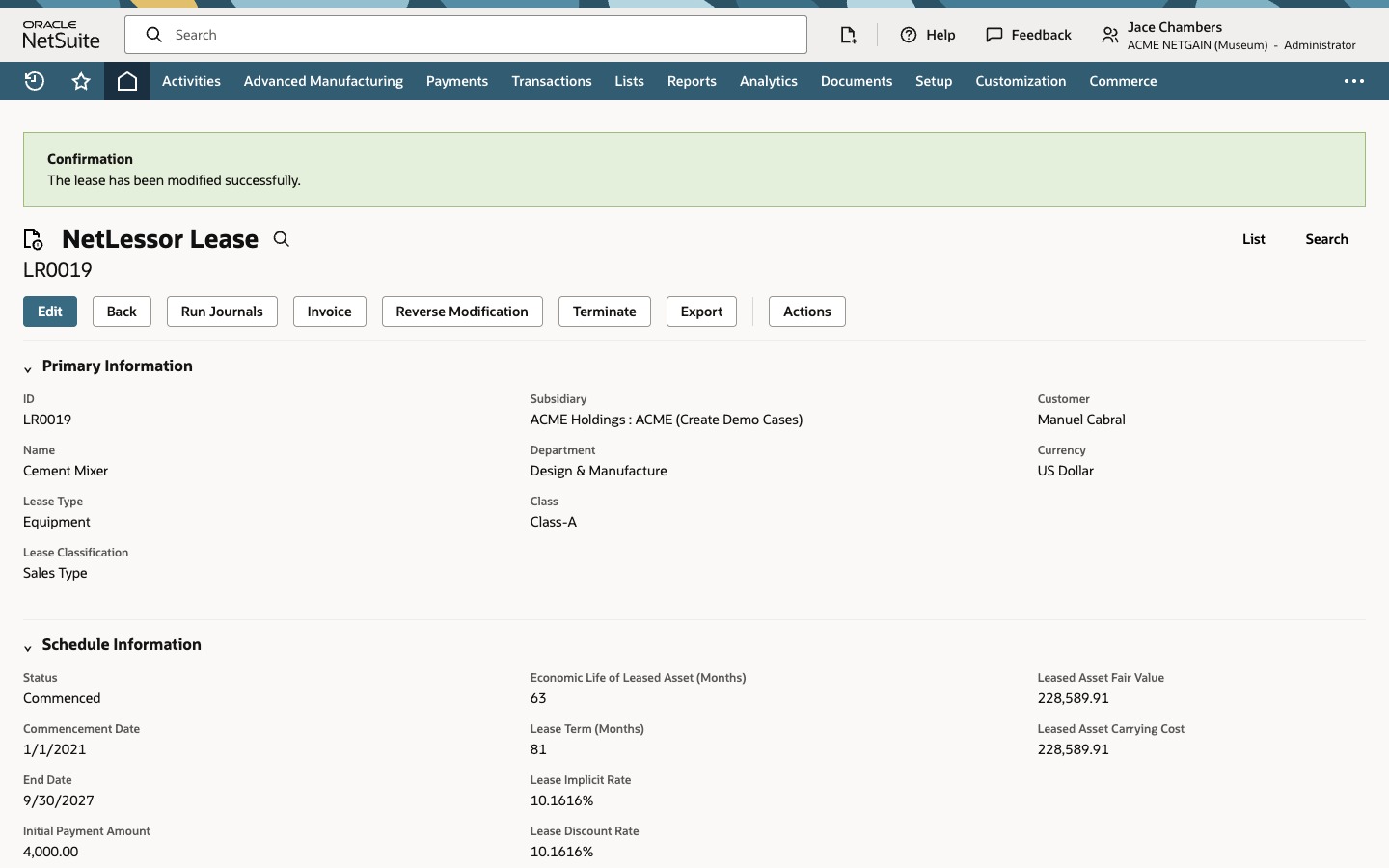
Choose Modify Lease. In the demonstration, the saved record displays a green confirmation that the lease was modified successfully. End Date reads 9/30/2027, Lease Term (Months) reads 81, and Reverse Modification appears among the available actions. The reversal action is shown but not used. These saved values, rather than the entries on the form, are the first result to verify.
Open Amortization Schedules and check the pager. The demonstration shows 1 to 25 of 82, compared with 1 to 25 of 76 before the change. That displayed count supports a revised schedule view, but the video does not show all rows, how they were recalculated, or a resulting invoice or journal. In the account where the lease is maintained, inspect the complete schedule and, if required by the business process, check invoices, payments, journals, and posting separately.
Common questions
Is Determine Lease Classification the same as saving the modification?
No. In this demonstration it produces a confirmation on the modification form. The operator then chooses Modify Lease, which returns to the saved lease record with a separate success confirmation.
How can I tell whether the term extension saved?
Read the lease record after Modify Lease. The example shows 9/30/2027 as the end date, 81 as the total term, and 1 to 25 of 82 on the amortization schedule pager.
Does the new schedule count prove that invoices or journals changed?
No. The video shows the schedule pager, but not invoice or journal posting from this modification. Check those records and their accounting status in your own account.
Does this procedure apply to native FAM lessee leases?
No. This walkthrough uses NetLessor's lessor lease modification form. A native FAM lessee lease or right-of-use asset follows a different record and accounting workflow.