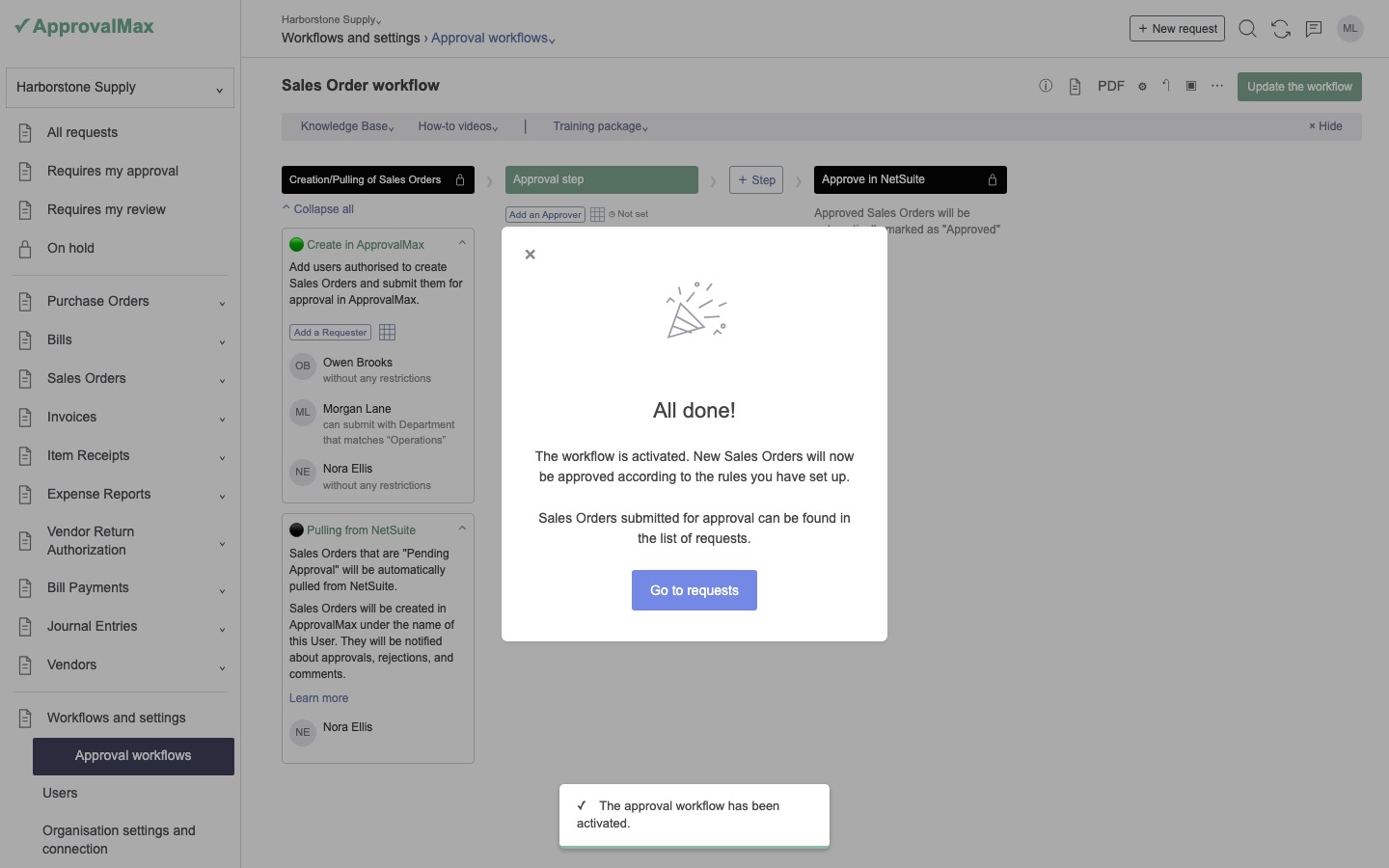
Edit the requester row, then activate
In the demonstrated ApprovalMax Sales Order workflow editor, open the matrix beside Add a Requester. On one requester’s row, select Department matches, choose a Department value, and change Any amount to Under with the amount you want to display. Click Done, select Activate the workflow, and confirm the change. Check the activation acknowledgement.
This example sets Department matches Operations and Under 1,500.00 USD for Alex Morgan. The other two requester rows and the approval step’s All condition stay unchanged. Activation is the final observed result; the walkthrough does not establish effective requester permissions or show a sales order being submitted, approved or written back to NetSuite.
Before you start
You need access to the Sales Order workflow editor shown here and permission to change its configuration. The workflow already contains three requesters and one approval step. The illustrations use independent example names, company, department and amount.
The source interface appears in an ApprovalMax video published on October 27, 2025; its capture date is unknown. Product materials differ on whether Sales Order workflows expose this requester matrix. Confirm availability in your account before following these steps. The example is specific to the displayed editor and does not establish support across accounts or versions.
01 · Inspect the requester matrix
Open the existing Sales Order workflow for Example Supply Co. In Create in ApprovalMax, click the small matrix icon immediately to the right of Add a Requester.
Find Alex Morgan, the middle row. Owen Brooks and Nora Ellis are separate requester rows. Each starts with Any amount; Alex’s Department criterion also starts at Any Department. The full matrix has eight columns: requester, Total amount (USD), Customer, Sales Rep, Item, Department, Class and Location.
02 · Select the Department criterion
In Alex’s Department column, open Any Department and choose Department matches. Open Select Department and select Operations. Check that the Operations chip appears on the middle row. Leave Customer, Sales Rep, Item, Class and Location at their existing Any settings.
03 · Enter the Under amount
In Alex’s Total amount (USD) column, open Any amount and choose Under. Enter 1500, then move away from the amount field to finish editing. Check the displayed value Under 1,500.00 USD. Owen and Nora still show Any amount.
Before clicking Done, recheck Alex’s Department matches Operations and displayed Under amount. The other two rows must retain their starting criteria. No request at, below or above 1,500.00 USD is tested in this walkthrough.
04 · Complete and activate the workflow
Click Done to return to the editor. Alex’s requester card now describes the Department criterion. The existing approval step still says Approval condition: All; this procedure does not change that condition.
Select Activate the workflow. The Add a comment about the changes made dialog says that a comment is optional. Enter Set requester amount and department criteria., then click Confirm.
Check All done!, The workflow is activated, and the activation notification. The toolbar now offers Update the workflow. Stop at this acknowledgement. The product’s message describes future approval behavior, but this walkthrough does not execute a request to verify it.
Common questions
Why might my Sales Order workflow not show a requester matrix?
The demonstrated interface and a Sales Order-specific product article show this matrix, while a generic requester article says Sales Orders have no requester matrix. Their account, version or feature applicability is unresolved here. Confirm the controls available in your own account before applying this example.
Does Under 1,500.00 USD allow a request for exactly 1,500.00 USD?
The walkthrough does not test that boundary. It shows the Under operator and formatted amount in the editor. Verify the supported behavior separately before relying on a threshold.
Does Department matches restrict the employee’s department or the sales order’s Department field?
This walkthrough establishes only the selected value under the displayed Department criterion. It does not test field evaluation or effective requester permissions, so it does not resolve that distinction.
Are Done and Activate the workflow the same action?
Done closes the requester matrix and returns to the editor. Activate the workflow opens a separate confirmation dialog. Confirm leads to the activation acknowledgement in this example.
Is the change comment required?
The demonstrated dialog explicitly says the comment is optional. This example includes one to describe the displayed configuration change.
Supporting references
Compare the Sales Order-specific requester instructions with the differing generic requester restriction instructions when checking applicability.