The quick answer
Open the vendor’s Financial tab and confirm 1099 Eligible. Check the expense account’s 1099-MISC Category, then inspect the paid bill’s expense line. In the account’s 1099 vendor payment saved search, set the date range and review the recipient and amount columns. A recipient row is a starting point for reconciliation, not a completed filing.
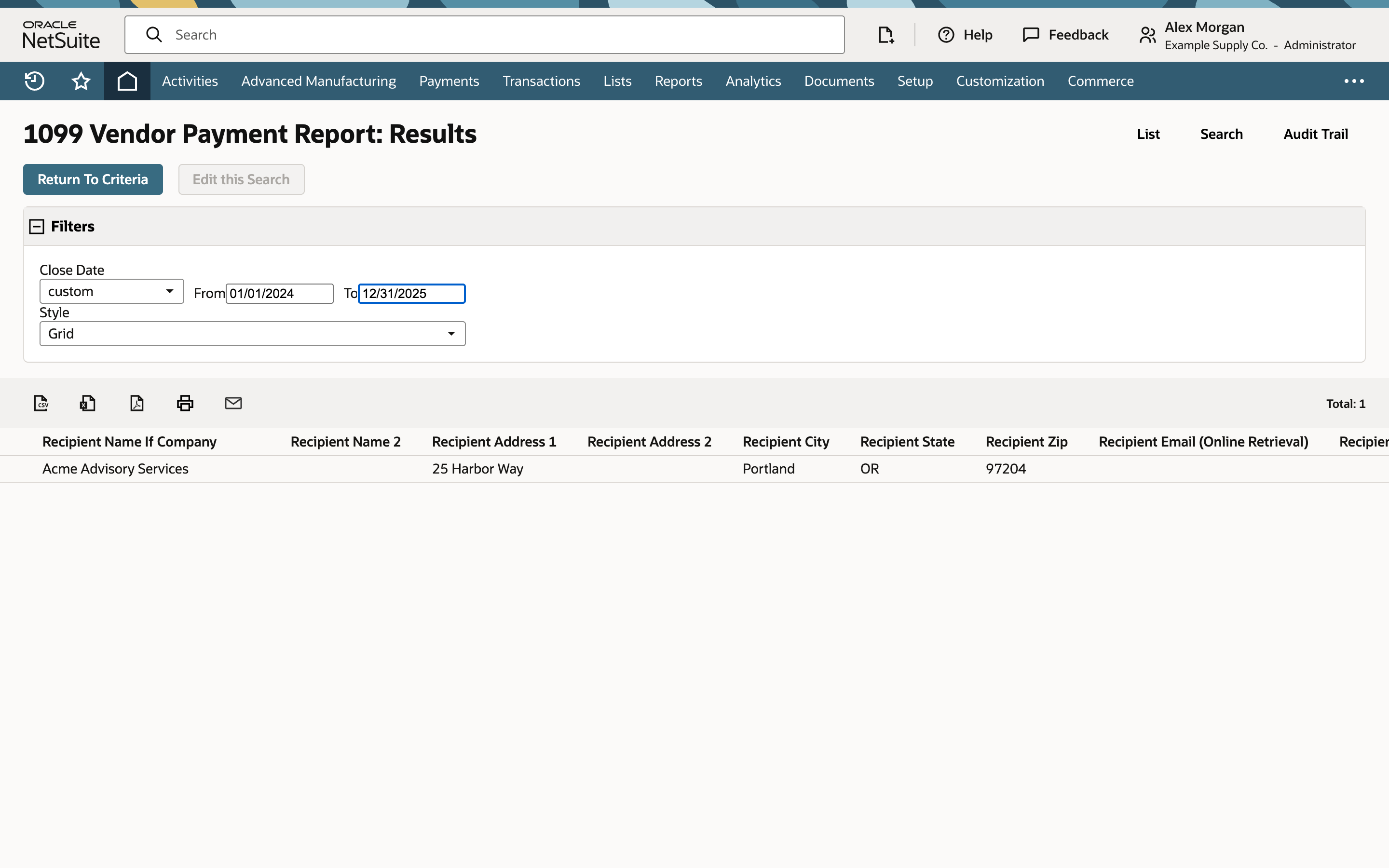
The screenshots use fictional example data. The bill totals 600.00, but its categorized expense line is 100.00. The saved search returns one recipient; it doesn’t establish a reportable amount in the columns visible here. The 100.00 line is a candidate for reconciliation, not a filing conclusion.
Before you start
You need access to the vendor, expense account, bill, and a 1099 vendor payment saved search. Search names and date fields depend on the installed provider bundle and your account’s customizations. Confirm the saved search’s criteria before using its result for a filing. The example uses Close Date; another provider’s search may use Date Closed or a different payment date. Check whether you need a MISC or NEC report and whether the search includes checks as well as bill payments. This example’s two-year range demonstrates the filter; review each filing year separately.
01. Check the vendor
Open the saved vendor record and select Financial. Under Tax Information, check 1099 Eligible. It’s checked for Acme Advisory Services in this example. If your vendor isn’t eligible, review its record and the nature of the payments before changing the field.
02. Check the expense account
Open the expense account used on the bill. The 1099-MISC Category field on account 7200 Advisory Services reads Box 3. Other Income here. This is example classification, not a category to copy for every service payment. Choose the category that fits the payment and current reporting rules. Nonemployee compensation generally follows a separate 1099-NEC workflow, so the visible Box 3 mapping should not be copied to those payments.
03. Check the paid bill
Open the bill and confirm its saved status. INV-2025-071 is Paid in Full for 600.00. Under Expenses and Items, the 7200 Advisory Services line is 100.00. Keep those numbers separate: the entire bill total isn’t automatically the amount in a 1099 category.
04. Filter the payment report
Open 1099 Vendor Payment Report from saved searches or account search. Set Close Date to custom, with From 01/01/2024 and To 12/31/2025. The report shown here has one recipient row. A row count is not a payment count. Scroll across the report to inspect its amount columns, then reconcile them to the payments and credits behind that row. The visible example does not establish a filing amount.
If the search is blank, check the date field, vendor eligibility, expense-account category, bill payment status, and the search definition. Oracle notes that a search using Date Closed may need a different date field to include check payments. Don’t change a shared report without understanding who else uses it.
Common questions
Does Paid in Full mean the whole bill is reportable?
No. This example has a 600.00 bill and a 100.00 line on the categorized expense account. Inspect every relevant expense line and the saved search’s payment logic. Credits, voids, checks, and partial payments can change the reconciliation.
Why is the 1099 payment report blank?
Check the date range and which date field the search uses. Then confirm the vendor’s 1099 flag, address and entity data, the expense account category, the underlying payments, and whether the search excludes checks or uses a separate NEC result. An empty search is not proof that no reportable payments exist.
Should I filter by Date Closed or payment Date?
Use the field that matches the provider’s saved-search criteria and the transactions you need. Oracle’s 1099-MISC guidance says check payments may require Date because they may not have a closing date. A search covering different transaction types may need separate date criteria. Review the resulting rows before export.
Can I file from this recipient row?
No. Check the amount and recipient data, apply the current reporting rules, and follow your provider’s filing process. This walkthrough verifies the visible search result, not a submitted form.