The quick answer
Open Setup → Records Catalog, find the record, and choose its SuiteScript and REST Query API view. The Fields tab lists the field IDs you can select, and the Joins tab lists the records it connects to. Hover the information icon beside a join's Field ID to read the exact join pair.
The screenshots use sample data and fictional person and operating-company names.
Before you start
Your role needs the Records Catalog permission. The SuiteScript and REST Query API view describes the record model behind the SuiteScript analytic API (N/query) and the REST query service that runs SuiteQL. It does not cover every SuiteScript module or other integration interface, and it does not run or check a query, so you still write the SQL and choose the join type yourself.
What the catalog lists depends on the account. Enabled features, custom records and fields, and your role's permissions all change it, so look up a record in the account and role that will run the query. Check the Available, Feature and Permission values before you rely on a field.
01. Open the Records Catalog
Point to Setup in the navigation bar. Setup is a long menu, so point to the arrow at the bottom to scroll it. In this account Records Catalog is the last entry. Choose it.
The page opens on the Records tab. It has a Search record types box, a Show unavailable items checkbox, an A-Z filter, and the list of record types. The right side says Choose record type to inspect because nothing is selected yet.
02. Search for a field ID
Choose the Fields tab and click Search Fields. Type deferralAcct. The list shows Deferral Account (deferralAcct) with the record it belongs to, Account. This search runs across records, so a field ID is enough when you do not know which record owns it.
03. Open Account in the query API view
Go back to the Records tab and type account in Search record types. The list narrows as you type. Click the arrow beside Account, then choose SuiteScript and REST Query API. Account opens on the right with Overview, Fields and Joins tabs.
04. Check the Overview
The Overview tab shows whether the record is available in this account and role, and the feature and permission it depends on. Here Account is available, depends on the Accounting feature, and needs the Accounts permission.
05. Read the Fields tab
Choose Fields. Each row has a Field ID, Name, Type, Available, Feature, Permission and Join. Use the Field ID in your query, because the Name is the label you see on forms. category1099Misc, currency and deferralAcct are INTEGER reference fields. Each has a Join target and N:1 cardinality, and the Feature column shows that currency depends on Multiple Currencies. Verify the Feature and Permission values in your own account, because they can differ. Use the copy icon beside a name or Field ID to copy it instead of retyping it.
Scroll down to fullName, id and isInactive. They have nothing in the Join column, so you can select them without joining to another record.
06. Read the Joins tab and a join pair
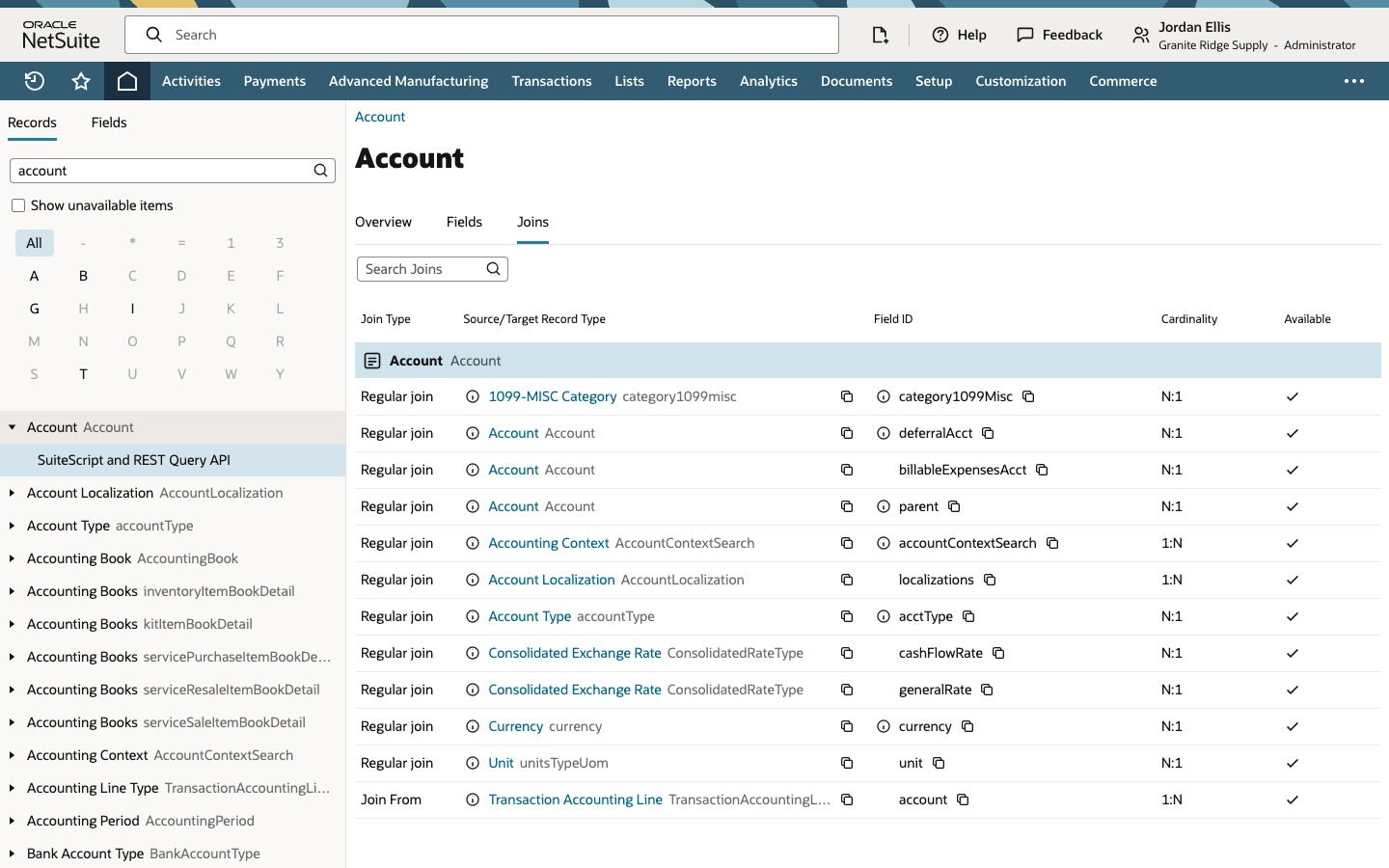
Choose Joins. The columns are Join Type, Source/Target Record Type, Field ID, Cardinality and Available. Regular join rows start from a reference field on Account, such as acctType to Account Type (N:1) and parent to Account (N:1). Join From rows are records that point back to Account. Here Transaction Accounting Line is one, with 1:N cardinality, which means one Account can relate to many Transaction Accounting Line rows.
Point to the information icon beside acctType. The tooltip shows the join pair, Account.accttype = accountType.id. Copy a pair as the catalog prints it, including its capitalization, instead of building it from the labels. The Field ID column says acctType while the pair says accttype, so do not normalize either one.
Check the result
- The Fields tab lists Field ID, Name, Type, Available, Feature, Permission and Join for Account.
- The Joins tab labels each row Regular join or Join From and shows its cardinality.
- The acctType tooltip reads Account.accttype = accountType.id.
Common questions
Where is the Records Catalog in NetSuite?
It is under Setup → Records Catalog. Your role needs the Records Catalog permission to open it.
What is the difference between Regular join and Join From?
A Regular join starts from a reference field on the record you are viewing, such as acctType on Account. A Join From row is another record that holds a reference back to the one you are viewing. Both describe the direction of the relationship in the catalog, which also matters if you build the query with N/query. They are not the SQL join type, so in SuiteQL you still choose INNER JOIN or LEFT JOIN yourself, depending on whether rows without a match should stay in the result.
What does the cardinality column tell me?
Read it from the record you are viewing. N:1 means many Account rows can point to the same related row, as many accounts can share one account type. 1:N means one Account row can have several related rows, so selecting fields from the many side repeats the Account data. Decide whether you want one row per account or one per related record before you add that join.
Why does a field show in the catalog but not work in my query?
The catalog lists the model, and availability depends on your account and role. Check the Available checkmark on the record's Overview and on the field, then the Feature and Permission columns, and look the record up again in the account and role that will run the query. A field whose Type reads N/A is not an ordinary column, so check its information icon before you select it. The Show unavailable items checkbox on the Records tab adds items that exist in the model but are not usable in your context. It does not make them usable.
Does the Records Catalog write the SuiteQL query for me?
No. It gives you the field IDs, the related records, the cardinality, availability, and the join pair, but it does not write, run or validate a query. You write the SELECT and the join, then test it with a small query before you add more joins.