The quick answer
In an Account saved search, set System Notes : Date to within This Fiscal Quarter. Add account identifiers and System Notes fields to Results, then preview. Leave note type unfiltered when you want both account creations and edits. Each matching note can create its own row, so an account may appear more than once.
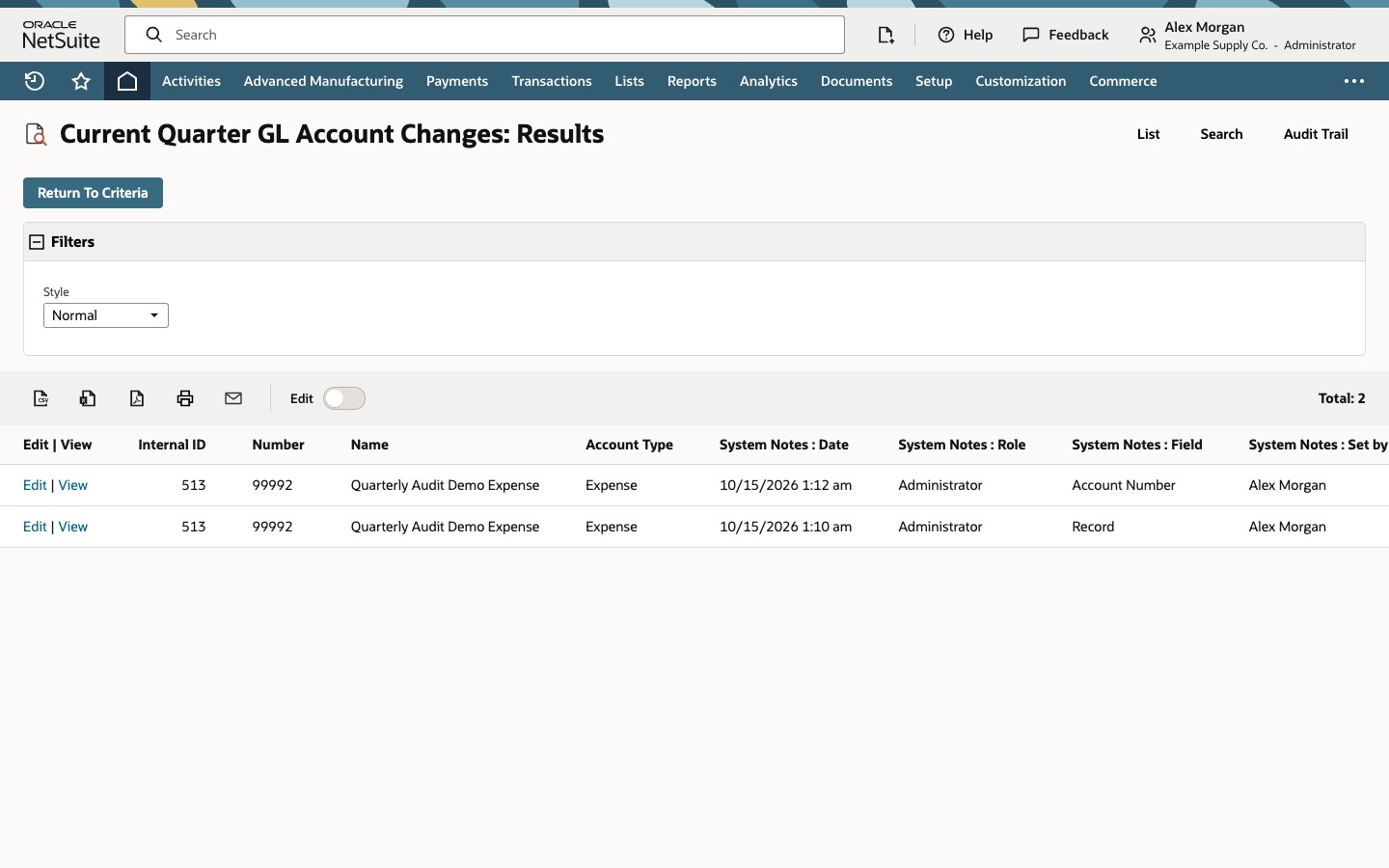
The screenshots show fictional sample data in a local replay. They illustrate the intended quarter filter and result layout; they do not establish how many notes a production search will return. Replace the example account and person with records you are allowed to inspect.
Before you start
You need access to Account records and the relevant System Notes data. Role permissions, record access, the Notes Tab permission, enabled features, and search type can limit which notes and fields appear. A non-Administrator may not see every user's notes. This procedure uses classic System Notes; System Notes v2 is a separate audit source with different search behavior and should not be assumed to contain identical rows.
System Notes only show fields NetSuite logged. If Log System Notes on Update Only is enabled, creation notes may be missing; use Date Created or another suitable source when you need an account's creation date. This guide does not cover deleted accounts.
The This Fiscal Quarter window follows the configured fiscal calendar and is recalculated when the search runs. In a OneWorld account, subsidiary or accounting context may affect the applicable calendar. Time zone behavior can matter near a boundary. Use fixed start and end dates when an audit needs a reproducible period.
The walkthrough's visible criteria frame says this month, although the narration says fiscal quarter. The quarter criterion shown here is the intended setup; the source result count is not evidence of quarter-filtered results.
01. Set the quarter criterion
Go to Reports > Saved Searches > All Saved Searches > New, then select Account. Some roles expose a different Saved Searches path. On Criteria, add System Notes : Date, set the operator to within, choose This Fiscal Quarter, and click Add. NetSuite recalculates a relative period each time you run the search.
Leave System Notes : Type unrestricted to include all logged note types. If the review needs only creations and edits, use the expression controls to build the logical condition Date within This Fiscal Quarter AND (Type is Create OR Type is Change). Click Add after setting the criteria. Keep the parentheses around the types so the date condition applies to both; do not paste that expression as literal filter text.
02. Preview the account notes
On Results, add account identifiers such as Internal ID, Number, Name, and Account Type (often labelled Type), then click Add. Add System Notes : Date, System Notes : Type, System Notes : Field, System Notes : Old Value, System Notes : New Value, System Notes : Set by, System Notes : Role, and System Notes : Context where those fields are available, and click Add after each selection. Labels and values vary by account and role; old and new values can be blank for some note types, and long values may be truncated. Sort by System Notes : Date, newest first, then preview.
The sample preview shows two notes for one account: a Change to Account Number and its Create note. That count comes from sample data and is not proof that a production search would return two notes for the current fiscal quarter. Your result depends on the records and permissions in your account. Previewing evaluates the current definition but does not save it. Save the search, reopen it, and confirm the relative date criterion still says This Fiscal Quarter. A saved search keeps the definition, not a frozen result set.
Check the result and its coverage
In this configuration, each matching System Note can produce a separate result row. The Account columns identify the account; an Internal ID is the most stable identifier if its name or number changes. Note columns can show when the edit happened, which field changed, who made it, and old and new values. Additional one-to-many joins or summary settings can change the displayed row structure, so repeated account numbers do not necessarily mean duplicate accounts.
For note-level analysis, consider a System Note saved search and filter Record Type to Account. The path is Reports > New Search, then System Note where available to your role. Add the same date range and the note fields you need. This starts from notes, which can be a better fit when note-level filters matter more than Account criteria. It still depends on role visibility and the scope of classic System Notes. These notes do not reconstruct every earlier account state; deleted-record history follows a separate path, especially in System Notes v2.
If an account number changes several times, each logged edit within the period can appear separately. Check the fiscal calendar and search time zone when a note falls near a quarter boundary. A fixed date range is easier to reproduce later; a relative quarter is easier to reuse.
Common questions
Does This Fiscal Quarter mean calendar quarter?
It follows the account's fiscal calendar. If your fiscal year does not start in January, the quarter boundaries differ from calendar quarters.
Why does the same account appear on several rows?
The System Notes join can produce a separate row for each matching note. Grouping, summary columns, or other one-to-many joins can change the result set.
Should I use Account or System Note as the search type?
Use Account when account fields and Account criteria are central. Use System Note when note-level filtering is the priority, subject to role visibility and the scope of classic System Notes. In many accounts, open Reports > New Search and select System Note; the path varies with role access.
How do I show only account creations and edits?
Add a System Notes Type criterion and select Create and Change with an OR relationship. Keep the date criterion outside that OR group so the effective logic is Date AND (Create OR Change). Incorrect grouping can admit a Create or Change note outside the date range. If Log System Notes on Update Only is enabled, System Notes may not contain creation notes to return.
Does previewing save the search?
No. Save the definition, reopen it, and check the criterion. A saved search keeps its definition; it does not freeze the current result rows.
Source and caveat
The source walkthrough demonstrates an Account search joined to System Notes. Its criteria frame shows this month while the narration says this fiscal quarter, so its displayed result count is not a quarter result. The quarter-filtered screenshots above are from a local replay of the intended setup, not the source frame or a saved production search. Verify the saved criterion and returned notes in your own account.