The quick answer
Go to Reports > Financial > Amortization Forecast. Set From and To so the range covers the periods you still expect to amortize, set Column to Accounting Period, and choose Refresh. Each document gets one column per period that has an amount, plus a Total. Open More and check Is Recognized when you want the amounts a journal has already recognized instead of the ones still to come.
The example is a 2,400.00 software subscription bill amortized over six months, November 2026 through April 2027. The November journal has been created, so the schedule is In Progress with 400.00 amortized and 2,000.00 remaining. The report should show that 2,000.00 spread over December through April. Prepaid expense is the common case, but the report covers any expense or asset amortized on a schedule. The person and operating-company names in the screenshots are fictional example data.
Before you start
Check that the Amortization feature and accounting periods are enabled, that periods exist for every month from November 2026 through April 2027, and that your role can view amortization schedules and run the amortization reports (the report may need an Amortization Reports permission, depending on the role). If your account requires journal approval, check the November journal's approval status and GL impact before you conclude that its 400.00 posted; a journal number and a Date Executed show that a journal is linked to the row, not that it posted. The report runs by accounting period, so the periods have to exist.
The example is a single-subsidiary account with one schedule, one currency, and no residual or initial amount. If your account is OneWorld, set Subsidiary Context to include the bill's subsidiary, and if it uses Multi-Book Accounting, select the accounting book you want; neither filter shows in every account. With several schedules, currencies, residual or initial amounts, offsets, or manual schedule changes, the report total may not equal one schedule's balance until you match the report's filters to that schedule.
Check what the schedule has recognized
Start with the numbers you will compare the report against. Go to Lists > Accounting > Amortization Schedules. Schedule 21, created from the SW-2205 bill, shows an Amount of 2,400.00, Total Amortized of 400.00, a Remaining Deferred Balance of 2,000.00 and a Status of In Progress.
Choose View on the schedule. The November 2026 row is recognized through journal JE1802 and has a Date Executed of 11/30/2026. The five rows from December 2026 through April 2027 are 400.00 each and show no journal yet.
Open the report
Go to Reports > Financial > Amortization Forecast. The Amortization Forecast Summary opens. In this example the filters at the bottom start with Period set to (Custom), From and To both Nov 2026, and Column set to Total.
The report body says No Data Available. The cause is not an error. The one period in range, November 2026, has no unrecognized amount left, because its journal has already been created. Widen the range before you decide the report is empty.
Show the remaining expense by period
Open the To list and choose Apr 2027, so the range reaches the last schedule period. Open the Column list and choose Accounting Period. Nothing changes on the page until you choose Refresh. Saved report settings can carry over from the last run, so open More and confirm Is Recognized is cleared before you refresh; it starts cleared in this example.
The report now lists SW-2205 as a Bill dated 11/01/2026 for the vendor, with 400.00 under each of December 2026, January 2027, February 2027, March 2027 and April 2027, and a Total of 2,000.00. November 2026 has no column. In the account this example was checked in, a period column appears only when it holds an amount, and November's 400.00 was recognized, so it is gone from the forecast.
Compare the Total with the schedule: 2,000.00 here and 2,000.00 as the Remaining Deferred Balance. The two numbers reconcile in this example because it has one schedule, one currency, no residual or initial amount, and a range that covers every remaining row.
Show only what has been recognized
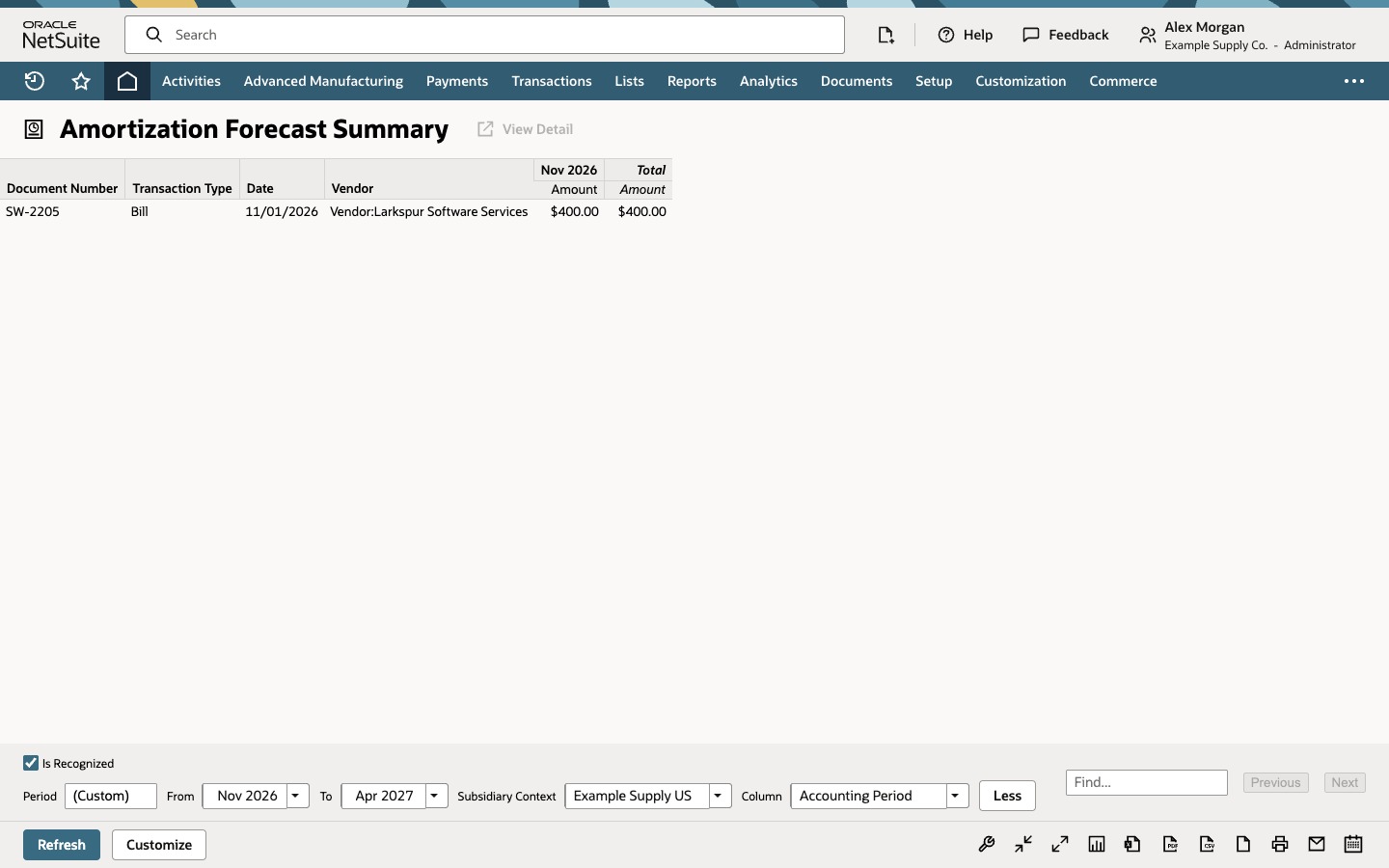
Choose More at the bottom of the report and check Is Recognized. The range and the Column stay as they were. Choose Refresh again.
The report now lists only November 2026: 400.00, with a Total of 400.00. That is what the November journal recognized, and it matches Total Amortized on the schedule. The remaining 2,000.00 plus the recognized 400.00 gives back the 2,400.00 Amount.
Treat the report as a planning view, not proof that anything posted. Open the journal and check its approval status, posting period and GL impact, and remember that a closed period can change where recognition posts.
Common questions
Why does the Amortization Forecast report say No Data Available?
No row matches the current filters. Common causes are a period range with no forecast amounts, Is Recognized checked when you expected the forecast, or a subsidiary, accounting book or other filter that leaves the schedule out. In this example the range was the single period Nov 2026, which was already recognized. Open More to check Is Recognized, widen To to a later period, and choose Refresh.
What does the Column setting change on the Amortization Forecast report?
Total gives a single Amount column for the rows the report lists. Accounting Period adds period columns across the selected range, plus a Total column. In the account used for this example, only periods that held an amount got a column, so treat that as what we observed, not a rule for every account or release.
What does Is Recognized do on the Amortization Forecast report?
Under More, checking Is Recognized makes the report show amounts that are recognized, and leaving it cleared shows the forecast of amounts still to come. Check the box state before you read the report, because saved settings can carry over. This is a report filter. It is separate from the Is Recognized column on a schedule row, which is where a row shows that it has been recognized.
How do I reconcile the report to a schedule?
In the simplest case, one schedule, one currency, no residual or initial amount, and a range that covers every remaining row, the report Total with Is Recognized cleared matches the Remaining Deferred Balance, and with it checked matches Total Amortized. The report Total only covers the filters you picked, so match the subsidiary, accounting book and period range to the schedule first. With several schedules, currencies, offsets or manual changes, isolate the source transaction before you compare.
Why is the first month missing from my amortization forecast?
The report leaves out amounts that are already recognized, and in this example November's row has been recognized through its journal. Check Is Recognized to see it, and check the journal's approval status and GL impact separately.