The quick answer
In a legacy-tax account with the Tax Audit Files SuiteApp installed, open Reports → Tax → Audit Files. Select GL Data Extract, the subsidiary, and the Period and To range. Click Generate once, use Refresh to find the completed new row, then download and check the CSV.
The screenshots use fictional example data from a reconstruction of an August 2022 walkthrough. The inspected US account offered the legacy bundle for installation; it was not installed there. That account does not validate this page, its fields, file generation, or download behavior. The subsidiary, dates, times, document numbers, and amounts below are example data. Generating the file is not a tax filing.
Before you start
You need access to the legacy Tax Audit Files SuiteApp and permission to generate and download files. Oracle says the SuiteApp is incompatible with SuiteTax. Confirm that GL Audit Numbering is enabled and a completed sequence covers the subsidiary, accounting periods, and applicable accounting book. This walkthrough starts after that prerequisite; it does not configure numbering. If Audit Files is absent, check SuiteTax use, the installed SuiteApp, role permissions, and subsidiary or book access with your administrator.
01. Open Audit Files
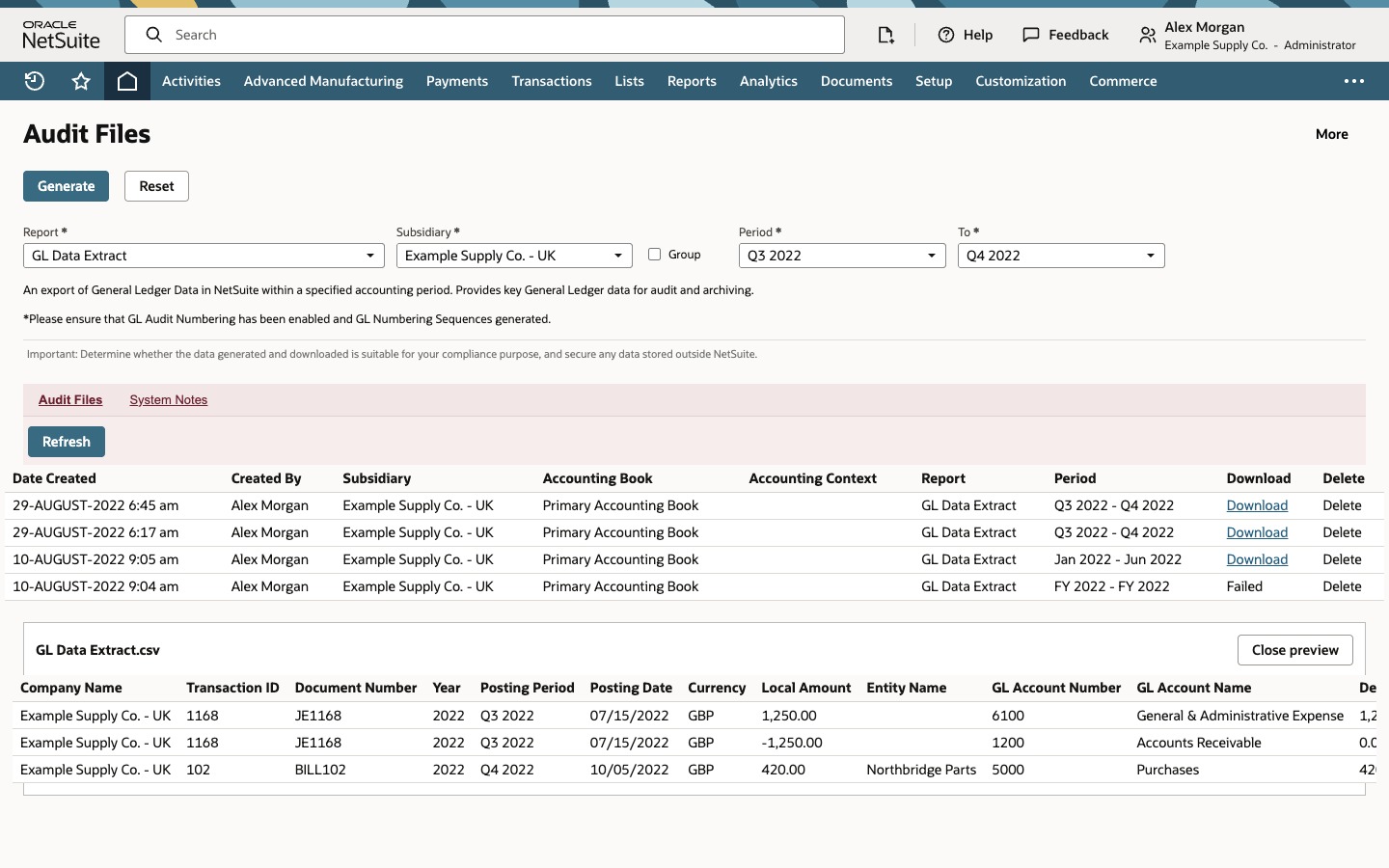
Go to Reports → Tax → Audit Files. The page has Generate and Reset above the criteria, a GL Audit Numbering warning, and a list of earlier files. The ordinary General Ledger report is a different screen.
02. Choose the extract and range
Set Report to GL Data Extract and Subsidiary to Example Supply Co. - UK. Leave Group clear for this example. Set Period to Q3 2022 and To to Q4 2022. The subsidiary and both periods determine the data requested, so check them before generating.
03. Generate, then refresh
Click Generate once. The request processes asynchronously; wait, then use Refresh to reload its status. Refresh does not submit a second extract, and one refresh is not a promised completion time. In the example, a new file dated 29-Aug-2022 6:45 am appears above the older 6:17 am row. Verify the new row’s subsidiary, GL Data Extract report, Q3 2022 - Q4 2022 period, accounting book where applicable, timestamp, and available Download action. Do not mistake an older downloadable row for the result of the new request.
If generation fails, investigate numbering, permissions, and the selected scope rather than downloading an older file.
04. Inspect the CSV
Click Download on the new completed row. Open the CSV and read its actual headers; they can vary by configuration. In this example, the rows show document references JE1168 and BILL102, posting periods and dates, currency, GL accounts, and amounts. Check representative lines against the intended subsidiary and period before sharing the file for an audit. If spreadsheet characters look wrong, check the CSV encoding before relying on the values. The visible reconstruction uses an inline CSV preview where the source opened a spreadsheet; neither view submits data to an authority.
The operator remains responsible for the file’s suitability for the specific audit or jurisdiction and for securing downloaded data outside NetSuite.
Common questions
Why can’t I see Reports → Tax → Audit Files?
Check whether the account uses SuiteTax, confirm the compatible legacy SuiteApp is installed, and verify your role’s report, subsidiary, and book access. The inspected US account offered the bundle for installation rather than showing an Audit Files page.
Why does the page warn about GL Audit Numbering?
The extract depends on completed GL numbering for the requested subsidiary, periods, and applicable book. This walkthrough assumes that prerequisite is already done.
Should I click Generate again if the file is not listed?
Wait, then click Refresh and check status for a new row with the requested scope and a Download action. Another Generate submits another request.
Does the CSV meet a tax authority’s filing requirement?
The generic GL Data Extract provides general-ledger data for review. It is not automatically a country-specific statutory audit file. Check its completeness, mappings, format, retention, and submission requirements for your jurisdiction before using it. This walkthrough does not show a filing.