The quick answer
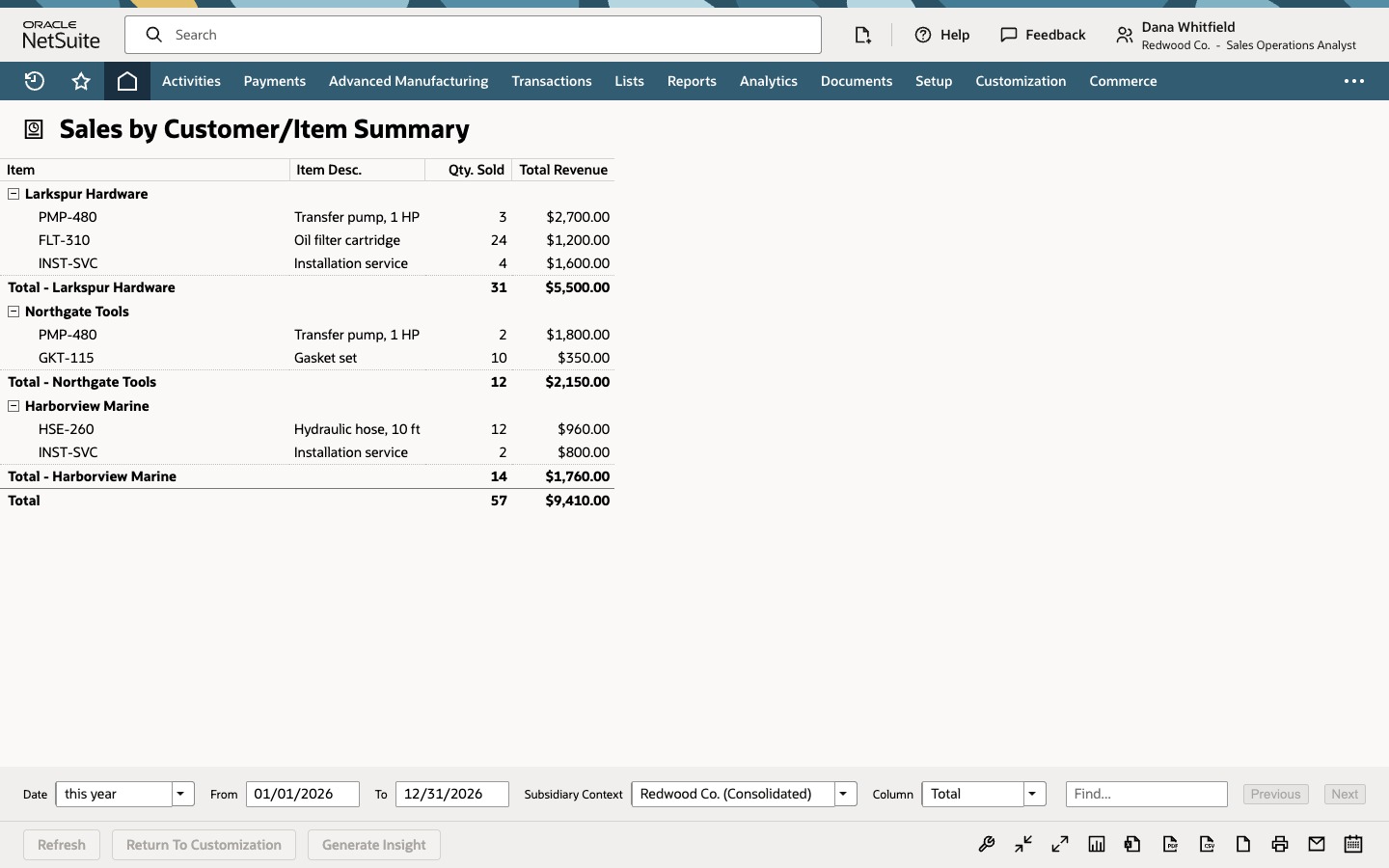
Open Reports > Sales > Sales by Item and click Customize. In the Report Builder, expand Sales > Customer/Project in Add Fields, click Name (Grouped), click Move Left until the column is first, and click Save. The report now lists each customer as a group with its items beneath it and a Total - row. In the example, Larkspur Hardware totals 31 sold and $5,500.00, and the grand total, 57 sold and $9,410.00, matches the standard report.
The example is a distributor that wants to see what each customer bought. The screenshots use sample data, and the person and company names are fictional.
Before you start
Your role needs access to the report and permission to customize reports. The Sales by Item Summary groups its lines by item type and cannot show a customer until you add one. Saving creates a custom saved report under the name you give it, and the standard report is not changed. Who can find or run the saved report depends on its audience and access settings, and a viewer still needs permission for the underlying report data. In the example account the customer record is labeled Customer/Project, and it can include project records as well as customers. Field names, grouping controls and the preview vary with your release, role, features and any customization, so confirm the result in the preview before you save.
01. Open the Sales by Item Summary
Open Reports > Sales > Sales by Item. The page is titled Sales by Item Summary. It lists the Inventory Item and Service groups, each item with its description, Qty. Sold and Total Revenue, a Total - row for each group and a Total of 57 sold and $9,410.00. Note the total, because the customer version should end on the same figure.
02. Open the Report Builder and name the report
Click Customize. The Report Builder opens on Edit Columns with the Name field, the Add Fields pane and the Report Preview. Change the Name to Sales by Customer/Item Summary so the saved report is easy to tell from the standard one.
03. Add the customer field
In Add Fields, expand Sales, expand Customer/Project and click Name (Grouped). A Customer/Project column is added to the end of the preview and selected, with its Column Label below. For customer sections with subtotals use Name (Grouped), which is meant for grouping, rather than plain Name, which is a value to display.
04. Move the customer to the front
With the Customer/Project column selected, click Move Left until it is the first column. Column order sets the hierarchy, so the customer now sits above the items: the preview shows a Customer/Project 1 group row above the item rows, and Group With Previous Column is checked for the column. That box controls how a column relates to the one before it in the hierarchy. Check the preview rather than relying on the box, and note that the original item type grouping can stay as a nested group or be removed depending on the report's settings.
05. Save and read the grouped report
Click Save. The report runs as Sales by Customer/Item Summary, with a Return To Customization button that takes you back to the builder. Each customer is a group with its items beneath it and a Total - row. Larkspur Hardware lists PMP-480, FLT-310 and INST-SVC and totals 31 sold and $5,500.00, and the Total at the bottom is 57 sold and $9,410.00, the same as the standard report. Subtotals follow the grouping, the date range and the subsidiary context, so reconcile one customer against its transactions before you share the report.
Common questions
How do I group the Sales by Item Summary by customer in NetSuite?
Click Customize on the report, add a customer field from Add Fields under Sales > Customer/Project, move that column to the front and save. For customer sections with subtotals, use Name (Grouped). Confirm the result in the Report Preview.
What does Group With Previous Column do in the Report Builder?
It controls how a column relates to the column before it in the report's hierarchy, which decides which values act as group rows and which as lines beneath them. The builder showed it checked for the customer column after it was moved to the front. Treat the preview as the test of the layout you get.
What is the difference between Name and Name (Grouped)?
Name is a value you can display as a column. Name (Grouped) is the field meant for grouping, so use it when you want customer sections with subtotals. Check in the preview which one your account's report needs.
Does customizing the report change the standard Sales by Item Summary?
No. Saving creates a custom saved report under the name you give it, and the standard report stays as it was. Who can find or run the saved report depends on its audience and access settings, and a viewer still needs permission for the underlying report data.
Why did the Item Type groups disappear?
In the example the saved report shows customers, then items. Depending on the report's settings, Item Type can stay as a nested group or can be removed. Check the preview, and remove or ungroup Item Type if you want only customers and items.