The quick answer
Open Reports > Customer/Receivables > Customer Profitability and click Customize. In Report Builder, name the copy, click Add Formula Field, set Column Label to Gross Profit %, check Add Grand Total, choose the Formula Type Percent Ratio (x/y)*100 with Total Profit as x and Total Revenue as y, and click Save.
The screenshots show sample data. The company and person names are fictional. The Formula Type list, the Add Grand Total behavior, the zero-revenue result and the menu path were observed in one account and release, so check them in yours.
Before you start
You need a role that can customize reports, normally an Administrator or a role with report customization permissions. Customizing a standard report and clicking Save creates a customized saved report. The standard Customer Profitability Summary stays as it was. Give the copy a distinctive name so people can tell the two apart. Formula fields are limited to a fixed list of operations on two of the report's own columns. This one divides Total Profit by Total Revenue and multiplies by 100.
01. Open and name a copy
Click the Reports tab, expand Customer/Receivables and click Customer Profitability. The Customer Profitability Summary lists Total Cost, Total Revenue and Total Profit for each customer. The same path is available from the Reports menu. Click Customize. Report Builder opens on Edit Columns. Enter Gross Margin by Customer in Name. This is the name of the customized report, not of the formula column, which you label in step 3.
02. Put revenue first
In Report Preview, click the pencil icon above Total Revenue, then click Move Left. The columns now read Customer, Total Revenue, Total Cost and Total Profit. This puts revenue next to the profit it is compared with. The step is optional. After reordering, check that the formula's x is still Total Profit and its y is still Total Revenue.
03. Add the formula field
Click Add Formula Field in the Add Fields pane. A new last column named Formula appears. In its properties, change Column Label to Gross Profit % and check Add Grand Total. Then choose Percent Ratio (x/y)*100 in Formula Type, Total Profit in x and Total Revenue in y. Leave Apply Formula to Grand Total checked. The list in the reviewed account also offered Sum x+y, Difference x-y, Percent Difference of X, Percent Difference of Y and Ratio x/y, and the predefined list can differ by report and release. In this report Total Profit is revenue minus cost, so the result is a gross margin; label it Profit % if your Total Profit measure includes other costs. Use Percent Ratio for a margin: the Percent Difference types compare two values against one of them, which is a different calculation.
04. Save and read the result
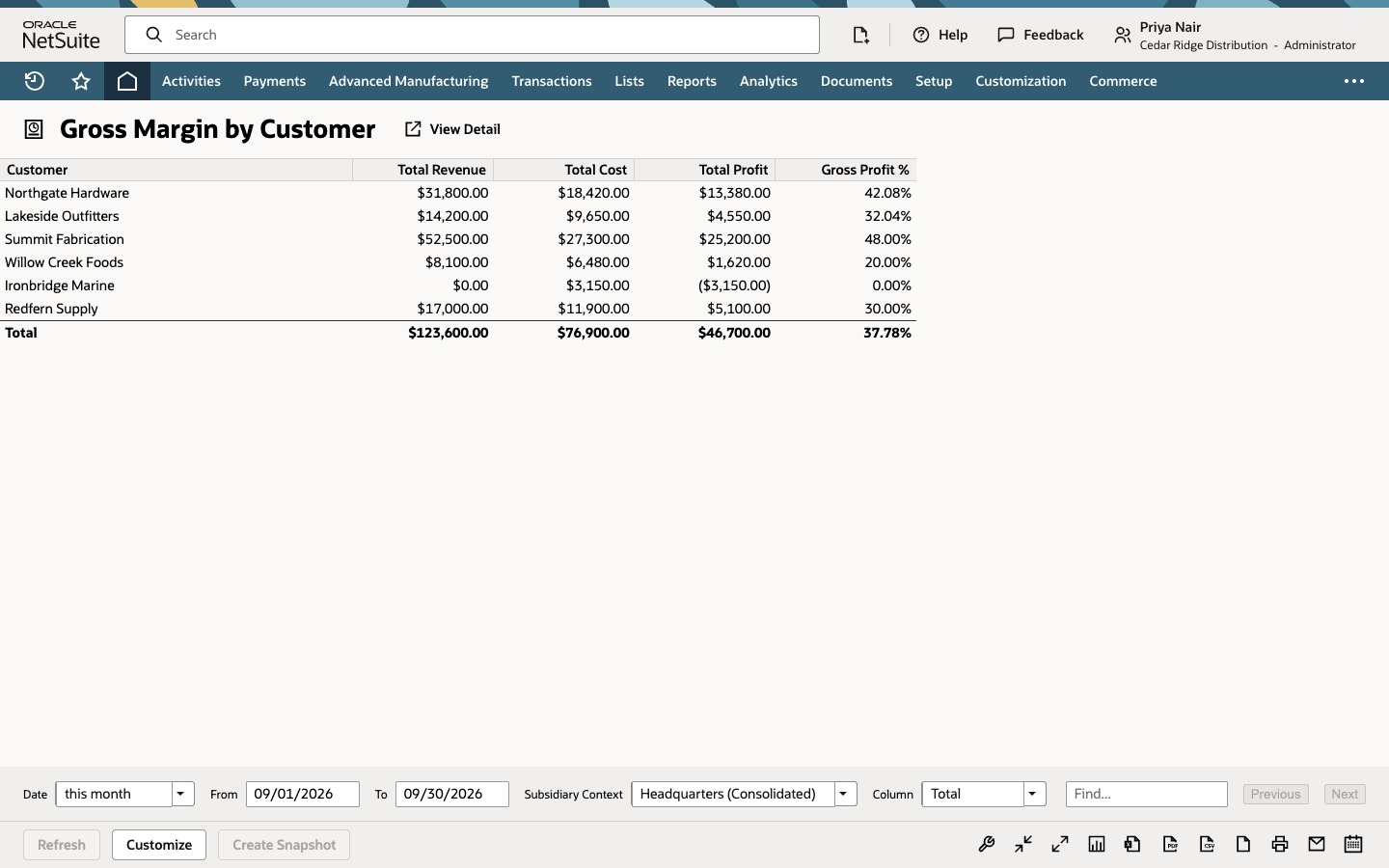
Click Save. Preview shows the report with the current design but does not save the customization, so use Preview first if you want to test. The saved report lists a Gross Profit % for each customer. In the reviewed account a customer with no revenue showed 0.00% rather than an error. Test that case in your own account, and read it together with the Total Profit column. The Total row shows 37.78%, which is total profit of $46,700.00 divided by total revenue of $123,600.00. Whether subtotal and grand total rows appear depends on the report's grouping and layout.
Check the result
- The report is saved under its own name and the standard report is unchanged.
- Each customer row shows its profit divided by its revenue, for example 13,380.00 over 31,800.00 is 42.08%.
- The Total row divides total profit by total revenue.
Common questions
What does Add Formula Field do in Report Builder?
It adds a calculated column to a customized report. The calculation is one of a predefined list of operations on two of the report's own columns, x and y. It is not a free-form expression editor like a saved search formula.
Which Formula Type should I use for a margin percentage?
Percent Ratio (x/y)*100, with profit as x and revenue as y. Percent Difference of X and of Y calculate a difference relative to one of the values, which is not a margin.
What is the difference between Add Grand Total and Apply Formula to Grand Total?
Add Grand Total controls whether the formula column shows a value on subtotal and total rows. Apply Formula to Grand Total controls how that value is calculated: when it is checked, NetSuite applies the formula to the total row's own operands, here total profit divided by total revenue. When it is cleared, it sums the formula values from the rows, which can differ from the ratio of the totals and is not a meaningful overall margin. In the account reviewed, subtotal rows stayed blank with Add Grand Total cleared and showed a percentage with it checked.
Why does a customer show 0.00%?
In the account reviewed, a row with zero revenue showed 0.00% instead of an error. A zero result can mean zero revenue, so check that customer's Total Profit and Total Revenue, and verify how your account and release display a zero denominator.
Does this change the standard Customer Profitability Summary?
No. Saving through Report Builder creates a customized report definition and does not normally modify the standard report. Save and sharing options can vary by report type, role and account.