The quick answer
Open the dataset under Analytics > Datasets, click Create New Workbook and choose Pivot. Drag fields into Rows, Columns and Measures, add subtotals with the Totaling button, choose Show Grand Total on a column field, and Save.
The screenshots show sample data. The company, person, dataset, accounts, customers and amounts are fictional. The layout, defaults and wording described here were observed in one account and release, so check them against your own.
Before you start
A pivot starts from a dataset. For revenue by class build a Transaction dataset whose criteria keep Posting at Yes, so sales orders and estimates stay out, and Transaction Accounting Line: Account: Type at Income. Add the columns you need (account, class, entity, subsidiary, date and the amount). Income accounts carry credits, so the accounting line amount reads negative; add a formula field with a minus sign in front of it, here Income Amount, to show income as a positive number. Save the dataset. This guide starts from that finished dataset and does not repeat building it.
01. Create a workbook from the dataset
Open Analytics, click the Datasets tab and the dataset name Income by Class Dataset. Its criteria show income accounts and posting transactions only. Click Create New Workbook.
02. Choose a pivot
On Choose visualization type for current dataset click Pivot. The Layout panel shows three drop areas, Rows, Columns and Measures, all empty.
03. Place the fields
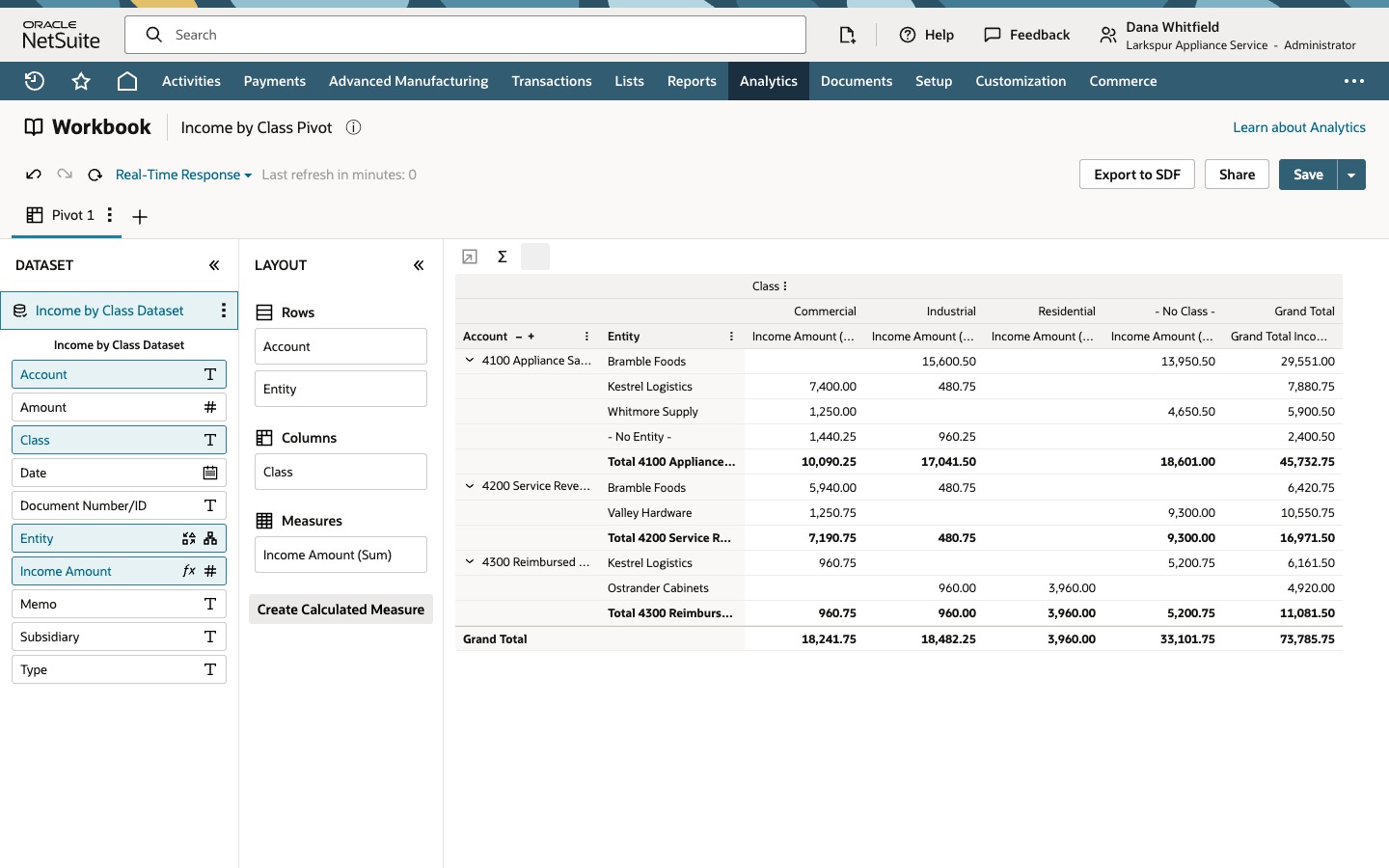
Drag Account and then Entity into Rows, Class into Columns and Income Amount, the formula field marked fx, into Measures, where it becomes Income Amount (Sum). Rows and Columns keep the order you drop fields in. In the account reviewed the pivot drew as soon as each field landed: each account with its entities underneath and one column per class, with - No Class - for lines that have none.
04. Add subtotals
Click the Totaling sigma button, choose Bottom for Rows and click OK. Each account now ends with a Total line, and a Grand Total row at the bottom adds the classes.
05. Add a Grand Total column
Hover over Class in Columns, open its menu and choose Show Grand Total. A Grand Total column totals each row across the classes. The grand total follows the measure's summary type, so it is not always the sum of the cells you can see.
Check the result
- Each account lists its entities with one column per class, including - No Class - for lines without one.
- Each account ends with a Total line, and a Grand Total row adds the classes.
- The Grand Total column shows the overall total in the bottom right cell.
06. Save the workbook
Click Save, type a name such as Income by Class Pivot in Save Workbook As: and click Save. The confirmation reads Workbook has been saved, and the workbook title changes to the name you chose. Saving the workbook keeps the pivot layout; the dataset stays separate, and changing and saving the dataset later can change every workbook that uses it.
Common questions
How do I create a pivot table in NetSuite?
Use SuiteAnalytics. Create or open a dataset under Analytics > Datasets, click Create New Workbook, choose Pivot, and drag fields into Rows, Columns and Measures.
Why does income show as a negative number?
The accounting line amount is the posted amount, and income accounts carry credits, so it reads negative. Add a formula field with a minus sign in front of the accounting line amount to show it as positive. Formula syntax and field labels vary by release.
Which filters give me only income on the general ledger?
Keep Posting at Yes so non-posting transactions such as sales orders and estimates stay out, and filter Transaction Accounting Line: Account: Type to Income.
Why do some rows show - No Class -?
The class on a transaction line is set per line. A line with no class is grouped under - No Class -.
Where do I add subtotals and grand totals?
Use the Totaling sigma button to place row subtotals at the top or bottom, and the menu on a column field, Show Grand Total, for a Grand Total column.