The quick answer
The warning means the formula returns a decimal number (FLOAT) while the output type is INTEGER. Open the Choose output type list, choose FLOAT, click Validate again and wait for the green check, then Save. Division and arithmetic on prices or amounts always return FLOAT.
The screenshots show sample data. The company, person, dataset, customers, items and amounts are fictional. The layout, defaults and wording described here were observed in one account and release, so check them against your own.
Before you start
You need a dataset that holds the fields the formula uses. This guide starts from a Customer dataset named Customer Item Pricing Dataset that joins each customer's Item Pricing lines (item, price level and unit price) and the item's base price, and keeps only the Custom price level. It does not repeat building the dataset. Saving the dataset can change workbooks that already use it, so check for them first; the editor shows a notice when other workbooks use the dataset.
01. Open the dataset
Open Analytics, click the Datasets tab and the dataset name. The dataset lists each customer's item, the Custom unit price and the item's Base Price: 10 rows and no variance yet.
02. Add the Price Variance formula
Click the Formulas group and then New Formula. The Formula Field dialog asks for a name of up to 50 characters, an output type that starts as INTEGER, and the formula. Type the name Price Variance. Build the formula from the Fields tab: the item's Base Price, a minus sign and the Item Pricing Unit Price. Each field is inserted as its field ID in braces, here {itempricing.item^item.baseprice} - {itempricing.price}. Click Validate.
In the account reviewed, a warning icon appears beside Formula* and a dark bubble reads: The output type of the formula is set to INTEGER, but the actual return type is FLOAT. Please change either the formula expression or the output type. Validate turns grey. Prices carry decimals, so the difference is a decimal number and INTEGER does not fit it.
03. Choose FLOAT and save
Open Choose output type, choose FLOAT and click Validate again. A green check appears beside Formula*, and pointing at it reads Formula definition is correct. Click Save. Price Variance now appears in the Formulas group with the formula mark and as a column of the dataset.
04. Add Price Variance %
Click New Formula again, name it Price Variance % and divide the unit price by the base price. Division returns a decimal number, so the same warning appears for INTEGER. Choose FLOAT, validate and save. The new column shows the share of the base price the customer pays: 0.55 means 55 percent.
05. Save the dataset and build the pivot
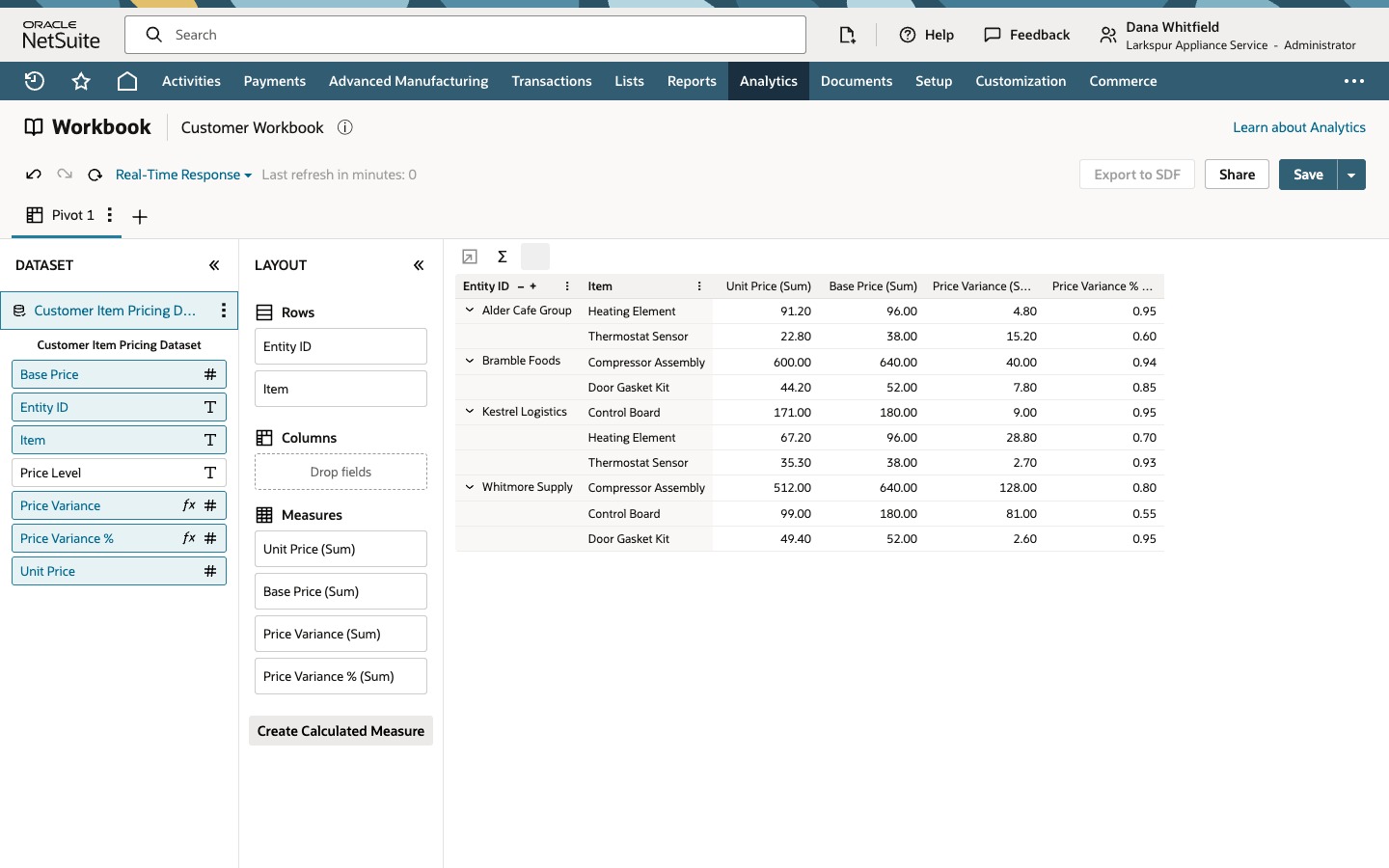
Click Save; the confirmation reads Dataset has been saved. Then click Create New Workbook and choose Pivot. Drag Entity ID and Item into Rows, and Unit Price, Base Price, Price Variance and Price Variance % into Measures.
Check the result
- Whitmore Supply's Control Board shows 99.00 against a base price of 180.00, a variance of 81.00 and 0.55.
- Alder Cafe Group's Thermostat Sensor shows 22.80 against 38.00, a variance of 15.20 and 0.60.
- The lowest Price Variance % values mark the prices set too low.
Common questions
Why does the formula say the output type is INTEGER but the actual return type is FLOAT?
The dialog compares the output type you chose with the type the formula returns. INTEGER declares whole numbers; it does not round. A formula that divides, or does arithmetic on decimal-capable fields such as prices, amounts or costs, returns FLOAT, even if today's values happen to be whole.
Which output type should I choose for a price calculation?
FLOAT. A FLOAT output also validates when every result is whole. The list offers BOOLEAN, CLOBTEXT, DATE, DATETIME, DURATION, FLOAT, INTEGER, PERCENT and STRING; this guide shows only INTEGER and FLOAT, so check the others in your account.
How do I get a whole number from a decimal calculation?
Wrap the calculation in a function that rounds or truncates, such as ROUND or TRUNC, rather than choosing INTEGER for a decimal result.
Does a saved formula appear in workbooks built on the dataset?
A saved formula is a field of the dataset. Once it is part of the dataset's data grid and the dataset is saved, a workbook built on that dataset can use it in a table, pivot or chart. It is not available to unrelated datasets.
What happens to existing workbooks when I save the dataset?
Saving does not create or replace a workbook, but a connected workbook uses the changed definition. Adding a formula makes it available after a refresh; changing a formula or its output type can change values or whether a visualization can use it.