The quick answer
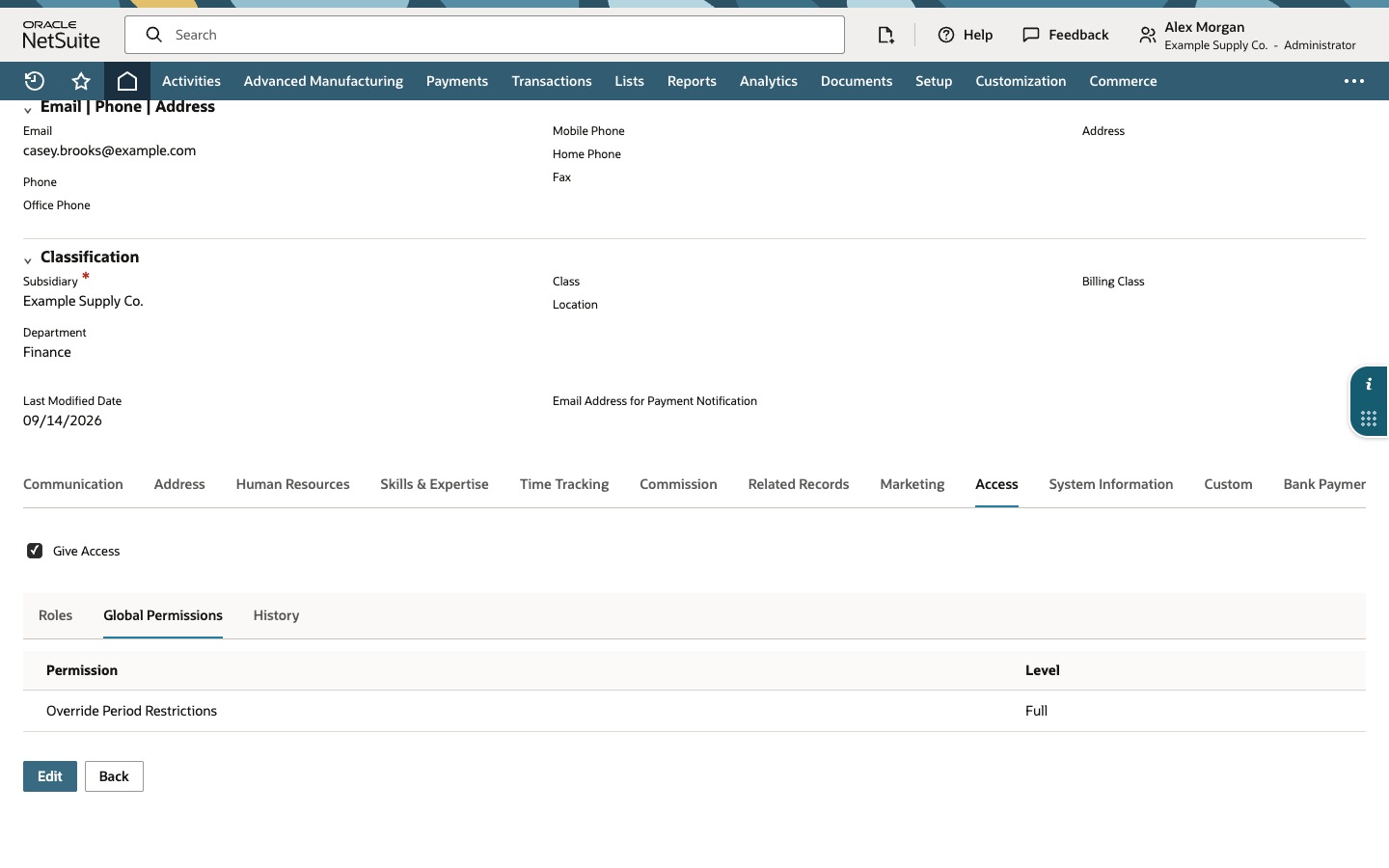
Open the employee record, go to Access > Global Permissions, add the permission Override Period Restrictions at the Level Full and save. That employee can then post G/L-impacting transactions to a period that is locked for A/P or A/R but not closed. It does not permit G/L-impacting changes directly in a Closed period, which has to be reopened first, and everyone without the permission stays blocked.
The example is an accounts payable specialist, Casey Brooks, who has to enter a few more bills for Aug 2026 after A/P and A/R were locked. The period is Open, not Closed, so the override applies. The person and operating-company names in the screenshots are fictional example data.
Before you start
Confirm that Accounting Periods and Employees are enabled, because the Access and Global Permissions lists belong to the employee record. The person making the change needs permission to edit employee records and their access. Manage Accounting Periods is needed to manage periods, including locking, closing and reopening them, but not to add this permission. Reopening a Closed period also takes Override Period Restrictions, so treat the permission as sensitive. The employee should not be an Administrator: Administrator already has the capability, so adding it there changes nothing and proves nothing.
In OneWorld accounts, check that the period is locked for the subsidiary you care about, because a lock can apply to some subsidiaries and not others. In Multi-Book accounts, check the accounting book too. The employee also still needs the ordinary permissions to enter a vendor bill, and access to the vendor, subsidiary and accounts involved. A global permission does not replace role permissions. For a vendor bill the lock that matters is normally the A/P lock. If your vendor bills use approval routing, read the note under the test section first.
Confirm the period is locked, not closed
Go to Setup > Accounting > Manage Accounting Periods and expand FY 2026. Read the Aug 2026 row. A/P Transactions and A/R Transactions show closed padlocks, All G/L Transactions does not, the Period Close column is empty and Allow Non-G/L Changes is blank. Every closed month above it carries a check in Period Close.
Click the Checklist icon on the Aug 2026 row. The Period Close Checklist shows Status Open, with Lock A/R and Lock A/P complete.
Scroll down to the last task. The period stays Open until the final Close task is completed; locking A/P and A/R does not close it. The checklist tasks vary with your features, subsidiaries and books, so yours may differ.
Open the employee's Global Permissions
Go to Lists > Employees > Employees and click Edit next to the employee. Open the Access subtab. The Roles list shows which roles the employee uses, here A/P Clerk. Click Global Permissions beside it and read the list before you change it.
Add Override Period Restrictions at Full
In the new row, open the Permission dropdown and choose Override Period Restrictions. The Level starts at None. Open it and choose Full. The available levels depend on the account and the permission. In the account this example was checked in they were None and Full, so Full is the level that grants the override. Click Add.
Add commits the row to the list and opens a fresh one below it. Nothing is saved until the employee is saved.
Save and confirm the grant
Click Save. NetSuite returns to the employee record with a confirmation. Open Access and Global Permissions again and read the list: Override Period Restrictions at Full is now stored on the record.
Have the employee start a new session, by signing out and back in, before the first test so the changed access is evaluated cleanly.
Test the grant in your account
The walkthrough above configures and confirms the grant. It does not post a bill, so test the effect yourself, using a test vendor and a bill dated inside the locked period. With the employee signed in again, start a new vendor bill, confirm that Aug 2026 can be chosen as the Posting Period, save the bill and reopen it to read its Posting Period and G/L Impact. Then repeat with a user who does not have the permission and check that the locked period is unavailable or that the save is rejected. The exact message wording varies, so read it in your own account.
Test a Closed period separately. A user with this permission still cannot post G/L-impacting transactions directly there; the period has to be reopened first. Do not use an Administrator as the test user, because Administrator already has the capability. After the close, review the employee's System Notes to see who added the permission and when, and remove the row if the grant was meant to be temporary.
Two things can change the result. If vendor bills go through approval, the bill may be saved as a non-posting transaction and its posting period can be settled when it is approved, so the approver may need the permission too. Check the bill's approval status before you read the result, and test approval with an authorized test user. And the preference Allow Transaction Date Outside of the Posting Period is separate: it controls what happens when the date falls outside the chosen period, and it does not make a Closed period selectable. Keep the bill date inside the period so that only the lock is being tested. If scripts, imports or payment automation create or change the bill, test that route separately.
Common questions
What does Override Period Restrictions do in NetSuite?
It lets the user add or edit G/L-impacting posting transactions in a period that is locked but not closed, such as a period with A/P or A/R locked. It does not let anyone post G/L-impacting changes to a Closed period. The user still needs the normal permissions to enter the transaction.
Should I add it to a role or to one employee?
Adding it under Permissions > Setup on a role gives it to everyone who uses that role. Adding it under the employee's Access > Global Permissions applies it to that employee across their roles. For a late-posting exception the employee record is the narrower choice, and it is worth removing the row once the exception ends.
Does Override Period Restrictions let the employee post to a Closed period?
Not directly. G/L-impacting changes are not allowed in a Closed period until it is reopened, and reopening takes this permission along with the ordinary period management access. Changing the employee's permission does not reopen or unlock anything by itself.
Does the permission replace the employee's role permissions?
No. The employee still needs the vendor bill, vendor, subsidiary, account and approval permissions the transaction calls for. The override only addresses the period restriction.
Does Administrator need it?
No. Administrator already has the capability, so adding the permission to an Administrator changes nothing, and an Administrator cannot show whether the grant works for an ordinary role.