The quick answer
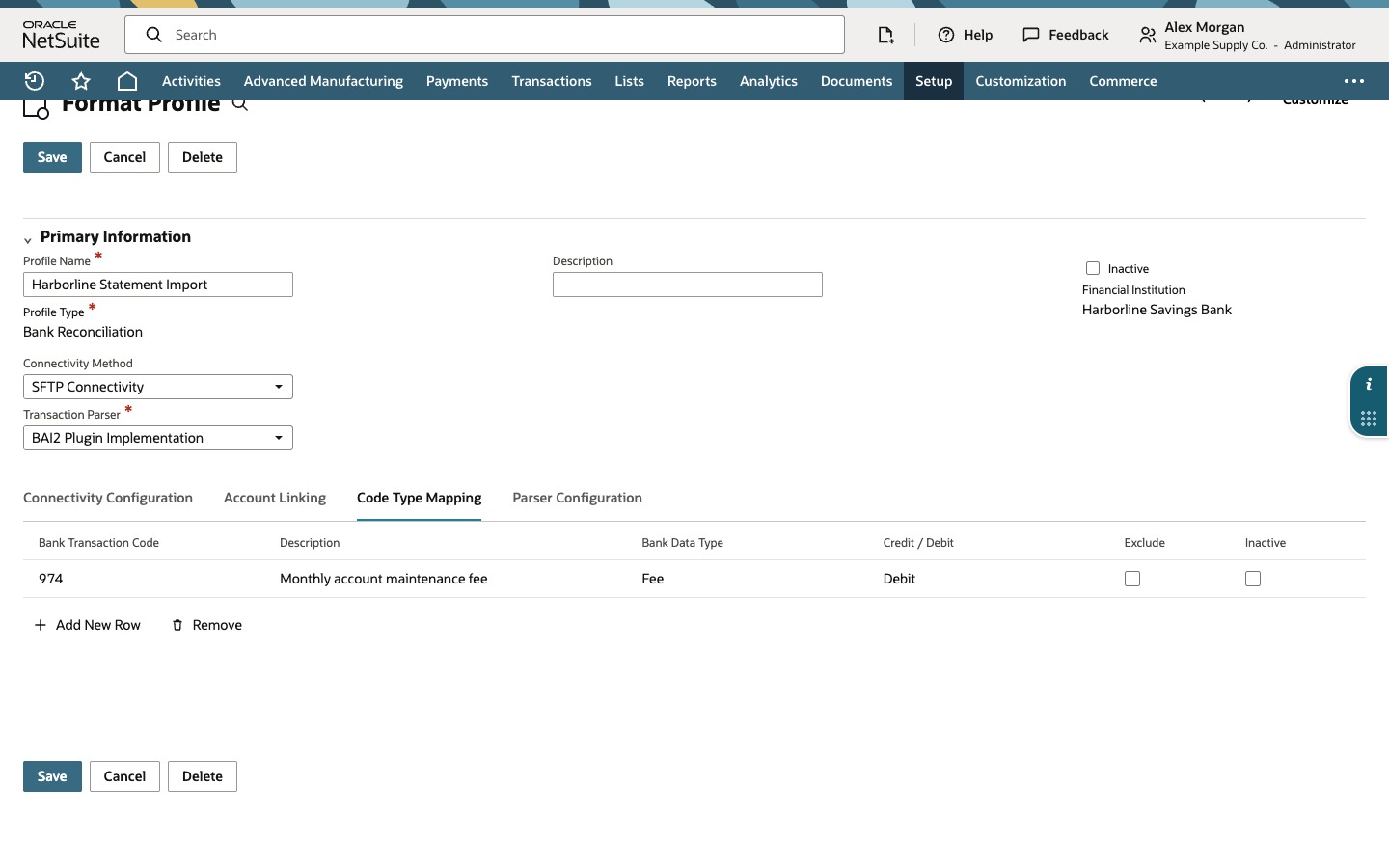
Open the financial institution, edit the format profile that reads the bank's statement files, and add a line on the Code Type Mapping subtab. Enter the bank's code in Bank Transaction Code, set Bank Data Type to the matching classification, such as Fee, and set Credit / Debit when the file format sends amounts without a sign. Save the profile, then open Banking Import History to see what NetSuite did with the next import. In this example the code is 974, a monthly account fee from the bank, mapped as a Fee and a Debit.
The profile in this example uses SFTP Connectivity and the BAI2 Plugin Implementation transaction parser. The parser already maps the standard codes of its file format. Code Type Mapping is for the exceptions: a custom or unrecognized code your bank sends, or one you intentionally want classified differently from the parser's standard mapping. Person and company names in the screenshots are fictional example data.
Before you start
The account needs the connectivity and parser plug-in implementations that the profile uses. For an SFTP and BAI2 setup that commonly means the Auto Bank Statement Import functionality and a bank statement parser, installed and enabled; a custom plug-in can be used instead. You also need a financial institution with a Bank Reconciliation format profile that uses a bank statement parser, and at least one active Account Linking line on it that points to the right NetSuite bank or credit card account. Your role must be able to edit financial institution records and open Banking Import History; permission names vary by role and enabled features.
Get two facts from the bank before you map anything: what code 974 means, and that the statement file really carries it. The code, description, Fee and Debit in this guide are example values from the demonstrated bank file, not settings for that code in every bank. The mapping classifies an imported bank line for bank data processing and matching. By itself it does not create a bill payment, check, journal entry, deposit or fee transaction; you still match the line or create the transaction on the bank matching pages.
The example uses Harborline Savings Bank and its Harborline Statement Import profile. The SFTP connection details on this profile are left incomplete on purpose, so you can see where a failed import is reported. A real profile needs the URL, username, password or private key, host key and type, port and download directory from the bank.
01. Open the format profile for editing
Go to Setup > Accounting > Financial Institution > List. The list shows Harborline Savings Bank with its Harborline Statement Import profile. Select View beside the institution.
On the record, open the Format Profile: Configuration subtab. It lists the profile with SFTP Connectivity as the connectivity method and BAI2 Plugin Implementation as the transaction parser. Select Edit beside the profile.
02. Add the missing bank transaction code
On the profile, open the Code Type Mapping subtab. No codes are mapped yet, so the empty line shows the defaults Other and N/A.
Select the line, enter 974 in Bank Transaction Code, and enter Monthly account maintenance fee in Description. The description is your own label; it helps the next administrator see what the code is. It does not change how the line is parsed.
Open Bank Data Type and choose Fee. In the account checked, the list offered Other, ACH, Check, Credit, Debit, Deposit, Fee, Interest, Payment and Transfer. Other accounts and releases can differ.
Then open Credit / Debit and choose Debit. A typical BAI2 setup sends amounts without a sign, so this value tells NetSuite which direction the fee runs, and it can override the direction in the imported data. Choose N/A when the parser already supplies the sign or direction. Leave Exclude and Inactive cleared: Exclude ignores every line that carries the code on this profile, and Inactive disables the mapping line without deleting it.
03. Save the profile and open the import status
Select Save. In the account shown, the Financial Institution record opened with a Bank data importing message, because the profile uses an automated connection and NetSuite started an import attempt. Saving a connected profile can do more than store the mapping: it may start an asynchronous import, and a newly linked account can pull recent statement history on its first successful import. Whether a save starts an import also depends on the plug-in setup, the account linking and how recently the profile was imported, so do not expect the message every time.
Select Track your status in the message.
04. Read the import result
Banking Import History (Transactions > Bank > Banking Import History) lists each import attempt, newest first. The new row shows Import Status Failed, Data Source SFTP Connectivity, Format Profile Harborline Statement Import and Imported By -System-. The page shows Total: 1.
Select the plus icon on the row to read the failure reason. In the demonstrated account it says no connectivity configuration setup was found for SFTP connectivity. The connection details were left incomplete on purpose, so that failure is independent of the mapping. In another account an unmapped bank code can appear as the failure reason in the same expanded details. The status, columns, profile name and exact message are specific to the account and the run, and can differ by release and bank plug-in.
05. Confirm the mapping is saved
Reopen Harborline Savings Bank from Recent Records, select Format Profile: Configuration, select Edit beside the profile and open Code Type Mapping. The line is still there: 974, Monthly account maintenance fee, Fee and Debit.
Complete the SFTP connection details with the bank's values, confirm the account link is active and save again. Then check Banking Import History for a new row; a retry is asynchronous, and a duplicate-run or frequency limit can keep a new row from appearing at once. A saved mapping applies to later parsing and import attempts. It is not expected to reclassify bank lines NetSuite has already imported. Follow the failure details for the affected import: depending on the error, the file may need to be retried through the connection or update action, or imported again after the configuration is corrected. Do not delete an import record unless your account's recovery procedure calls for it. When an import succeeds, find the lines on the bank matching pages and check that the fee line shows the expected classification and direction.
Common questions
When should I add a mapping on Code Type Mapping?
Add one when the bank sends a custom or unrecognized transaction code, or when you intentionally need to override the parser's classification. Confirm the code's meaning with the bank first. The parser already handles the standard codes of its format, so do not copy them in, and do not assume a code is numeric: the field takes up to 80 characters.
What do Bank Data Type and Credit / Debit decide?
Bank Data Type classifies the imported bank line for bank data processing and matching, for example as a fee. Credit / Debit gives the direction when the parser supplies an unsigned amount, as in a typical BAI2 setup, and can override the direction in the imported data. Select N/A when the parser already supplies the direction. The mapping does not itself create or post an accounting transaction.
What do Exclude and Inactive do?
Exclude tells NetSuite to ignore every line that carries the code on that profile; excluded lines do not count as imported transactions and do not appear in import details. Inactive disables the mapping line without deleting it. While it is inactive, the parser's standard mapping or its unrecognized-code behavior applies.
Does a mapping create a bank fee transaction?
No. It classifies the imported line as a fee and sets its direction. A fee transaction is created separately, through matching, an enabled automation feature or another accounting process.
Why did my import fail after I saved the profile?
Open Banking Import History, expand the failed row and read the failure reason. Possible causes include an incomplete SFTP connection, an inactive or missing account link, an invalid or unsupported file, a parser configuration error, an unavailable plug-in, a connection or authentication failure and an unmapped bank transaction code. In the example the cause was incomplete SFTP connection details, not the mapping, and another account can show a different reason.