The quick answer
In an account with the historical Exactor Sales Tax bundle, open Setup > Company > Exactor Account Setup. Choose New for the subsidiary, enter the required account number, user name and password, review the options, then save. A green Exactor account has been mapped successfully message and the selected account on that subsidiary’s row confirm the saved mapping.
This guide documents a 2015 Exactor Sales Tax custom-bundle video. Current accounts may show different menus, fields and validation behavior. The screenshots use fictional person and company names. Enter the credentials for your own account; the example values are only there to show the fields.
Before you start
You need the historical Exactor bundle, a role that can view or edit its setup records, and the account number and credentials for the account you intend to map. Identify the intended subsidiary and check whether an existing account should be reused. This is a custom legacy sales-tax integration, separate from NetSuite’s native SuiteTax setup.
The walkthrough ends at the saved mapping. It does not test the external credentials or calculate tax on a transaction.
01. Open account setup
In the demonstrated bundle version, open Setup > Company > Exactor Account Setup. This custom menu path may differ in another version. The page lists subsidiaries, each with its own Exactor Account selector. Find the subsidiary that should use the account and choose New from its selector.
02. Enter account details
The Setup a new Exactor Account form requires Account #, User Name and Password. Fill these from your own Exactor account. The optional Company Exemption ID and API Key fields appear on the same form.
03. Choose preferences
Check Accounting Type, Enable Customer Exemption, Default Ship To Address and Product Mapping Source against your intended setup. In the demonstration, the final form shows Accrual basis, customer exemption enabled, Bill To Address (use for electronic downloads) and Item Id. These are shown choices, not defaults every account should copy.
04. Save and verify
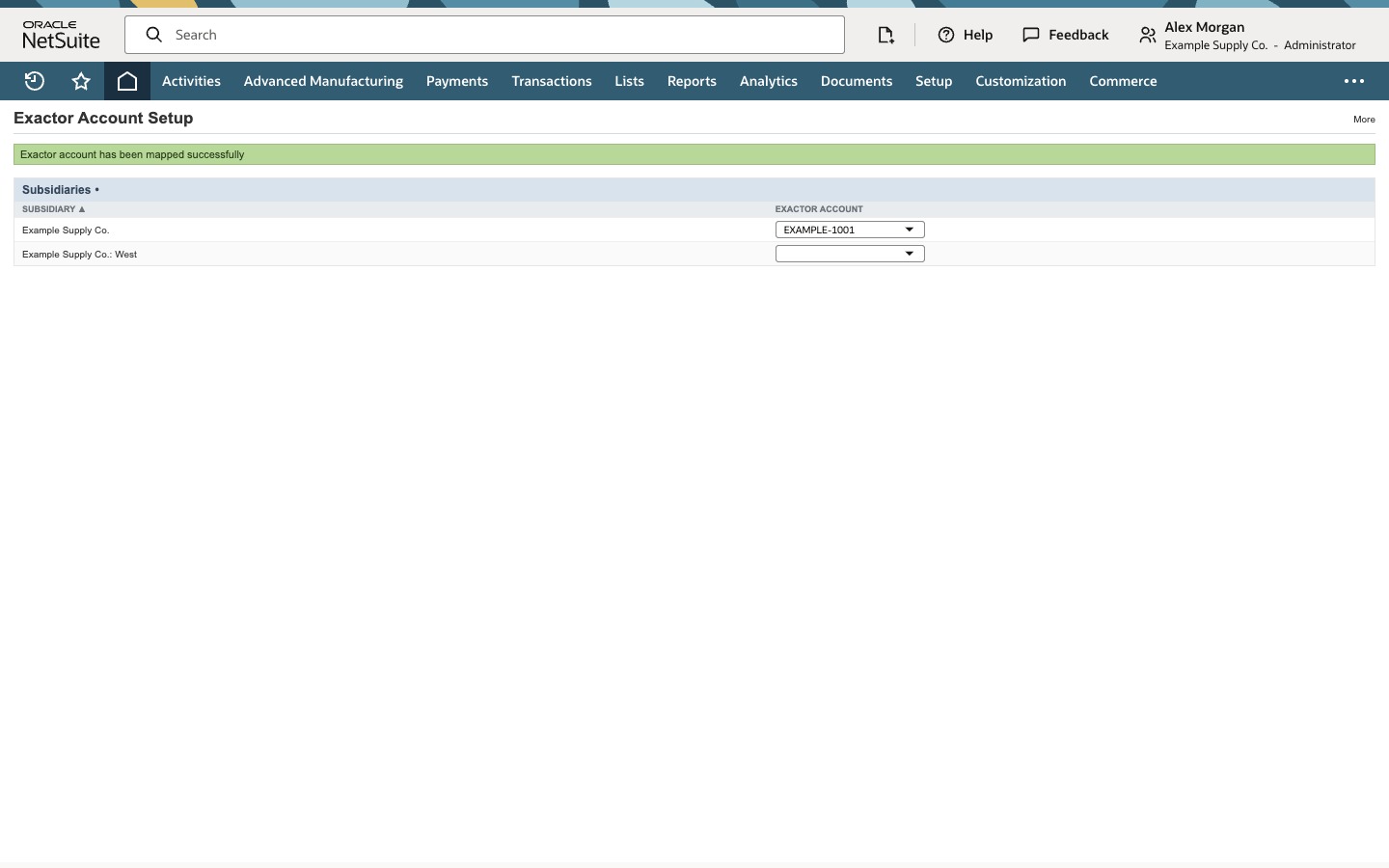
Choose Save. The account form closes. Back on Exactor Account Setup, look for the green Exactor account has been mapped successfully message and confirm the intended subsidiary now shows the account you saved. The second subsidiary remains unassigned in this walkthrough.
If another subsidiary should use the same account, confirm that your Exactor contract, bundle version, subsidiary structure and connector rules permit it before choosing the existing account in that row. Then verify its mapping separately. Check the connector and a controlled taxable transaction before relying on tax results; neither check appears in this recording.
Common questions
Does the mapped-success message prove Exactor can calculate tax?
No. It confirms the saved account-to-subsidiary mapping shown here. The walkthrough does not show a connection test, sales transaction or calculated tax amount.
Do I need a new Exactor account for every subsidiary?
The historical source says an account can be associated with more than one subsidiary. That is not a universal rule. Check the current bundle version, your Exactor contract and your organization’s subsidiary and connector rules before reusing an account.
Why can’t I find Exactor Account Setup?
This menu belongs to the historical Exactor bundle and depends on its installation, configuration and role permissions. A current account may use a different connector or native SuiteTax, with different pages and labels. The presence or absence of this menu alone does not establish how that account calculates tax.
What should I check after saving the mapping?
Confirm the intended subsidiary shows the right account. Where available, use the connector’s validation or status check. Then test a controlled taxable transaction with known addresses, item treatment, subsidiary, customer exemption data and date. Inspect the tax details and amount before using the result operationally.
Does this configure native SuiteTax?
No. It covers account mapping in a historical Exactor custom bundle. The saved mapping does not assign a native SuiteTax tax engine.