The quick answer
In a NetSuite Legacy Tax account where the customer Tax Item list offers the configured Avalara code, open Lists → Mass Update → Mass Updates → General Updates → Customer. Filter the customers, select Apply on the Tax Item row, choose the account’s code (AvaTax in this example), and preview every checked customer. Perform the update only after the list is right. Confirm the processing outcome, then spot-check a customer’s saved Financial → Tax Item value.
The screenshots show fictional customers and account identity in a reconstruction of a 2022 product walkthrough. The inspected 2026.2 account exposed the generic Customer mass-update editor, including Tax Item, but did not verify the AvaTax choice or run a live update. This procedure shows a customer default change. It does not verify Avalara tax calculation during transaction entry, preview, or save.
Before you start
Confirm that your account uses Legacy Tax rather than SuiteTax, has the intended Avalara connector and tax code configured, and offers that code in the customer Tax Item list. AvaTax is the displayed value in this example, not a universal option or an inventory item. You need a role that can run Customer mass updates. Before a bulk write, save the intended customer IDs and current Tax Item, Taxable, subsidiary, active status, and address values. Check whether connector scripts or workflows could override the result. Decide how exempt and resale customers should be treated; assigning a tax code does not establish exemption status.
01. Open Customer mass update
Go to Lists → Mass Update → Mass Updates. Expand General Updates and choose Customer. Give the action a specific title. In this example, it is Assign AvaTax to Colorado customers.
02. Set the customer criteria
On Criteria, add Country = United States. This first filter is deliberately broad: its preview includes 10 fictional customers, including four outside the intended state. Check what customer address context these fields use in your account; it may differ from the address that determines tax on a transaction.
03. Apply Tax Item
Open Mass Update Fields. Find Tax Item, check its Apply box, and choose the account’s Avalara tax code in Value. Here that value is AvaTax. If it is absent, stop and check the account setup; do not substitute an unrelated tax code. The separate Taxable row displays a checked value in this example, but its Apply box is clear. This mass-update definition requests a Tax Item change only. Proving Taxable stayed unchanged requires comparing its prior and final values and considering other automation.
04. Preview, refine, and perform
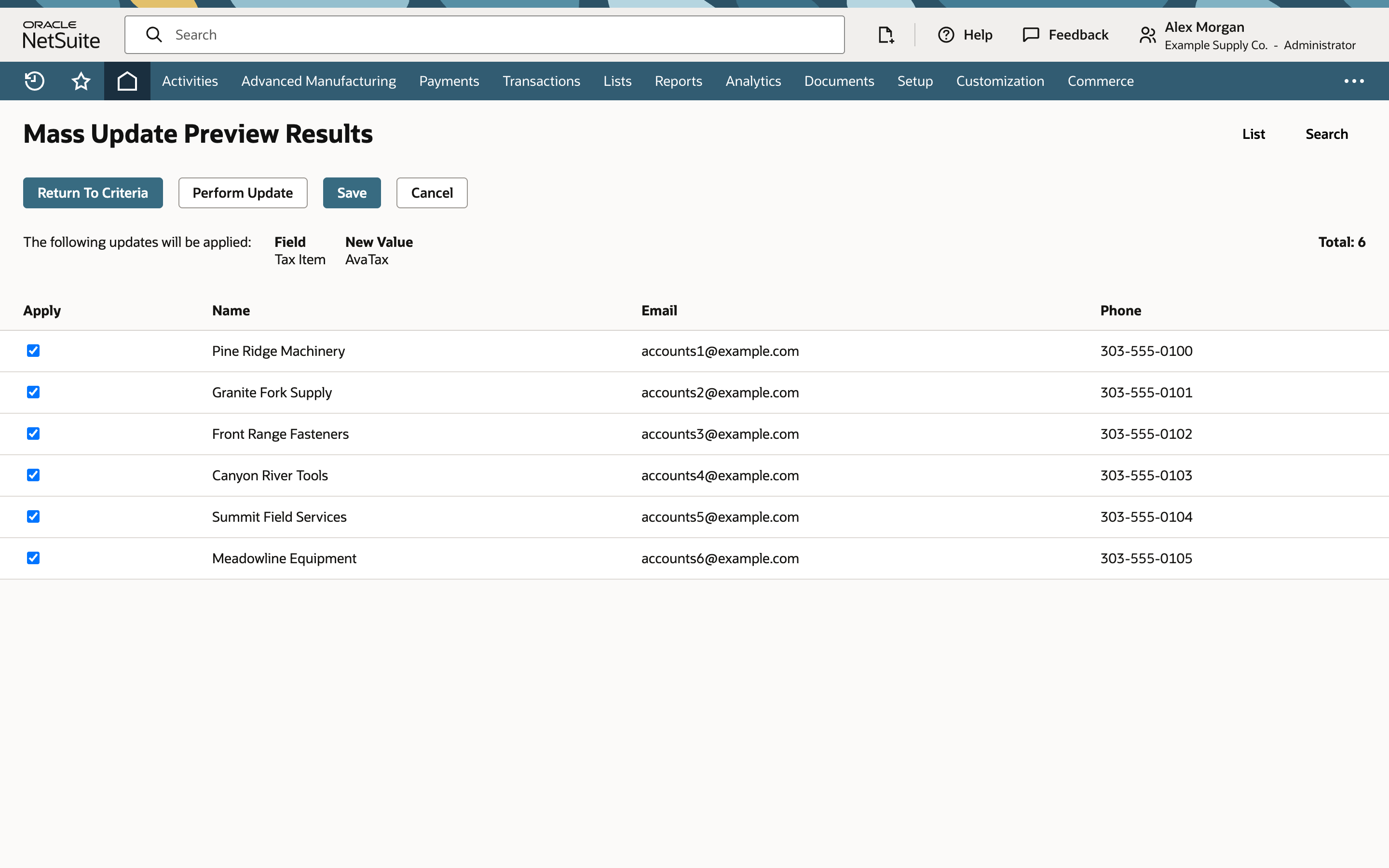
Click Preview. Read the proposed change at the top: Field: Tax Item, New Value: AvaTax. Check both the total and the selected rows. The first preview has 10 customers, more than this example should update.
Choose Return To Criteria and add State/Province = United States - Colorado. Preview again. In a OneWorld account, add the applicable subsidiary criterion; filter inactive customers if they should be excluded. Review customer tax overrides and exemption records separately. The state alone may still include customers you should leave out.
The revised preview shows Total: 6, with six checked fictional customer rows. Your count will depend on your data. Confirm each row belongs in the update before clicking Perform Update once. The example then shows Mass Update Performed and a six-record processing count. Check the account’s errors, skipped records, and final values; the confirmation alone is not a field-by-field audit.
05. Verify the customer
Open one customer from the selected group and select Financial. Under Tax Information, check Tax Item: AvaTax. This is a spot check. A customer search or export of the processed IDs should confirm the final value across the intended group and expose failures or overrides. Taxable may be checked, but this mass-update definition did not request a change to it. To test connector calculation, use a controlled new transaction with the intended subsidiary, customer, ship-from and ship-to addresses, taxable item, transaction type, date, nexus, and connector settings. A saved customer default alone cannot answer that question.
Common questions
Does selecting AvaTax in Value change the customer if Apply is clear?
No. The value is not written unless the field’s Apply control is selected. The selected code also has to be valid for that account and tax setup.
Did this update make the customers taxable?
Not by this mass-update definition. It leaves Apply for Taxable clear and requests a Tax Item change only. Compare prior and final Taxable values if you need to prove they stayed the same; other scripts or workflows may affect them.
Why preview twice?
The first Country-only preview includes 10 fictional customers. Adding State/Province narrows the example to six. Those counts are fixture values. Preview lets you catch a broad selection before changing records.
Does a customer Tax Item of AvaTax prove that tax was calculated?
No. It confirms a saved customer default in this Legacy Tax example. Verify tax on a controlled new transaction with the intended subsidiary, addresses, item, customer, and tax setup. The current account comparison did not test live calculation.
What if AvaTax is missing from the Tax Item list?
Confirm Legacy Tax rather than SuiteTax, connector version and configuration, tax-code setup, subsidiary and nexus availability, role permissions, and customer form settings. Do not substitute an arbitrary code. A SuiteTax account may not expose this Legacy Tax selection.