The quick answer
Open the PayPack Stripe Tax Registrations Sync MR deployment, choose Save and Execute, then find the newly created row on Map/Reduce Script Status. In this example, the new row moves from Processing to Complete. A later view shows an active California (US) PayPack tax registration, but that record was created before this run. Complete confirms the script instance finished; it does not show that the instance created the registration or a NetSuite nexus.
These images reconstruct a dated PayPack walkthrough with fictional person and operating-company names. The PayPack script and custom records are vendor-specific; availability, field labels, and results depend on the installed bundle and account configuration. A current US NetSuite account exposed general scripting pages, but this source bundle's deployment and registration detail were not verified there.
Before you start
Confirm that the PayPack integration and its registration-sync Map/Reduce script are installed in the intended account. Use a role that can inspect the deployment, see script status, and read the PayPack custom registrations. A Testing deployment may require script-owner access; the Execute as Role setting does not grant every administrator permission to test it. Check the integration's configuration and scheduled jobs before a manual execution so you can distinguish the new instance from older ones. The demonstration's Deployed, Testing, and daily schedule settings are observations from that account, not instructions to use those settings together in yours.
01. Find the deployment
Go to Customization > Scripting > Scripts, find PayPack Stripe Tax Registrations Sync MR, and open its deployment. Confirm the script and deployment ID before acting. The source shows a daily schedule, but this walkthrough uses an on-demand execution.
02. Run the sync
On the source deployment's edit page, open the Save menu and choose Save and Execute. The video shows this action followed by a new Map/Reduce status row, despite the unusual Testing plus daily-schedule combination on that deployment. Check your installed version and deployment procedure before repeating the action in a different account. It does not by itself establish that any registration or nexus changed.
03. Check the new execution
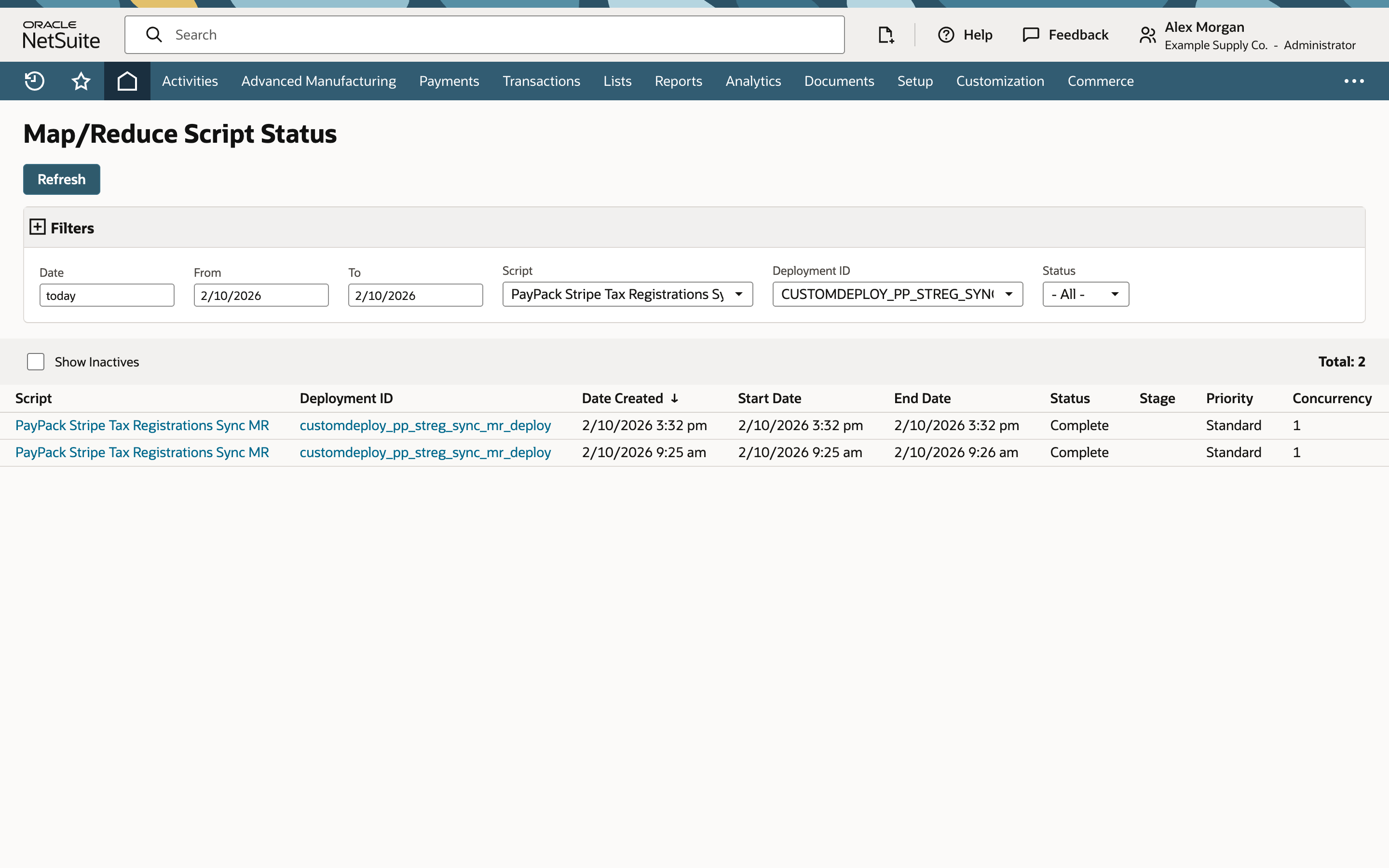
On Map/Reduce Script Status, filter to the script, deployment, and relevant date range. Identify the new row by its creation time; do not mistake a prior Complete row for this submission. Refresh until the new row reaches a terminal state. In this demonstration, the 3:32 pm row moves through Processing to Complete, while a 9:25 am Complete row was already present. Complete is an execution status, not a business-result check: review the instance's details, stages, and script or PayPack error logs before reporting a successful data sync.
04. Inspect an existing registration
Open PayPack Tax Registrations List and select the relevant record. Here the CA (US) record is active. On its detail page, compare Tax Registration Status and Date Created with the execution time. The record was created at 9:25 am, before the 3:32 pm run. Its active status is a separate observation and cannot be attributed to that later execution. Check the record's internal ID, last-modified time, and System Notes, if available, before claiming the run updated it. Displayed times may depend on the account's time zone and format.
Common questions
Does Complete mean this run imported a new registration?
No. It means the Map/Reduce instance reached Complete. Compare the registration's created and modified times, and inspect execution details, integration logs, or change history before attributing a specific record to the run. In this example, CA (US) existed before the new execution.
Why are there two Complete rows?
The status page lists separate executions of the same deployment. Use Date Created and the deployment ID to identify the row submitted by Save and Execute. The older 9:25 am row was already Complete when the 3:32 pm row appeared.
Does an active PayPack registration mean a NetSuite nexus was created?
The custom registration detail shows its own active status. It does not prove a new native nexus was created or that tax calculation changed. Verify any nexus mapping and downstream result separately in the account.
What if the PayPack script is missing?
Check the installed PayPack bundle, your role's scripting permissions, the account and subsidiary, and whether the deployment has a different name. This walkthrough's screens come from a vendor-specific configuration; a generic NetSuite script list will not necessarily contain it.