The quick answer
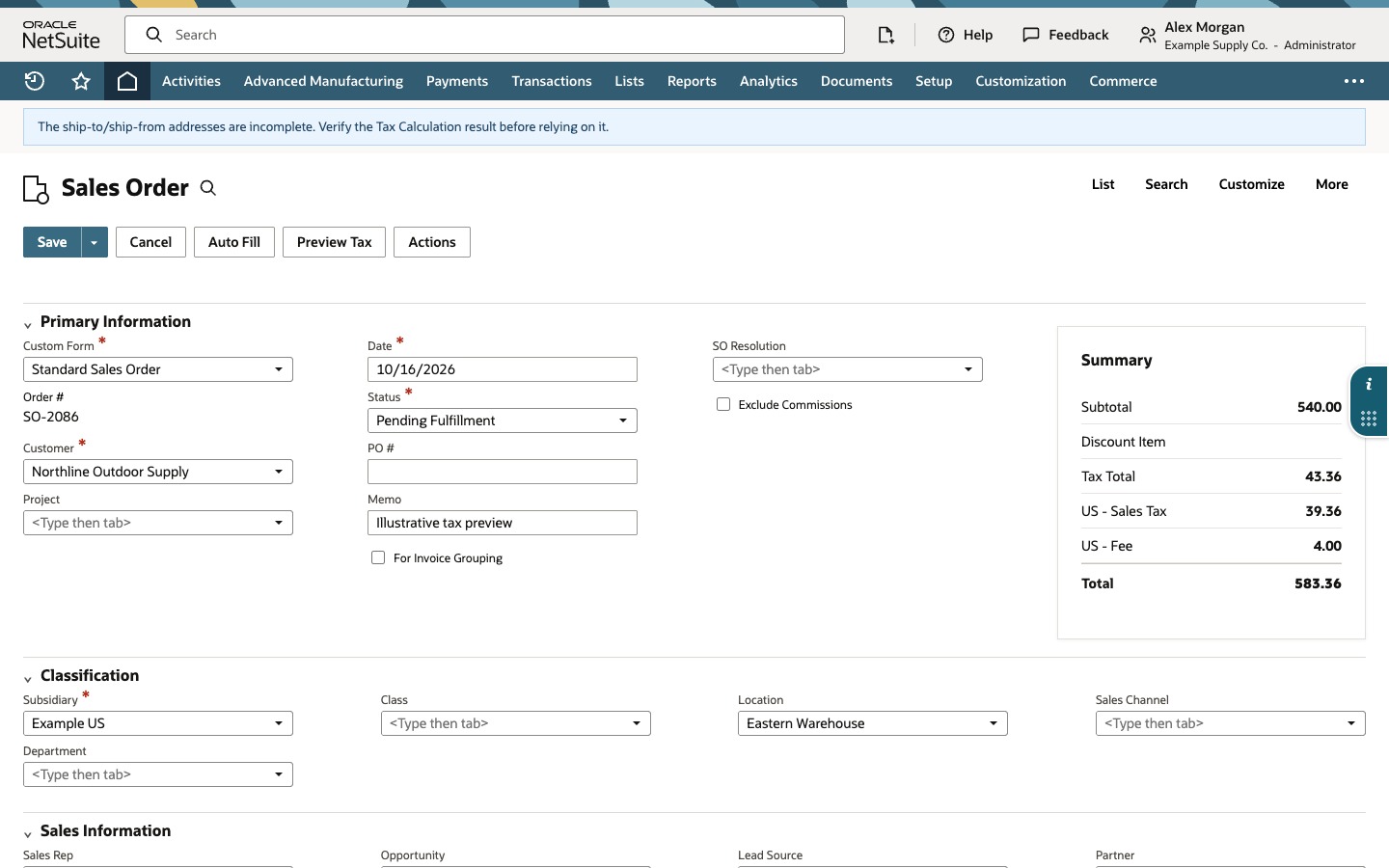
On an editable sales order with a connected tax engine, change Ship To Select and click Preview Tax. Open Tax Details and find the item's separate fee row by Tax Type, Tax Code and Tax Amount. In this example, the vendor returns a 4.00 bicycle fee alongside Colorado jurisdiction tax rows. The preview is a draft calculation; the changed order is not saved.
The screens use sample data. Person and operating-company names are fictional. The fee amount and component rates are configured examples, not a statement of current tax law. This is a vendor-specific SuiteTax form; other forms and engines may show different controls, rows and warnings.
Before you start
You need an existing editable sales order with two item lines, a saved customer address book, SuiteTax and a connected vendor calculation service that returns item-level fee rows. Your role must expose Shipping, Tax Details and Preview Tax. These controls can vary by form, feature setup, role and tax plugin. The current standard account inspected for this guide exposes Shipping but not the vendor Tax Details and Preview Tax controls; the illustrated vendor screens follow the recorded walkthrough.
Before interpreting a calculation in your account, check the subsidiary, date or tax point date, origin location, complete ship-to and ship-from addresses, effective registration, item classifications and any tax overrides. The recording does not verify all of those settings; its incomplete-address notice is a reason to revisit them.
The example keeps one order, SO-2086, with Everyday Shirt at 60.00 and Commuter Bicycle at 480.00. It begins with the Boston Office ship-to address, then changes to Colorado Springs Store. Keep the customer and items fixed when you compare the two previews.
01. Read the starting tax rows
Open the order in edit mode. On Shipping, confirm the starting Massachusetts address. Open Tax Details. The shirt has zero tax amount in this configured example, while the bicycle has one Massachusetts sales-tax row of 30.00. These are the order's baseline rows; they do not establish a general Massachusetts exemption.
02. Change the ship-to address
Return to Shipping and choose Colorado Springs Store in Ship To Select. Confirm the Colorado Springs address appears while the two item lines remain unchanged.
Open Tax Details again. In the illustrated form the old rows have cleared. Do not read the empty grid as a zero-tax result for Colorado; the new calculation has not run yet.
03. Preview and inspect the fee
Click Preview Tax and wait for the returned rows. If the control is absent, disabled, or reports an address or engine error, resolve that condition rather than entering the expected fee by hand. The illustrated vendor response adds state, county, city and district components for the two lines. Follow Tax Details Reference and Name to keep the shirt and bicycle rows separate. A tax basis repeated on several jurisdiction rows is not a set of amounts to add.
The Commuter Bicycle also has a distinct US - Fee row. In this example its code is Colorado Springs Bike Fee, its Tax Amount is 4.00, and its details identify it as a vendor-returned example. Read the code and fee amount in your own engine response; this example does not establish the vendor's calculation method or which products legally incur a fee.
The fee row has Tax Rate 0% and Tax Amount 4.00. The displayed values alone do not explain the vendor's calculation method.
04. Reconcile the draft total
The illustrative summary splits US - Sales Tax 39.36 from US - Fee 4.00. Together they make Tax Total 43.36; with Subtotal 540.00, the draft Total is 583.36. Reconcile the displayed Tax Amount rows, not repeated tax bases, to this summary.
A blue notice says the ship-to or ship-from address is incomplete. Treat the displayed amount as provisional: verify complete address data and preview again before making an operational or compliance decision. Save remains available in the recorded screen, but this walkthrough stops without clicking it. Check the saved transaction separately if you later save the order; the preview proves neither posting nor filing.
Common questions
Does Preview Tax save the changed sales order?
No. It recalculates the current unsaved page state without submitting the sales order. The recorded sequence does not show a saved Colorado version or a posted tax result.
Why did the original tax rows disappear when I changed Ship To Select?
They belonged to the original destination. In this illustrated form, changing the address cleared the prior rows; another form or integration may handle that transition differently. Run Preview Tax for the new draft destination before interpreting its Tax Details.
Is the bike fee another tax rate on the bicycle?
In this vendor response it is a separate US - Fee row with its own code and 4.00 amount. The row alone does not prove whether the vendor used a fixed, percentage, threshold or other calculation. Applicability depends on the connected engine and the transaction's item and address data.
Can I rely on the displayed Colorado total?
Treat it as a provisional preview while the incomplete-address notice remains. Complete and verify the address inputs, preview again, then inspect the saved order separately if you save it. The notice does not prove that every displayed amount is wrong; the example rates and amounts are illustrative.