The quick answer
Open Setup > Accounting > Foreign Currency Variance Posting Rules and click Prioritize Rules. Select the exception rule, click Move Up until it sits above the general rule, and click Save. NetSuite checks active rules from the lowest priority number up and uses the first one that matches, so the exception only wins when it has the lower number. In this example the new rule landed at the bottom of the order, which is why it has to be moved.
The screenshots show sample data. Person and operating-company names are fictional.
Before you start
This example has two rules. General furniture variance covers three classes, Seating, Storage, and Tables, and posts to 8100 FX Variance - General. Seating variance covers only Seating and posts to 8110 FX Variance - Seating. A Seating variance matches both rules, so the order decides which account it gets.
You'll need:
- Foreign Currency Variance Mapping turned on. It's an Advanced Feature on the Accounting subtab of Enable Features, and the first step below does it.
- The Foreign Currency Variance Mapping permission at Full level. The standard Administrator role has it. A custom role needs it added on its Permissions > Setup subtab.
- Two active destination accounts of type Other Income or Other Expense, and the classes you want to match. A destination account has to be one of those two types. If a rule also matches on Subsidiary, the destination account has to be available to that subsidiary.
- A distinct name for each rule, so you can tell them apart on the list.
A few things depend on the account. With Multi-Book Accounting the list also shows an Accounting Book column, and it becomes a field you can match on. With Automated Intercompany Management you get an Intercompany column. Subsidiary and Country are available in a OneWorld account.
Posting rules apply to variances posted after you save them. They don't repost anything that's already in the ledger. Inactive rules are ignored when variances are processed, even though they still show on the priority page.
01. Turn on Foreign Currency Variance Mapping
Open Setup > Company > Enable Features and click the Accounting subtab. Under Advanced Features, check Foreign currency variance mapping ("Create posting rules to define which accounts foreign currency variances post to") and click Save.
Until the box is checked and saved, the posting rules page doesn't appear under Setup > Accounting. If the entry is still missing after you save, check the permission first. In the account used for this guide the menu entry also took a fresh role session to show up, so signing out and back in, or switching roles and back, can help.
02. Open the posting rules list
Open Setup > Accounting > Foreign Currency Variance Posting Rules. The list has New Rule and Prioritize Rules buttons and a Show Inactives box. It says No records to show, because nobody has created a rule yet.
03. Create the general rule
Click New Rule. Enter General furniture variance as the Rule Name and Furniture classes as the Description. A clear name and a description make the rules easier to tell apart once there are several. Then open Destination Account and choose 8100 FX Variance - General. The list only offers Other Income and Other Expense accounts.
The rule decides when it applies from its criteria. On the Criteria subtab, open the Field list and choose Class. A window opens with the operator any of and the list of classes. Select Seating, then Cmd-click (Ctrl-click on Windows) Storage and Tables so all three stay selected, and click Set.
In this release, Set closes the window and adds the row, so you don't need to click Add. It reads Class, is any of Seating, Storage, Tables. The operator list also has none of, which would match every class except the ones you select. That makes a different rule, so this example doesn't use it. Class refers to the class on the source transaction that produced the variance.
Click Save. The saved rule shows its Destination Account and, on the Criteria subtab, the Class row.
04. Create the exception rule and see where it ranks
Seating needs its own account, so it gets its own rule. Open Setup > Accounting > Foreign Currency Variance Posting Rules again and use the New entry under it, which does the same as the list's New Rule button. Name the rule Seating variance and choose 8110 FX Variance - Seating as the Destination Account. On the Criteria subtab choose Class, select only Seating, click Set, and click Save. With one value, the row reads Class, is Seating.
Then open the list again. In this account the new rule went to the bottom of the order, so Seating variance is priority 2, below General furniture variance, and a Seating variance matches both rules.
NetSuite doesn't pick the rule with the most specific criteria. It goes through the rules in priority order, lowest number first, and uses the first one that matches. As the list stands, a Seating variance matches General furniture variance at priority 1 and never reaches the exception.
05. Move the exception above the general rule
Click Prioritize Rules. The Foreign Currency Variance Rule Priority page lists the rules with Rule Name, Priority, and Inactive. The last rule, Seating variance, is already selected, and Move Up, Move Down, Move To Top, and Move To Bottom sit under it.
Click Move Up. In this two-rule example, Seating variance becomes priority 1 and General furniture variance becomes priority 2. The Inactive column shows which rules are inactive. You can also drag a row by its handle. The new order isn't kept until you click Save.
06. Check the saved order
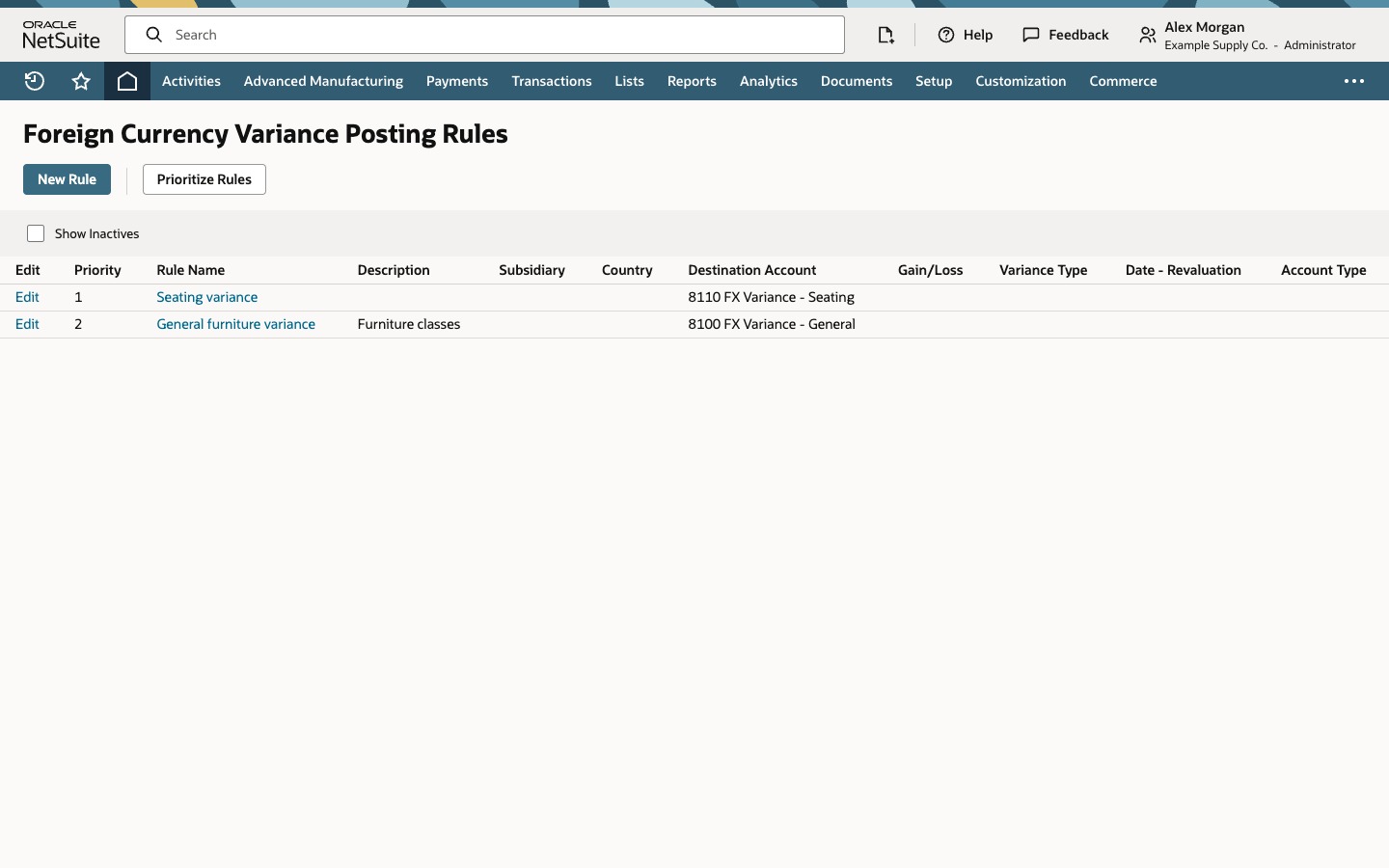
Save returns you to the list. Seating variance is priority 1 with destination 8110 FX Variance - Seating, and General furniture variance is priority 2 with destination 8100 FX Variance - General. A Seating variance now reaches the exception rule first, and everything else in Storage and Tables still falls through to the general rule.
Check the result
- Seating variance shows priority 1 and 8110 FX Variance - Seating.
- General furniture variance shows priority 2 and 8100 FX Variance - General.
- Both rules are active, so neither is hidden by Show Inactives.
This page shows the order and each rule's destination account. It doesn't show a posting. A destination account is used when a qualifying source transaction or revaluation generates a variance, and rules don't change variances that were already posted. To confirm the effect, run a revaluation or settle a test transaction with a Seating class and check its GL Impact. The recording doesn't cover that step.
Common questions
Which foreign currency variance posting rule does NetSuite use when two rules match?
The one with the lower priority number. NetSuite evaluates the rules in priority order and stops at the first match, so it doesn't look for the most specific rule. Put an exception above the general rule it overlaps.
How do I change the priority of foreign currency variance posting rules?
On the posting rules list, click Prioritize Rules. Select a rule, use Move Up, Move Down, Move To Top, or Move To Bottom (or drag the row), and click Save. NetSuite numbers the rules from 1 in the saved order.
Why isn't my exception posting rule being used?
Check its priority first. In the example above a new rule went to the bottom of the order, so a broader rule above it that matches the same variance takes the posting first. Then check that the rule is active, that its criteria match the source transaction (and any Variance Type, Gain/Loss, or Accounting Book criterion you added), and that its destination account is active and available to the subsidiary when the rule matches on Subsidiary. Inactive rules are ignored.
Which accounts can a foreign currency variance posting rule post to?
Other Income or Other Expense accounts. The Destination Account list only offers those two types. If no rule matches a variance, NetSuite uses its default foreign currency variance accounts.
Do new posting rules change transactions that were already posted?
No. A rule applies to variances posted after you save it. Editing, reordering, or deleting rules doesn't repost anything. If you void an earlier transaction, the reversal uses the original posting treatment rather than the new rules.