The quick answer
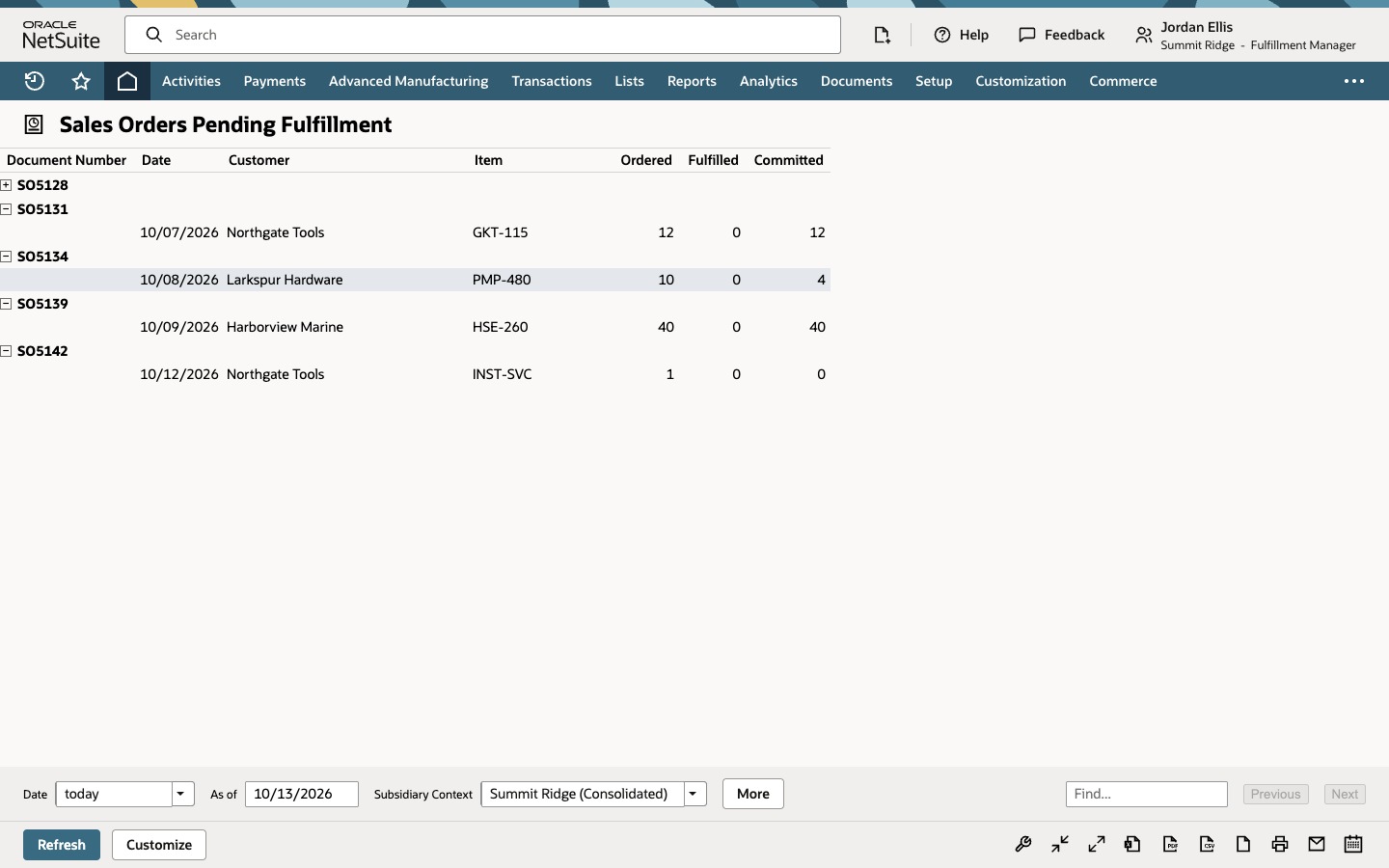
Open Reports > Order Management > Sales Orders Pending Fulfillment. Each order is a group headed by its Document Number, with a line showing the Ordered, Fulfilled and Committed quantities. What is left to ship is Ordered minus Fulfilled. When Committed is lower than that, the difference is not currently committed. In the example, SO5134 orders 10 of PMP-480 and has 4 committed, so 6 are not committed, while the other stock orders are committed in full.
The example is a distributor checking its fulfillment queue. The screenshots use sample data, and the person and company names are fictional. The order numbers, items, quantities and visible controls are illustrations from one account.
Before you start
Your role needs access to the report, which is under Reports > Order Management. It is an operational view of open sales-order item lines that are waiting to be fulfilled, grouped by sales order. It is not a complete list of every open order line and it is not a back order report, and which lines appear depends on order status, item fulfillability, commitment and allocation rules, locations, subsidiaries and report filters. The Date, As of and Subsidiary Context controls at the bottom, and the Location filter under More, change what the report covers, so check them before you trust a quantity. Besides the report itself you may need access to sales orders, item fulfillments, subsidiaries and locations. The layout, order numbers, items and quantities shown here were observed in one example account and can differ with your release, role, features such as Supply Allocation, item setup and any customization of the report. The results also change after receipts, adjustments, transfers, fulfillments and commitment runs.
01. Open the report
Go to Reports > Order Management > Sales Orders Pending Fulfillment. The report lists five orders. Each one is a group headed by its Document Number, and the line underneath shows the Date, Customer, Item, Ordered, Fulfilled and Committed. At the bottom you can see Date set to today, As of the current date and Subsidiary Context Summit Ridge (Consolidated), with More, Refresh and Customize.
02. Read the fully committed orders
Start with SO5128, SO5131 and SO5139. Each one shows Fulfilled 0 and a Committed quantity equal to Ordered, for example 24 ordered and 24 committed on SO5128. All of that quantity is committed and nothing has been fulfilled yet, so these lines are generally eligible for fulfillment at their location. Committed means allocated, not picked, and it does not guarantee the fulfillment will save: inventory detail, status, approval, holds, ship-complete rules or your fulfillment preferences can still stop it.
03. Find the partly committed order
Now read SO5134 for Larkspur Hardware, item PMP-480. Ordered is 10, Fulfilled is 0 and Committed is only 4. Ten remain to ship (10 - 0), and 4 of them are committed, so 6 are not currently committed. That is the order that needs a decision. Not currently committed is not the same as back ordered unless the order line or a back order report says so, and the report does not say why the rest is missing. It could be too little qualifying stock, a commitment option such as Do Not Commit, allocation rules or inventory detail restrictions.
04. Read the service line
SO5142 is an installation service, item INST-SVC, with Ordered 1, Fulfilled 0 and Committed 0. A service item does not inherently represent warehouse inventory, so Committed 0 here is not automatically a shortage. Compare it with SO5134, which is a stocked item that is only partly committed. Whether a service item can be fulfilled and committed, and so whether it shows up in this report, depends on the item's Can Be Fulfilled/Received setting and your account configuration, so check the item record rather than assuming.
05. Collapse a finished order
Click the toggle beside SO5128 to collapse its group. Its line is hidden and the other orders move up, which leaves SO5134 and SO5142 closer together on a long report. Then open SO5134 and check the line's location, units, commitment option, inventory detail requirements, ship-complete setting, approval status and any hold, and the available stock at the line's location. With Multi-Location Inventory, stock at another location does not satisfy the line by itself. Depending on what you find, fulfill the committed 4 now if partial fulfillment is allowed, bring in supply, reallocate stock from another order, or tell the customer. Do not assume that uncommitted stock, or stock elsewhere, can be fulfilled: follow the line's location and your account's Fulfill Based on Commitment and allocation rules.
Common questions
What do Ordered, Fulfilled and Committed mean on the Sales Orders Pending Fulfillment report?
Ordered is the quantity on the order line. Fulfilled is the quantity already processed on item fulfillments. Committed is the quantity currently allocated to that line from available stock under your commitment or allocation rules. What remains to ship is generally Ordered minus Fulfilled, for the same line and unit. Units of measure, kits, partial fulfillment and closed lines can change what a displayed quantity means, so do not add up different lines just because they share an item.
Why is Committed lower than Ordered on a pending sales order?
The report shows the result of allocation, not the cause. A lower Committed quantity can mean not enough qualifying stock, stock already allocated to other orders, Do Not Commit or another line commitment option, reservation or supply allocation rules, special-order behavior, order priority, or inventory detail restrictions such as status, bin, lot or serial. Open the order to find out which applies.
Why does a service item show Committed 0?
A service item with Committed 0 is not automatically a shortage. Service items do not inherently consume warehouse inventory, and whether they are fulfillable or appear in this report depends on the item's Can Be Fulfilled/Received setting and your account configuration.
Is this the same as the Sales Back Order Report or Open Sales Orders?
No. Open Sales Orders is an order-level view with status and open amounts. The Sales Back Order Report focuses on back ordered demand and shows quantities such as ordered, fulfilled, back ordered, on hand and on order. Sales Orders Pending Fulfillment focuses on order lines that are committed and eligible for fulfillment. Their filters and line rules differ, so they do not have to match line for line, and a line missing from one is not necessarily on another.
Does the report show a past period?
No. The report does not support reporting by period, so the Report by Period preference does not turn it into a historical period view. Its Subsidiary Context and Location controls and the timing of commitment updates still affect what you see.