The quick answer
Open the bill’s related approval accruals. Match both entries to the same bill, follow their reciprocal Offset Posting links, and compare Is Reversal with the debit and credit lines. Then check the expense register: the accrual and reversal should offset each other for the selected account, leaving the bill’s expense movement.
This example reviews an existing ZoneApprovals pair for bill STAFF-6317, from Harbor Staffing Services. It reads saved records and register movements. It does not create an accrual, approve a bill or trigger a reversal. People and operating-company names are fictional example data.
Before you start
You need access to the existing ZoneApprovals accrual records, source bill and relevant account register. The process does not need to be currently active merely to review its saved records. Forms, tabs, account names and available actions depend on your setup.
The walkthrough preserves an older configured example. Its source-bill field is labeled Created From. ZoneApprovals release 1.12.4 renamed that field Accrual Created From; use the corresponding field in your version. The saved links and posting lines establish the relationship shown here. They do not establish when the process ran or which setting caused it.
01. Check the saved bill and its amounts
Open STAFF-6317 and confirm the vendor. The saved bill shows native status Open and configured approval status Approved. Its total is 5,500.00 Australian Dollar.
The bill shows Tax = 500.00. Its expense line is 5,000.00 to 6400 Salaries & Wages. Compare the accrual to that expense portion rather than assuming the gross bill total must match it.
02. Find the related accrual posting and reversal
Open ZoneApprovals, then Unapproved Transaction Accruals. In this configured example, under Related Accrual Postings, identify Unapproved Transaction Accrual #41 with status Accrual Posting and #42 with status Accrual Reversal.
Both entries show Total Debit = 5,000.00 and Total Credit = 5,000.00. Balanced totals are a starting check; inspect the accounts and directions inside each entry next.
03. Inspect the accrual posting
Open #41. Check that the source-bill field, shown here as Created From, points to Bill #STAFF-6317, and that Is Reversal is unchecked. Newer releases label the source-bill field Accrual Created From.
Its Offset Posting points to #42. Use that link to compare the saved counterpart after checking the Lines below.
Under Lines, #41 debits 6400 Salaries & Wages for 5,000.00 and credits 2005 Accrued Expenses for 5,000.00.
04. Compare the reversal and its opposite lines
Follow Offset Posting to #42. Confirm the same source bill, Is Reversal checked, and the reciprocal Offset Posting link back to #41. Enlarge the screenshot to see the full record context.
Under Lines, #42 debits 2005 Accrued Expenses and credits 6400 Salaries & Wages, each for 5,000.00. These lines reverse #41’s account directions.
05. Reconcile the expense register movements
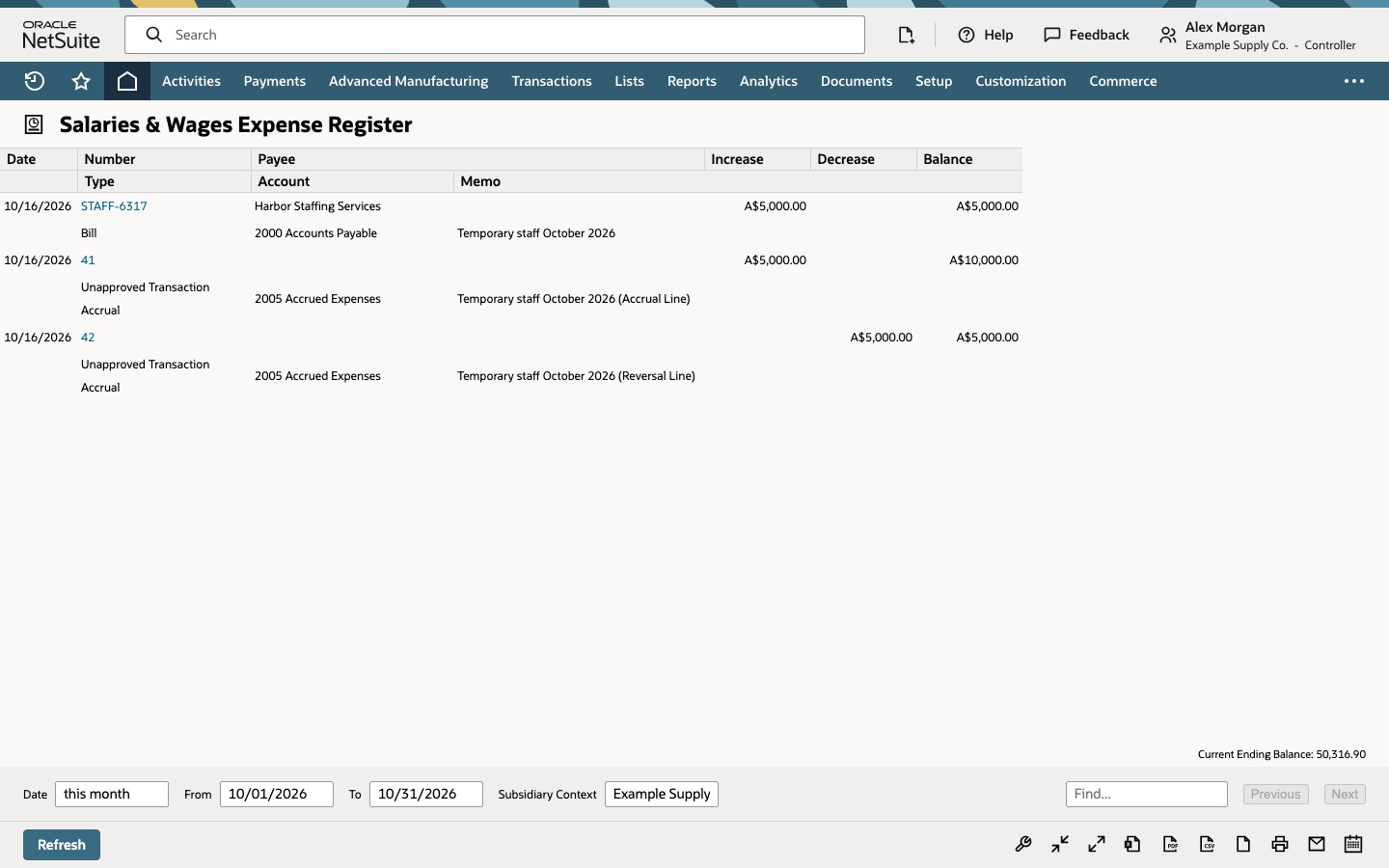
Open the Salaries & Wages Expense Register. Match the three displayed saved entries: bill STAFF-6317, accrual posting 41, and accrual reversal 42.
Read the corresponding movement columns in the same top-to-bottom order. The bill increases expense by 5,000.00, the accrual adds 5,000.00, and the reversal decreases it by 5,000.00. The displayed running balance for these selected movements goes 5,000.00 → 10,000.00 → 5,000.00.
The accrual and reversal net to zero on this account; the bill’s 5,000.00 expense remains. The report separately shows Current Ending Balance = 50,316.90 for the account. That full-account balance is not the net of this selected three-entry chain. Check report dates, filters and other activity before comparing balances.
Final verification
Both records refer to STAFF-6317 and link to each other. Posting #41 has Is Reversal off; #42 has it on. Their equal 5,000.00 lines use opposite account directions, and the displayed expense-register movements offset the pair while retaining the bill’s 5,000.00 expense movement. These checks reconcile the saved example; they do not establish process timing or generation in another account.
Common questions
Why are the bill, accrual and reversal all listed?
They are three saved transactions in this example. The accrual increases the expense account and its reversal offsets that increase. The bill contributes its own expense movement. Their presence does not prove the order or timing of the approval process.
Is the Is Reversal checkbox enough to prove the entries offset?
Check the accounts, amounts and opposite debit/credit directions as well. Then confirm the corresponding account movements. The checkbox and reciprocal links identify the recorded relationship; the account lines and register movements support the offset conclusion.
Why is the bill total 5,500 while the accrual is 5,000?
This bill shows a 5,000 expense portion and 500 tax, making the gross total 5,500. Check the actual line and tax breakdown on each bill. Do not assume another bill uses the same tax treatment or rate.
Do the source-bill field and Offset Posting prove when the accrual was created or reversed?
No. They connect the saved records. Establishing timing or cause would require separate configuration, audit and execution evidence not shown here. This walkthrough reads an existing pair and does not demonstrate its generation.
Should the selected transactions’ net equal the account’s ending balance?
The selected chain and full-account balance can include different activity. Here the chain nets to 5,000, while Current Ending Balance is 50,316.90. Reconcile the report’s date range, filters, opening balance and other postings before comparing them.
Supporting references
Zone’s approval configuration documentation describes the accrual custom transaction and configuration. Its release 1.12.4 notes document the Accrual Created From label. Oracle explains custom transaction types. The records and movements above follow the saved example shown in the walkthrough.