The quick answer
Open the FAM asset’s Asset Usage subtab, add a dated FAM Asset Usage record, and save it. Then run Fixed Assets > Transactions > Asset Depreciation through that date. Check the process stages, reopen the asset, and compare its depreciation history and posting reference with the usage records and actual journal.
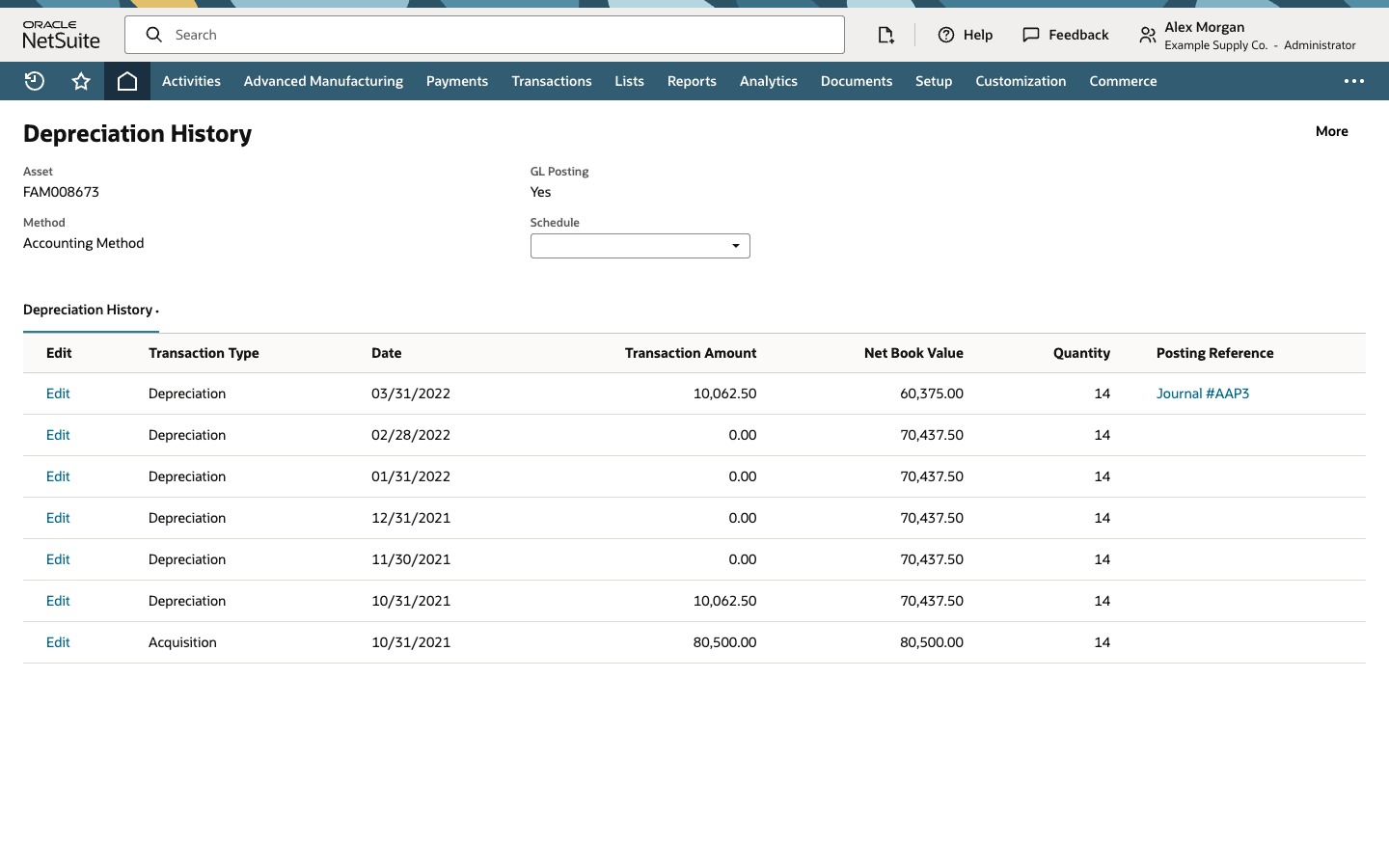
This example follows a card reader at the fictional Example Supply Co. The new usage record says 6 units. Its later depreciation history row displays Quantity 14. The source does not explain the difference, so do not treat the history quantity as a copy of the new entry or use it to reverse-engineer a formula.
Before you start
You need a FAM asset configured with the intended usage-based depreciation method and lifetime usage, plus permission to add asset usage and run depreciation. Check that the asset is eligible and active for depreciation; confirm its current values, previous usage, asset type, subsidiary, accounting book, required accounts and classifications, and relevant accounting period. Closed periods, journal approval, alternate books, and role permissions can change what posts and when. This walkthrough does not show the linked journal’s detail lines.
01. Check the asset and prior usage
Open the FAM asset and read its depreciation method, lifetime usage, current cost, cumulative depreciation, and net book value. The example asset, FAM008673, uses TN Asset Usage with lifetime usage 48. Before the new entry, its current cost is 80,500.00, cumulative depreciation 10,062.50, and net book value 70,437.50.
Select Asset Usage and review the existing rows. This example already has an October 31, 2021 usage record for 6 units. Check prior activity before a run that may cover earlier eligible periods.
02. Enter and save usage
Choose New FAM Asset Usage. Confirm the linked asset, enter March 31, 2022 in Date, select the applicable usage Period, enter 6 in Units Used, and add a useful comment. The example comment is “March activity.” Save the record, then read the new row back. The usage Period and the run’s Depreciation Period are separate fields. Saving usage records activity; it does not establish that depreciation has posted or changed the asset’s net book value.
03. Run depreciation through the activity date
Go to Fixed Assets > Transactions > Asset Depreciation. Select the asset type and subsidiary containing the asset, then set Depreciation Period to March 31, 2022. In the example, the type is Operation: Production Equipment & Machines and the subsidiary displays code 1204. Check that scope against your own account before choosing Depreciate Assets. The period is an up-to date; the run may include earlier eligible, unposted activity.
04. Check process completion
Open FAM Process Status and refresh the run. Inspect each relevant stage and its errors. In this recording, Create Journal Entries reports Transactions created: 1; Update Asset Records follows, and the process reaches Completed. That count is a process result, not proof of one journal line or one asset. A completed process tells you that the run finished, not that its accounting is reconciled.
05. Reconcile the asset, history, and posting
Reopen the asset. Its net book value now reads 60,375.00, and cumulative depreciation reads 20,125.00. Under Depreciation History, open Depreciation Histories and inspect the March 31, 2022 row: depreciation 10,062.50, net book value 60,375.00, Quantity 14, and posting reference Journal #AAP3.
Open the posting reference in your account and compare its period, accounts, and amount with the history and general ledger. The source shows the link but never opens the journal detail. It also does not explain why the new usage record’s 6 differs from history Quantity 14. Check the asset configuration, all usage records, and the history field’s meaning before drawing a conclusion.
If you need to rerun depreciation, first check that the earlier process and any journal it created are accounted for. Confirm the asset, period, type, subsidiary, and book again; do not assume a second run is harmless.
Common questions
Does saving FAM Asset Usage post depreciation?
No. The saved row confirms the dated usage entry. Run the applicable depreciation process separately, then check its status, asset values, history, and linked posting.
Why does the history row show Quantity 14 when I entered 6 units?
The example shows both values, but the source does not explain their relationship. Compare all usage records, the asset’s method and configuration, and the history field in your account. Do not assume the history quantity is the new entry copied across.
Does “Transactions created: 1” prove the journal is correct?
No. It is a process-stage count. Open the linked journal and check the posting period, accounts, amount, and ledger impact. The journal detail was not shown in this example.
Does the posting reference prove the journal reached the general ledger?
Not by itself. It shows a link from the history row. Check the journal’s status, approval, posting period, accounts, amount, and GL impact in your account.