The quick answer
Before deleting a section from a custom financial statement, inspect the formulas and summaries that use it. Revise or remove those references, then delete the section and compare the preview with the original report. In the demonstrated Income Statement, Income was referenced by Gross Profit, and Net Ordinary Income referenced Gross Profit.
This walkthrough uses a custom Income Statement. The exact rows and formulas depend on your layout. The screenshots use fictional example data.
Before you start
You need permission to customize the Income Statement and edit its custom layout. The available controls depend on your role and account setup. If the layout is shared, identify the reports and users that rely on it and check with its owner before changing anything. If your account supports it, work from a copy rather than changing a layout others already use.
Before you start, record the full row hierarchy, row types, formulas, labels, display settings, filters and report context. Check every formula that refers to the target row, including other summary rows and formulas in the layout. Removing a row can change the statement’s calculations, and it does not remove the underlying accounts or transactions.
01. Inspect the layout
Open Reports > Financial > Income Statement and choose Customize. In Edit Layout, review the rows and formulas before changing anything. The example starts with Income, Cost Of Sales, Gross Profit, Expense, and Net Ordinary Income. The navigation and controls can vary by role, report type, features and release.
02. Trace formula dependencies
Try deleting Income. The demonstrated builder blocks the deletion and names Gross Profit as a dependent formula row. Dismiss the warning and leave Income in place while you trace the next dependency.
Try deleting Gross Profit. In this layout, the warning names Net Ordinary Income, which still uses Gross Profit. Dismiss that warning too. You now have the dependency chain: the summary uses Gross Profit, and Gross Profit uses Income.
03. Clear dependent references
Select Net Ordinary Income and inspect its formula operands. The example formula is [Gross Profit] − [Expense]. Decide how the remaining report should calculate, then replace each operand that points to a row you plan to delete. The recording removes both operands, leaving the summary expression empty while its row remains. That is a demonstrated intermediate state, not a replacement for the original calculation.
Choose the replacement formula before using this change in a working report. Check whether other rows, columns or reports use the same calculation. An empty formula is only a temporary state in this walkthrough; it does not preserve the old calculation.
04. Remove the rows
Delete Gross Profit after the summary no longer refers to it. Then delete Income. If a warning names another dependent formula, stop and trace that reference before continuing.
Review the whole tree after the deletions. In this example, Income and Gross Profit are gone, while Cost Of Sales, Expense, and Net Ordinary Income remain. Check every surviving formula for references to rows you removed.
05. Preview and verify
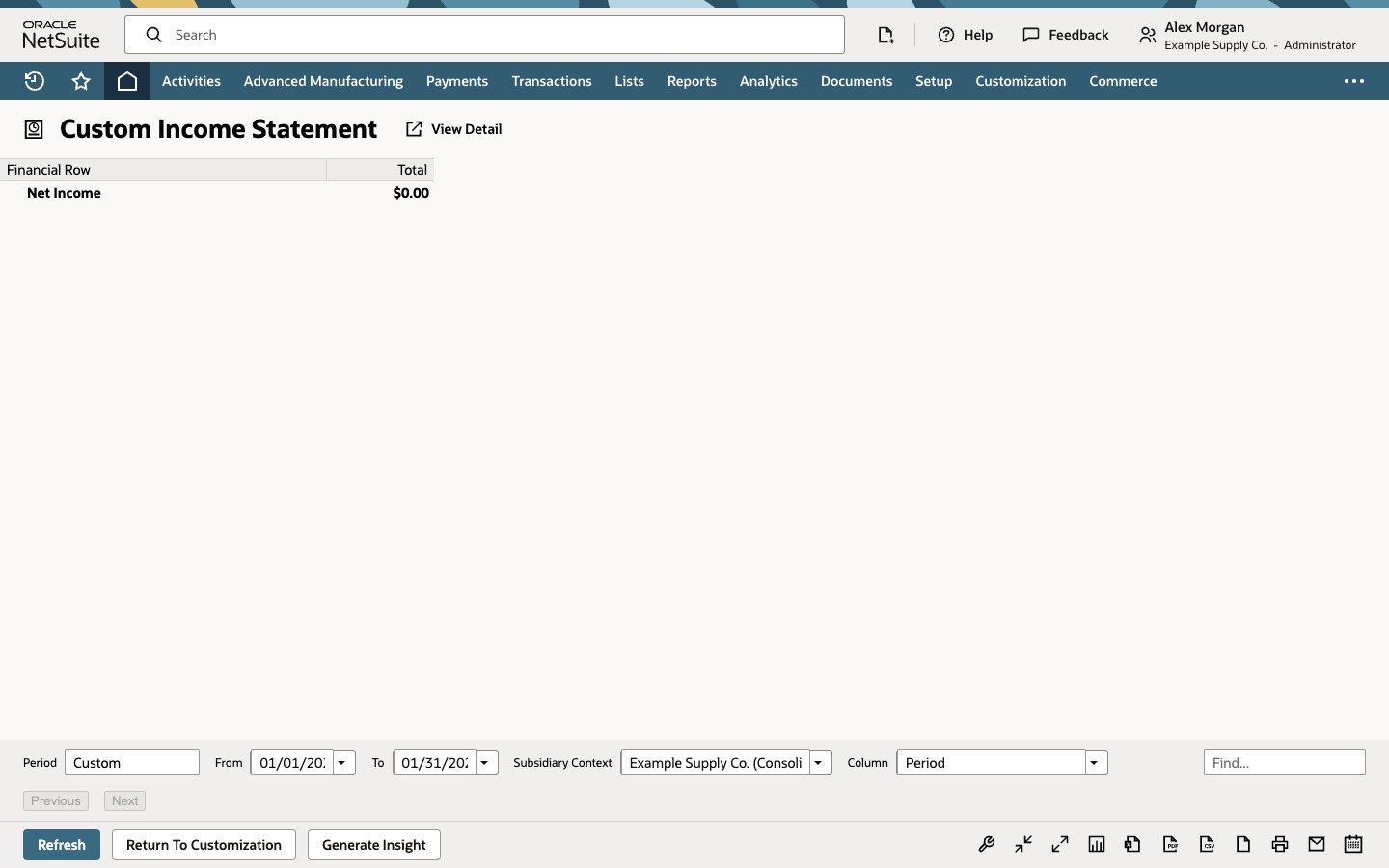
Preview the report and look for formula errors, missing rows, and account coverage. Compare the edited and original reports using the same period, subsidiary context, accounting book, currency, reporting basis and filters. Check section totals and final totals. The recorded preview contains a Net Income row at $0.00; it is a synthetic example result, not a reconciliation to a live financial statement.
The source walkthrough ends in the editor and does not show saving or reopening. A separate dated test of one neutral custom report in the current Administrator account retained the edited layout after save and reopen. That verifies persistence for that test report, role and account only. For your own report, save it, open the saved report or layout, and confirm the row tree, formulas and output again before relying on the change.
Removing Income also removes the input used by Gross Profit. The example's empty summary formula no longer calculates its previous value. Build a replacement from the rows that remain, then compare totals under the same period, subsidiary context, accounting book, currency, reporting basis and filters as before. A changed total may be the expected result of the new layout; document the intended calculation before using it for close or reporting.
Common questions
Why can't I delete the section?
In the demonstrated Income Statement, the builder said that Gross Profit referenced Income. It also said that Net Ordinary Income referenced Gross Profit. A warning may reflect a formula, summary, parent/child or another layout dependency. Your rows and warning wording can differ, so read the dependent-row list and inspect your own layout.
Should I remove the section or formula row first?
Resolve each dependency first so the remaining formulas do not reference a removed row and the new calculation is explicit. You may need to revise a formula, replace a row, move accounts, or intentionally remove a calculation. Then preview and compare the result with the original report.
Does deleting a row preserve the statement total?
No. Deleting a row does not inherently preserve section totals, summary totals, or Net Income. Totals remain equivalent only if the remaining layout and formulas still include the same financial data with equivalent logic. If the deleted row supplied accounts or was an operand in a formula, totals can change or become incomplete. The layout change does not delete the underlying accounts or transactions.
Does the source recording show that the layout saves?
No. The source video ends in the editor. A separate test report in the current account was saved and reopened with its edited rows intact. That result is limited to that report, role and account. Check persistence for your own report by saving it, reopening it, and reviewing the row tree, formulas and output.