The quick answer
In Skyvia, click Create New and choose Replication. Pick your NetSuite V2 (Token-based) connection as the source and your BigQuery connection as the target, keep the default behavior settings (Incremental Updates, Hard delete, Create new and Apply changes) and continue through Schema settings. On Objects selection, check Customer and InventoryItem, optionally open Edit to review the columns, filter and Mode, then set a schedule and click Save and finish. Name the integration, confirm its options, click Save, then Run. On the Monitor tab, Run History shows the run as Succeeded with its Success Rows and Error Rows, and History Details breaks the rows down by object. The NetSuite side has to exist first: Token-Based Authentication, an integration record, an integration user with a role that can view customers and items, and an access token.
The screens in this guide come from this walkthrough's rendering of the Skyvia web app, not from a live Skyvia account, and nothing in the recording shows NetSuite itself. Skyvia's own screens, labels, defaults and plan limits can differ from what you see here. The company, person, workspace, connection and count values are fictional examples: Alderbrook Trading Co., Marta Quinn, 412 customers and 8 items. Use your own connections and numbers when you follow the steps.
Before you start
This guide covers the Skyvia side. It starts after two connections already exist in the Skyvia workspace: a NetSuite V2 (Token-based) connection and a BigQuery connection. Creating those connections is a separate task and the recording does not show it. A replication reads from the source and writes to the target, so Skyvia reads NetSuite records and creates and fills tables in BigQuery.
The NetSuite connection depends on setup in NetSuite that none of the screens show:
- Token-Based Authentication is enabled in NetSuite. The setting is under Setup > Company > Enable Features, on the SuiteCloud subtab, in the authentication and web services sections. Feature names and availability can vary by account and release.
- An integration record exists for the connection and is enabled, with Token-Based Authentication checked. It is under Setup > Integration > Manage Integrations. NetSuite shows its consumer key and consumer secret once, when the record is saved, and losing them means generating new credentials.
- An integration user is active and has a role made for this job. Use a least-privilege integration role, not Administrator. In Setup > Users/Roles > Manage Roles, the role needs at least View on Lists > Relationships > Customers and Lists > Accounting > Items, plus Setup > Log in using Access Tokens and the web services permission for the protocol the connector uses. Add subsidiary and related-record permissions only when the fields you copy need them.
- An access token exists for that integration, user and role, created in Setup > Users/Roles > Access Tokens. NetSuite shows the token ID and token secret once.
- The SuiteTalk web services feature and role permission for the protocol the connection uses are enabled. SOAP web services and REST web services are separate NetSuite capabilities with separate role permissions (Web Services and REST Web Services), so grant the one the connection uses and check Skyvia's current connector documentation for which that is.
The connection also needs the NetSuite account ID. The integration record, user, role, token, account ID and URL must all belong to the same NetSuite environment, and production and sandbox use different IDs and different credentials. Use matching production or sandbox values, name the connection so the two cannot be confused, and expect to recreate sandbox tokens after a sandbox refresh.
The role decides what Skyvia can read. A customer, an item or a field the role cannot see does not reach BigQuery, or arrives empty, missing or as an internal ID, even though the run says Succeeded. Subsidiary and other restrictions on the role have the same effect, so a run that succeeds can still be a role-scoped copy. Custom fields appear only if the connector exposes them and the role can read them. A successful run proves that the run completed, not that every field you can see in NetSuite was replicated.
The first run is usually the largest. With Incremental Updates, the first run is the full load, and large loads can be slowed or throttled by NetSuite concurrency and request limits, which depend on the account, its service tier and the API in use and are shared with other integrations. Skyvia may queue, retry or slow down instead of failing at once. Scheduling big loads away from busy periods is an operational recommendation, not a NetSuite requirement. Compare the counts by object when the run finishes.
01. Create a replication integration
In the top bar, click Create New. The menu lists Connection and Agent on the left and, under Integration, Import, Export, Replication, Synchronization, Data Flow and Control Flow. Click Replication. The Data Integration: Replication wizard opens on Source setup. Which entries you can use depends on your Skyvia plan; the Integration heading shows the plan state, Trial in this walkthrough.
02. Pick the NetSuite source and the BigQuery target
Source setup shows the workspace's connections as cards. Click the NetSuite V2 (Token-based) card. It is highlighted and Continue becomes active. Click Continue. If the workspace has separate production and sandbox NetSuite connections, pick the one that points at the account you want to copy.
Target setup lists the connections the same way. Click the BigQuery card and click Continue. The wizard rail on the left keeps the connection chosen at each step.
03. Keep the default behavior settings
Behaviour settings asks four questions, each with a default already selected. Leave all four as they are:
- How should data changes be applied after initial sync? Incremental Updates. The first run is the full load, and later runs copy only records that are new or changed. Skyvia keeps a checkpoint for this, commonly based on NetSuite's last-modified value; the exact checkpoint and retry behavior are Skyvia's. The other choice, Resync, reloads the data on every run.
- How to process records deleted in Source? Hard delete. When Skyvia detects that a record was deleted in NetSuite, it removes the matching row from BigQuery. Soft delete keeps the row and marks it, and Ignore delete leaves it alone. This is an action on the BigQuery side only. It never deletes anything in NetSuite. Whether a deletion is detected at all depends on how the Skyvia connector finds deleted records, because a last-modified query cannot return a record that no longer exists. An inactive record is not a deleted record, so making a customer inactive is not a deletion.
- Create new tables in target? Create new. Skyvia creates the BigQuery tables during the first run. Use existing loads into tables that are already there.
- How to handle changes to the data schema in source? Apply changes. Field changes in NetSuite are applied to the BigQuery tables. Keep unchanged leaves the BigQuery schema as it is.
Click Continue. Schema settings controls how the BigQuery tables and columns are named and what extra columns they get. In the recording it stays at its defaults: Case is Unchanged, Prefix is empty, the three naming checkboxes are cleared, the System column is Don't use (no _skyvia_sync column) and nested fields are replicated as JSON columns rather than as Separate tables. Click Continue.
04. Choose the objects and review their modes
Objects selection lists the NetSuite objects the connection exposes, 551 in this walkthrough. Find Customer and InventoryItem and check each one. Turning on Show selected for replication only narrows the list to what you checked, 2 here. Each object is copied to a BigQuery table with the same name, so Customer and InventoryItem become two separate tables.
Click Edit beside Customer to see how that object is copied.
The Replication Object (Customer) dialog has a Target name, a Mode, a Columns tree with a checkbox for every field, and a Filter group with + Group and + Condition. This is where you copy only what you need: clear the columns you do not want in BigQuery, and add a filter condition to limit which records are copied. The help panel on the wizard page also mentions hashing sensitive fields. The recording leaves every column checked and adds no filter. Only copy the fields you need, and remember that a field the role cannot see in NetSuite is missing or empty whatever you check here.
Open the Mode list. It has four modes, described here as the screen words them:
- Standard copies only new and updated records after the first run and, depending on the source and the integration configuration, can also apply deletions.
- History is also incremental, but it keeps the different versions of a record when it changes, preserves records deleted in the source and flags them as deleted, and uses additional columns for versioning.
- Resync fully reloads the object's data on every run.
- Resync on demand fully reloads the object's data after you reset the corresponding last sync time parameter in the integration. Otherwise the object is ignored.
The list scrolls, so the last two modes sit below the first two. Check Skyvia's own descriptions in your workspace before you rely on a mode, and check the key and delete-marker columns that History adds to the BigQuery table.
Keep Standard, click Save task, then click Continue.
05. Save the integration with a schedule
Schedule is the last wizard step. Under Set up a schedule for this integration? click Yes. The walkthrough chooses Recurring, Run every Day, Occur once at 02:30, Starting Now, and the time zone (UTC+00:00) Coordinated Universal Time. Pick a time when the NetSuite account is quiet, because the run uses NetSuite requests that other integrations share. Click Save and finish.
The integration page opens with the name Untitled. Click the title, type NetSuite Customers and Items to BigQuery as the name. No separate naming dialog appears; the title field is the name.
06. Confirm the options and run it
The Model tab shows the integration you just built. Source is NetSuite V2 (Token-based), Target is BigQuery, and Select Objects lists Customer and InventoryItem. Under Options, check these before you run it:
- Incremental Updates is checked.
- Update Schema is checked, so NetSuite field changes are applied to the BigQuery tables. Review type changes before downstream queries rely on the columns.
- Delete Mode is Hard delete.
- Create Tables is checked, so Skyvia creates the BigQuery tables on the first run.
- Drop Tables is not checked. It is an action on the BigQuery side: when it is checked, Skyvia drops the existing tables and recreates them, so leave it cleared unless you want that.
Click Save, then click Run in the toolbar.
07. Read the run history
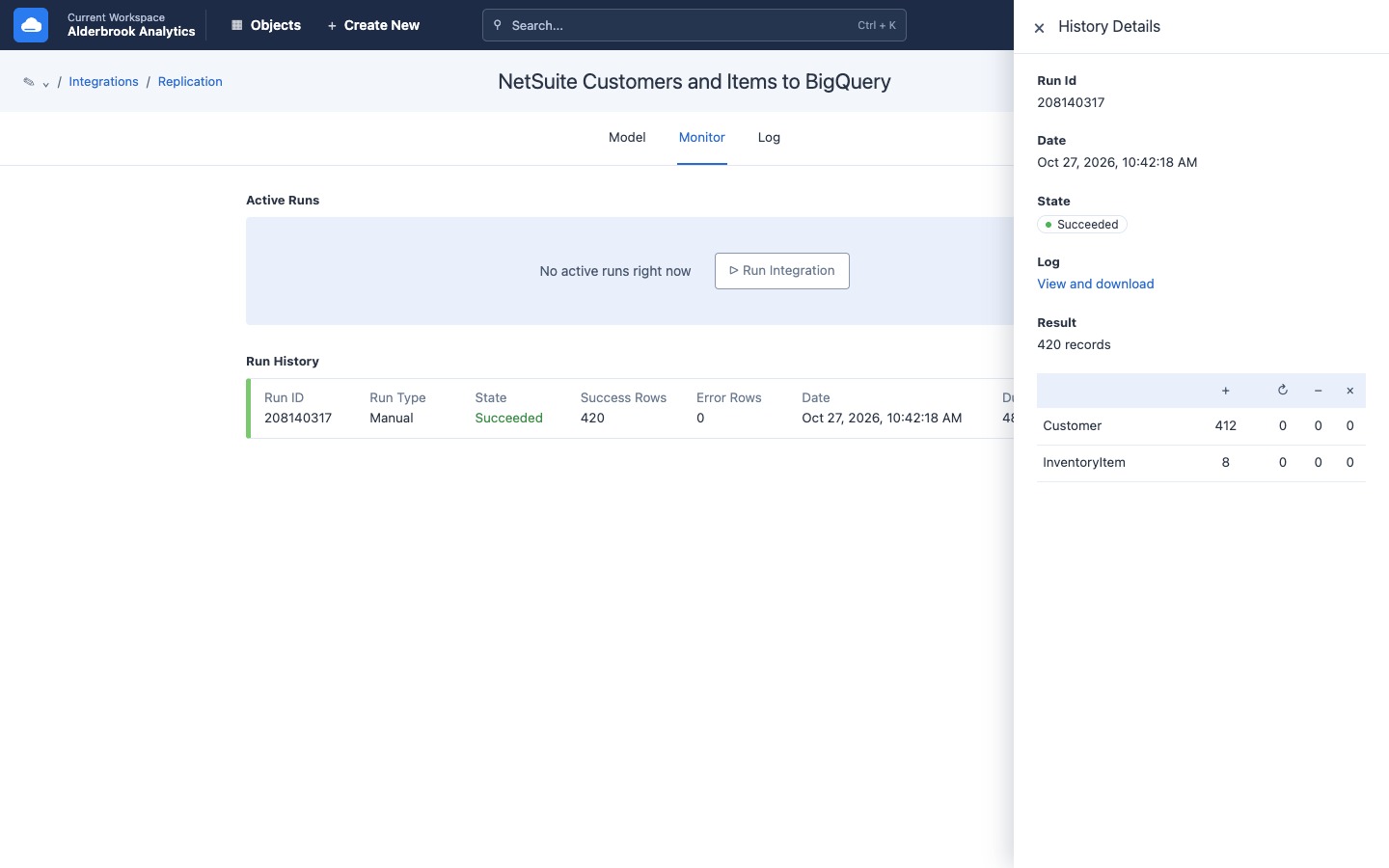
Open the Monitor tab. Active Runs shows No active runs right now once the run has finished, and Run History lists the run with its Run ID, Run Type Manual, State Succeeded, Success Rows, Error Rows, Date and Duration. Here it reads 420 success rows and 0 error rows.
Click the run. History Details opens with the Run Id, Date, State Succeeded, a Log link (View and download), the Result 420 records and a table with one row for each object. The table's last three columns, headed by refresh, minus and cross icons, read 0. The counts sit under the plus column: Customer 412 and InventoryItem 8.
Check the result
- Run History shows the manual run as Succeeded, with 420 in Success Rows and 0 in Error Rows.
- History Details shows Result 420 records, with Customer 412 and InventoryItem 8 in the first count column.
- The two counts add up to the run total: 412 plus 8 is 420.
Read the counts as a measure of this run, per object. The 420 is the 412 Customer records plus the 8 InventoryItem records that the run reports, not the number of NetSuite API calls and not the rows of one table. It is not the final size of the BigQuery tables either, because the tables also hold records from earlier runs, and a History mode table can hold several rows for one record. On a later run with Incremental Updates, the counts shrink to the records that changed. A clean run does not prove completeness: compare the counts by object with NetSuite, using the same restrictions as the integration role, ideally by internal ID. If the numbers differ, check the role's permissions, any subsidiary or other restriction on it, any filter set on the object, and whether the NetSuite list you compare against includes inactive records. Test deletion handling in a sandbox, not in production.
Common questions
What do I need in NetSuite before connecting Skyvia?
Token-Based Authentication enabled, an enabled integration record with Token-Based Authentication checked, an active integration user with a least-privilege role, an access token for that integration, user and role, the web services feature and permission for the protocol the connection uses, and the account ID of the right environment. Production and sandbox use different IDs and credentials, so use matching values for the account ID, credentials and URL. Skyvia's own connection screens and field names can differ.
What permissions does the integration role need to read customers and items?
At least View on Customers and Items, plus Log in using Access Tokens and the web services permission for the protocol the connection uses (Web Services for SOAP, REST Web Services for REST). Add subsidiary and related-record permissions only when the fields you copy need them. Do not use Administrator. The role limits what is copied: records, subsidiaries or fields it cannot see are missing from BigQuery or arrive empty, and the run can still say Succeeded.
What does Incremental Updates do in a Skyvia replication?
The first run is the full load. Later runs copy records that are new or changed since Skyvia's checkpoint, commonly based on NetSuite's last-modified value. That is why the first run is the largest and later counts are smaller. The checkpoint and retry behavior are Skyvia's, and a last-modified checkpoint is not by itself a way to find deleted records.
What is the difference between Hard delete, Soft delete and Ignore delete?
They decide what Skyvia does in BigQuery when it detects that a record was deleted in NetSuite. Hard delete removes the row, Soft delete keeps the row and marks it, and Ignore delete leaves it. All three act on BigQuery only; none deletes anything in NetSuite.
How does Skyvia find records deleted in NetSuite?
That depends on the connector and the object, and an incremental last-modified query cannot return a record that no longer exists. A connector can use a deleted-record query, a retained marker, a periodic comparison or a full resync. Test it for Customer and InventoryItem in a sandbox before you rely on Hard delete, and note that NetSuite can block deleting a customer or item that other records depend on.