The quick answer
Where the account exposes the required controls, reschedule only unrecognized future rows: assign the remaining amount to its intended future period, remove future rows that should no longer be scheduled, and save. Then reconcile the schedule total, amount already amortized, and remaining deferred balance. Saving changes the plan; it does not generate an amortization journal.
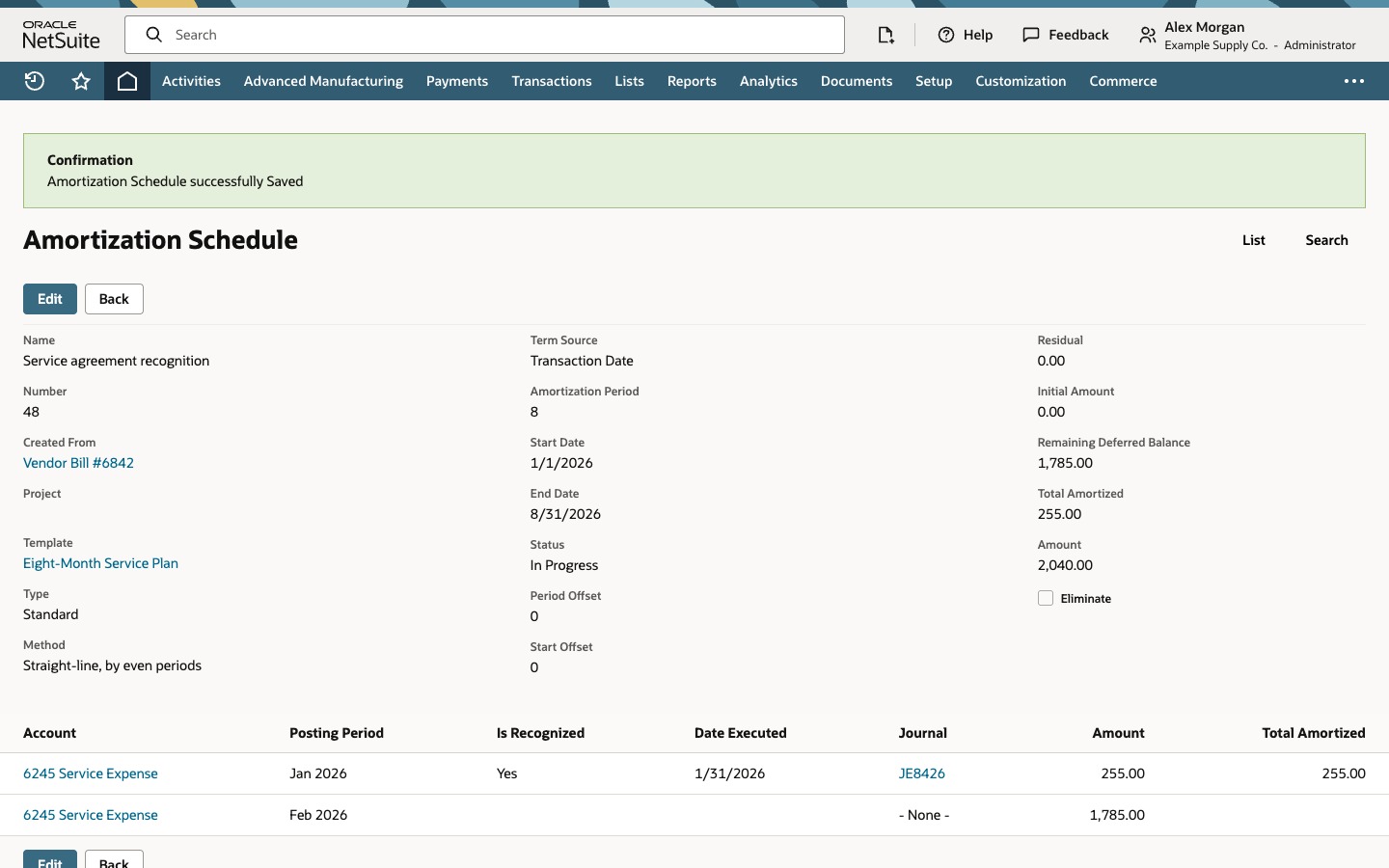
This example keeps January's recognized 255.00 and linked journal intact, moves the remaining 1,785.00 to February, and removes later periods. The schedule still totals 2,040.00. The person and operating-company names in the screenshots are fictional example data.
Before you edit
This example starts with a schedule that is In Progress, with no residual or intentionally excluded balance. Before editing, confirm the target posting period is valid and available for the schedule, including applicable locked or closed-period restrictions. Open the intended schedule from Lists > Accounting > Amortization Schedules > List, or the equivalent menu available to your role. Identify rows already recognized or linked to a journal and leave them unchanged. To modify schedule lines, the Allow Users to Modify Amortization Schedule preference must be enabled, your role must have at least Edit permission for Amortization Schedules and access to open the schedule, and the specific line must remain unrecognized.
Other configuration and release differences can affect which fields or actions appear; the available evidence does not establish a universal version-specific rule. This walkthrough demonstrates account-dependent row controls. In the current account reviewed for this guide, the edit form showed only Name as editable and no row-level Edit, Remove, or Insert controls. That is an account-specific observation, not a universal release rule. If your account has no row controls, stop and ask an administrator to verify the preference, your role, schedule status, line recognition status, and supported process; do not change shared preferences or work around your role.
Change the remaining schedule
Open the intended unrecognized future period. In this example, change February from 255.00 to 1,785.00, the full remaining deferred balance. For another schedule, use its appropriate amount and period. Change only the intended editable amount unless the approved process specifically requires another editable field.
If the intention is to reschedule the entire remaining balance into February, remove only later unrecognized rows that no longer belong in the plan, using the available row controls. Do not remove a recognized row or one with a journal reference. After the change, sum the future unrecognized rows and compare them with Remaining Deferred Balance, accounting for any residual or other balance intentionally excluded from future rows.
Before saving, check the retained rows. January should still show 255.00 and JE8426; February should show 1,785.00 and no journal. The remaining future unrecognized rows should reconcile with the deferred balance.
Check the saved result
After saving, verify the schedule Amount remains 2,040.00, Total Amortized remains 255.00, and Remaining Deferred Balance is 1,785.00. Confirm the January row still links to JE8426 and February remains unrecognized with no journal at the time shown. Confirm the March–August rows are absent after saving. The example displays amounts without a currency symbol; confirm the currency shown by your schedule, particularly in a multi-currency or multi-book account. Here, 2,040.00 equals 255.00 recognized plus 1,785.00 deferred, and the future unrecognized row equals 1,785.00. For schedules with a residual, initial amount, rounding, foreign-currency conversion, or other nonstandard terms, reconcile the displayed totals and schedule definition rather than relying on simple equality. Account for any residual or other balance intentionally excluded from future rows.
Saving the schedule changes the planned future recognition. It does not post the expense. When the applicable amortization process is later run, verify whether it created a journal, its approval or posting status, and the resulting schedule row.
Common questions
Can I edit a row that already has a journal?
Do not attempt to edit a row that already has a journal. The documented edit conditions require an unrecognized line, and a line with an existing journal cannot be edited. Leave recognized and journal-linked rows unchanged; the example keeps January's 255.00 and JE8426 intact.
Does saving the new schedule create a journal?
No. The edited schedule is a revised recognition plan. A later amortization process may create a journal, subject to the applicable period, permissions, and approval settings; verify whether it did so.
What should I do if Edit or Remove is missing?
Stop and ask an administrator to verify the edit preference, role permission, schedule status, and target-line recognition status. Then confirm the available process for your account. The inspected account lacked these row controls; that account-specific observation does not prove they are unavailable in every account or release. Do not change a shared preference or bypass permissions to reproduce another account's controls.
How do I check that the remaining balance is right?
Sum the future unrecognized rows and compare them with Remaining Deferred Balance, allowing for any residual or other amount intentionally excluded from future rows. Use the displayed schedule totals for rounding or nonstandard terms. In the demonstrated schedule, Amount 2,040.00 equals Total Amortized 255.00 plus Remaining Deferred Balance 1,785.00.
Does row editing vary by version?
Fields and row-level controls can vary by release, role, form, feature configuration, and schedule type. The demonstrated controls do not establish a universal version rule. If the controls are missing, verify the preference and permission, confirm the target row is unrecognized, and stop rather than bypassing the control.