The quick answer
In the demonstrated Advanced Bank Reconciliation (ABR) window, set Display to Unmatched, mark the one bank line that has no NetSuite transaction, keep Trans Type To Create on Journal Entry, and select Create GL Trx. A journal opens with the bank line's date, memo and a 240.00 debit to the bank account. Add the credit line, save it, return to the window and select Refresh. In this example the Difference and the bank-side Outstanding amount both fell from 240.00 to 0.00, and the seven outstanding NetSuite items stayed unmatched, which is correct because they had not cleared the bank.
This is an example of the Advanced Bank Reconciliation SuiteApp. The window's buttons, summary figures, grids, Trans Type To Create list and automatic matching belong to that SuiteApp and can differ by version, account, role, form and enabled features. They are separate from the native bank reconciliation and Match Bank Data pages. Person and operating-company names in the screenshots are fictional example data.
Before you start
You need the ABR SuiteApp with the bank account's statement data loaded and the auto-matching rules and templates already run, a role that can use the Reconcile Bank Statement window and create journals, and an open posting period for the bank line's date. Check in your account that the journal form's required classifications (department, class, location, custom segments, tax fields), subsidiary, currency and approval routing allow the journal to be saved and posted. A journal that waits for approval is not yet posted and may not match the bank line.
The example uses the 1010 Cash - Operating Checking account with a statement date of 10/23/2026. One bank line, a Miscellaneous Credit of 240.00 dated 10/21/2026, has no matching NetSuite transaction. It is a one-time deposit that belongs in 7050 Miscellaneous Income.
A journal is one way to record a bank-side receipt. If the credit is really a customer payment, a deposit from a known payor, a transfer or a refund, create the transaction type that reflects that event instead of forcing the balance to zero. Before you create anything, confirm that no existing NetSuite transaction already represents the receipt and that the offset account is supported by documentation. If the item cannot be identified, hold it for investigation or post it to a suspense account that your own policy approves. The offset account used here, 7050 Miscellaneous Income, is only the example's choice: the right account depends on what the deposit really is, such as interest, a refund or a rebate. Also search for an existing 240.00 transaction (a duplicate check), confirm the line belongs to the statement period, and keep the bank statement detail and your reason for the classification as support.
01. Show the unmatched items
Open the Reconcile Bank Statement window for 1010 Cash - Operating Checking with statement date 10/23/2026. The summary strip shows the GL and the bank side. GL closing is 61,482.55, outstanding is 20,106.30 and net is 41,376.25. Bank closing is 41,616.25, outstanding is 240.00 and net is 41,376.25. Difference is 240.00, which equals the bank-side outstanding amount in this example. The two net figures already agree, so the Difference here tracks the unmatched bank line. Confirm how your ABR version defines it.
The window opens with Display set to Matched. That view lists the items auto-matching has already paired. Each pair shares an ID, and Total Matched is 10,661.75 on both sides.
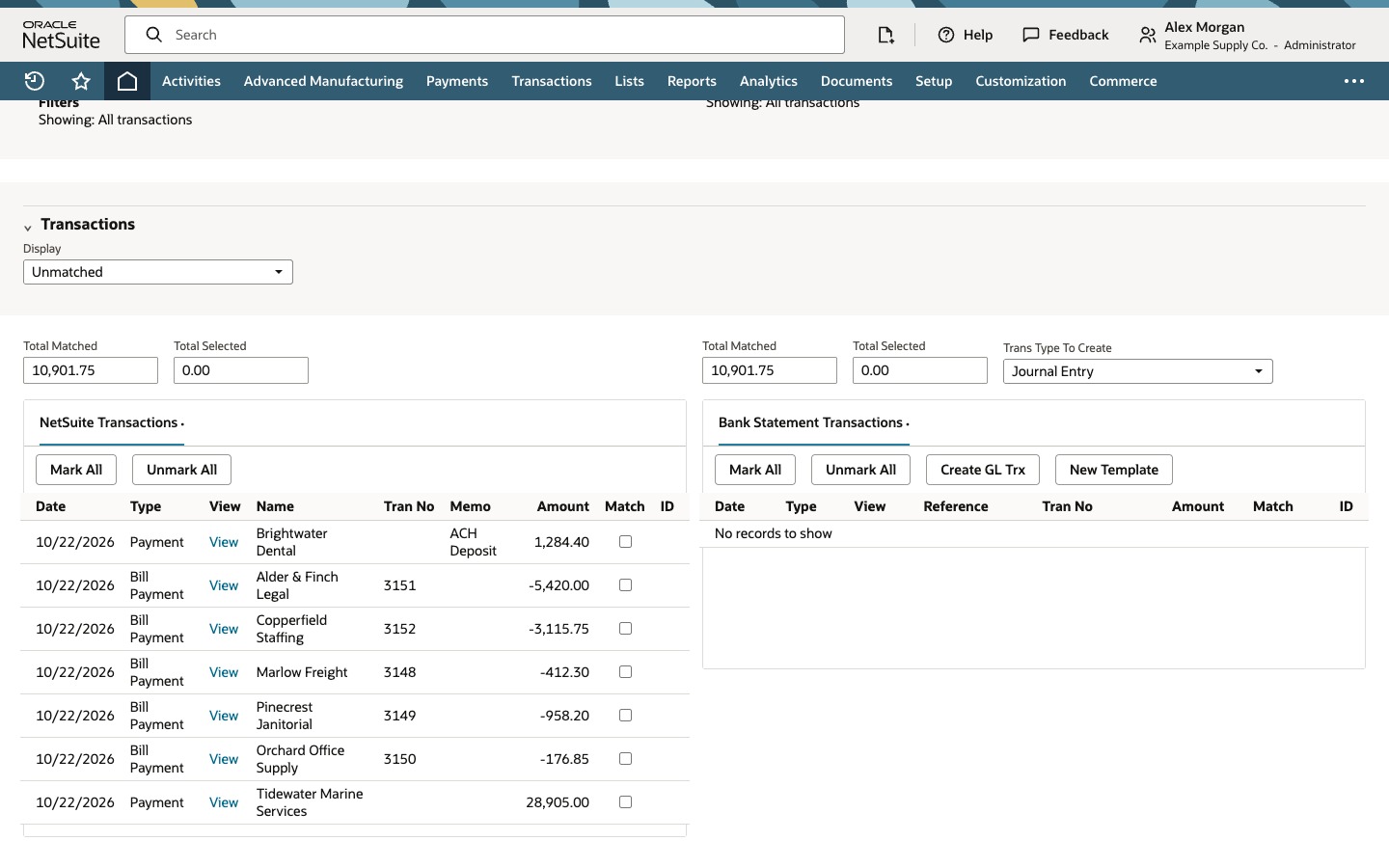
Change Display to Unmatched. The NetSuite Transactions grid lists seven payments posted before the statement date that have not cleared the bank. These are normally outstanding timing items and are left alone, once you confirm that none is a duplicate, voided, wrongly dated or missing from the statement. The Bank Statement Transactions grid lists the one line with nothing in NetSuite to match it: the Miscellaneous Credit for 240.00.
02. Select the bank item and the journal type
Investigate the bank line before you create anything. Here it is a one-time deposit, so no existing transaction needs to be matched. In the Bank Statement Transactions grid, select the Match box on the Miscellaneous Credit row. Total Selected on the bank side becomes 240.00.
Open Trans Type To Create and confirm Journal Entry. The other choice, Advanced IC JE, is for an item between subsidiaries that needs due-to and due-from accounts. Do not choose it just because it is available.
03. Decide whether the item needs a template
Decide whether the item will recur. If it would, select New Template. An ABR Auto-Gen Template opens already filled from the bank line: the reconcile account, transaction type 174, the reference text Miscellaneous Credit, the amount 240.00, the day of month 21 and the posting type Journal Entry. You would add a description, a priority and the nominal account before saving. Configuration of these templates is a separate topic.
This item is a one-time deposit, so close the template with Cancel without saving it. Back in the window, the bank line is still marked.
04. Create and save the journal
With the bank line marked, select Create GL Trx. A Journal opens with the date 10/21/2026 and the memo Miscellaneous Credit taken from the bank line, and a 240.00 debit to 1010 Cash - Operating Checking. Out of Balance By shows the 240.00 credit still to enter. In the demonstrated account the SuiteApp also filled in the credit amount after the account was chosen. Check what your version does, and review every value before saving, including the header memo and the line memo, which can differ.
Add the other side. Choose 7050 Miscellaneous Income, enter 240.00 in Credit, and select Add. Both lines now show 240.00, and Total Debit and Total Credit agree.
Check the date, the posting period and both lines, and confirm that Out of Balance By is 0.00. Then select Save. The journal opens in view mode with the confirmation Transaction successfully Saved.
05. Refresh the window
Return to the Reconcile Bank Statement window. In the demonstrated account it stayed open in its own browser tab. It still shows the earlier figures, with a Difference of 240.00, because it does not update on its own.
Select Refresh. GL closing becomes 61,722.55, the bank outstanding amount becomes 0.00, both net figures are 41,616.25, and Difference is 0.00. Total Matched rises by the 240.00 journal to 10,901.75.
The bank grid now reads No records to show. The seven NetSuite-side items are still listed as unmatched. Leave them until the bank reports them.
A zero difference shows that the figures reconcile. It does not prove that the journal was classified correctly. Before you treat the item as resolved, verify the journal's number, approval and posting status, its subsidiary, bank account and date, and its GL impact, and check that the bank line is shown as matched rather than merely removed from the view. Then complete the separate step of finishing the statement reconciliation that your process requires. Resolving the line does not by itself finalize the reconciliation.
Common questions
Why does the window still show the old Difference after I save the journal?
In the demonstrated version the window did not recalculate its summary and grids after the journal was saved. Refresh made it read the account again. If the figures stay the same after a refresh, check that the journal saved, posted or passed approval, uses the right bank account and date, and is not excluded by the window's filters. Whether another version updates on its own depends on the SuiteApp, so check it before you rely on it.
Should outstanding checks and bill payments be matched at statement date?
Not unless the bank statement shows that it cleared and there is a bank line to match. A payment recorded in NetSuite that has not yet cleared the bank is normally a timing difference and stays outstanding for that statement. Matching it early only hides the difference. Investigate any that are stale, duplicated, voided or wrongly dated.
When should I create a journal instead of a deposit?
Use the transaction type that reflects the underlying event. A journal can fit an unidentified bank charge or income item where you know the offset account and have the supporting detail. A deposit, customer payment, transfer, vendor payment or refund transaction fits a receipt from a known payor, a movement between accounts or a payable. Do not create a transaction only to force the difference to zero, and do not create both a deposit and a journal for the same bank line.
What does Advanced IC JE do in Trans Type To Create?
It is an intercompany journal option for an entry that posts across subsidiaries and needs due-to and due-from accounts. Its availability and required fields depend on subsidiaries, intercompany features, permissions and the SuiteApp's configuration. For a single-entity item, keep Journal Entry, and do not select it only because it is available.
When should I use New Template?
Use it when substantially similar bank lines will come back, for example a monthly fee or a standing deposit. The template is filled from the bank line and lets the SuiteApp post a matching entry when the item shows up again. Review its matching rules, account mapping and activation before saving, so that it cannot post duplicate or wrongly classified entries. A one-time item does not need one, so cancel the template without saving it.