The quick answer
Use Setup > Import/Export > Import CSV Records to save a named journal import map. For the next file, open Setup > Import/Export > Saved CSV Imports, click the map's name and select the new CSV. Check the retained mappings, import options and defaults before running it.
This illustrated local walkthrough imports two prepared journals with the same column headings. Person and operating-company names are fictional. The screens reconstruct the workflow; account forms, permissions and approval behavior can differ.
Before you start
Use a role with Import CSV File permission, permission to create journals, and access to the intended subsidiary and active accounts. Confirm the accounting period is open. The illustration assumes standard journals in one subsidiary, with approval not required. If approvals apply, follow the account workflow before relying on the accounting effect. Subsidiary assumes OneWorld; non-OneWorld accounts may not show that field. Accounts must be active and valid for the selected subsidiary and role.
The general Import Assistant supports saved named maps. The separate single-journal import assistant has a different template workflow and does not retain custom mappings in the same way.
01. Check the two CSV files
Both prepared files have External ID, Account, Debit, Credit and Memo columns. Each journal has two lines with one shared External ID. A different journal gets a different External ID. Check that each External ID group balances independently; a balanced total across unrelated journals is insufficient.
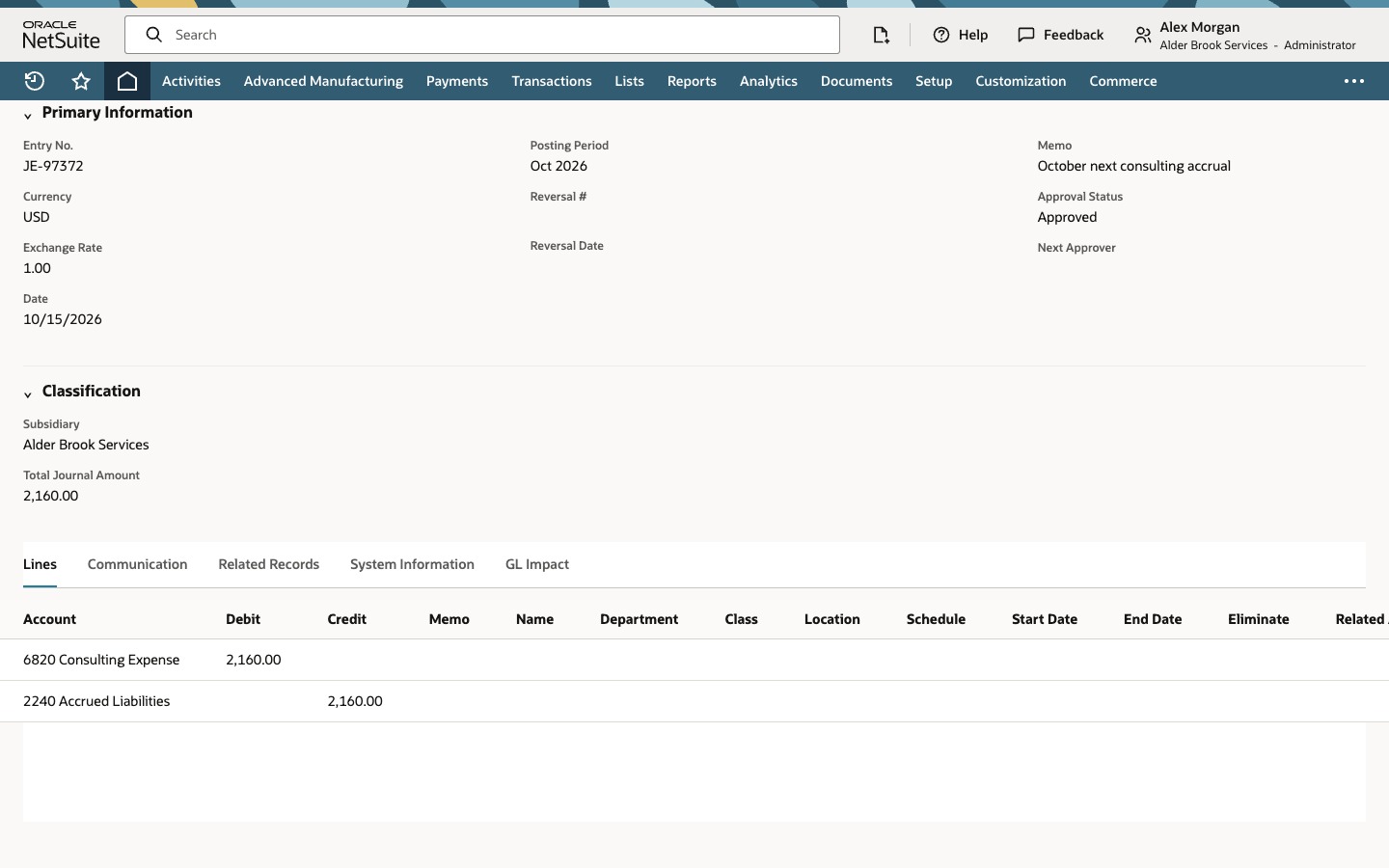
The first file, october-accrual-first.csv, uses ACCRUAL-OCT-71 and balances at 1,840.00. The next file, october-accrual-next.csv, uses ACCRUAL-OCT-72 and balances at 2,160.00. Both debit 6820 Consulting Expense and credit 2240 Accrued Liabilities. Date and Subsidiary are absent from the files; the mapping will supply their defaults.
02. Save the first import map
Open Setup > Import/Export > Import CSV Records. Select Transactions, Journal Entry and Unicode (UTF-8). Select october-accrual-first.csv, then click Next. Choose Add and continue to Field Mapping.
Map External ID and the single Memo column to the journal header. Map Account, Debit and Credit to journal lines. This file does not map a separate line-memo column.
Set the Subsidiary default to Example Supply Co. and Date to 10/15/2026. Confirm account names resolve uniquely and match the selected reference setting. Mapping a column does not guarantee its values will pass validation.
Continue to Save mapping & Start Import. Enter Monthly consulting accrual as the Import Map Name and choose Save & Run. Open the Import Job Status link and inspect the message. The illustration shows Complete with one successfully imported record. If the job reports errors, inspect CSV Response and resolve them before importing the next file.
03. Reopen the map for the next file
Open Setup > Import/Export > Saved CSV Imports. Find Monthly consulting accrual and click its name.
Select october-accrual-next.csv. Check the retained Transactions, Journal Entry and character encoding settings. Continue with Add.
Inspect Field Mapping again. The compatible column headings let the map reuse the same source columns. Check the subsidiary and date defaults: the saved date is still 10/15/2026. A saved map does not advance the accounting date for the next file. Change defaults when the next journal requires different values.
Continue and choose Run. Save changes to the reusable map only when future runs should use those changes. The new file supplies ACCRUAL-OCT-72 and the 2,160.00 amounts; the saved map supplies configuration.
04. Verify both jobs and journals
Open the Import Job Status link. Inspect the status, message and CSV Response for october-accrual-next.csv. The illustration shows Complete with one successfully imported record. The two CSV lines belong to one journal, so the expected record count is one for each file.
Open the journal list available to your role. Document numbers are illustrative and account-generated; locate your own imported journals by their memos, dates or transaction search. In the illustration, open JE-97371 and compare the date, subsidiary, header memo and balanced 1,840.00 lines with the first file.
In the illustration, return to the list and open JE-97372. Check the second file's memo and balanced 2,160.00 lines. Verify that both journals remain present. Check approval and posting status before relying on their accounting effect. Before retrying an uncertain Add import, check whether any journal was already created.
Common questions
Does the saved map contain my next CSV's data?
The map retains import configuration, mappings and defaults. Select a fresh file when you reopen it. Use compatible column headings and check the mappings before running.
Does a saved journal map update the date automatically?
A saved default can retain the earlier date. Review it for every import and change it when needed. Also confirm the intended accounting period is open.
Why use a new External ID for the next journal?
In this multi-line journal import pattern, the repeated External ID groups the lines of one journal. A new journal needs a distinct identifier. Reusing an existing journal External ID in an Add import can fail; changing transaction identity is separate from reusing the mapping.
Does Complete mean the journal has posted?
Complete means the import job finished processing. Inspect its message and CSV Response, then open the journal to verify creation and values. Approval requirements and posting behavior depend on the account; check the journal status before treating it as posted.