The quick answer
Reopen the saved Sales Order, read its custom customer-response fields under Communication, then check the native status separately. In this custom eXtendTech example, an email YES records customer approval while SO7206 stays Pending Approval. A PDF NO records rejection comments while SO7207 stays Pending Fulfillment.
These two custom responses were recorded without completing native approval or changing the demonstrated orders’ native statuses. Follow each response channel, then check what was saved.
Screenshots reproduce a custom eXtendTech implementation with sample data and fictional person and operating-company names. Your installed solution, form and automation may behave differently.
Before you start
Use two existing saved sales orders and their acknowledgment messages already visible in the email client. Creating the orders, configuring approval links and sending those initial messages are outside this walkthrough.
The first example is SO7206, 264.20, for 527 Northbridge Academy, starting Pending Approval. The second is SO7207, 809.60, for the same customer, already Pending Fulfillment. Both start without a customer response.
You need access to the saved orders, their custom Communication fields, the received messages and the attached PDF. Approved?, Rejected?, Comments, Approval User, Generate Approval Links, the response links and external page are specific to the demonstrated solution. Keep native Approve and Fulfill actions untouched during this walkthrough.
01. Read the starting state
Open SO7206 and confirm the customer and total. Read the native Pending Approval status and available Approve action.
Open Communication. Approved? and Rejected? are unchecked; Comments and Approval User are blank. Generate Approval Links is checked.
02. Respond through the received email
Switch to the acknowledgment message for SO7206. Confirm its order reference, then click YES in the email body. This is the email-body response path.
The custom external page shows APPROVED, displayed Approval User 527 Northbridge Academy, and Approval Comments Approved Via Email.
03. Check the approval writeback
Reopen the saved SO7206 after the external response. It still shows native Pending Approval, and Approve remains available. The custom YES response has not completed the native approval in this example.
Under Communication, Approved? is checked and Rejected? is unchecked. Comments retains Approved Via Email, and Approval User contains the displayed customer value. The SO7206 Confirmed message row is also recorded.
Read that message row as stored communication metadata. Its presence does not prove delivery or reading.
04. Open the second order’s attached PDF
Open SO7207 and confirm its total 809.60. It already shows native Pending Fulfillment before the response.
Switch to its already received acknowledgment and open Sales Order_SO7207.pdf. Move to page 2 and confirm its order reference before responding. Beside Do you approve this order?, click No in the PDF.
05. Submit the rejection comments
The custom page identifies SO7207 and asks for rejection comments. Enter Incorrect quantities are specified. and click Submit.
The result shows REJECTED, the displayed Approval User, and the submitted comments.
06. Check the rejection writeback
Reopen saved SO7207 after the external response. Its native status remains Pending Fulfillment, and Fulfill is still visible. Keep native Approve, Fulfill, cancellation and other transaction actions untouched.
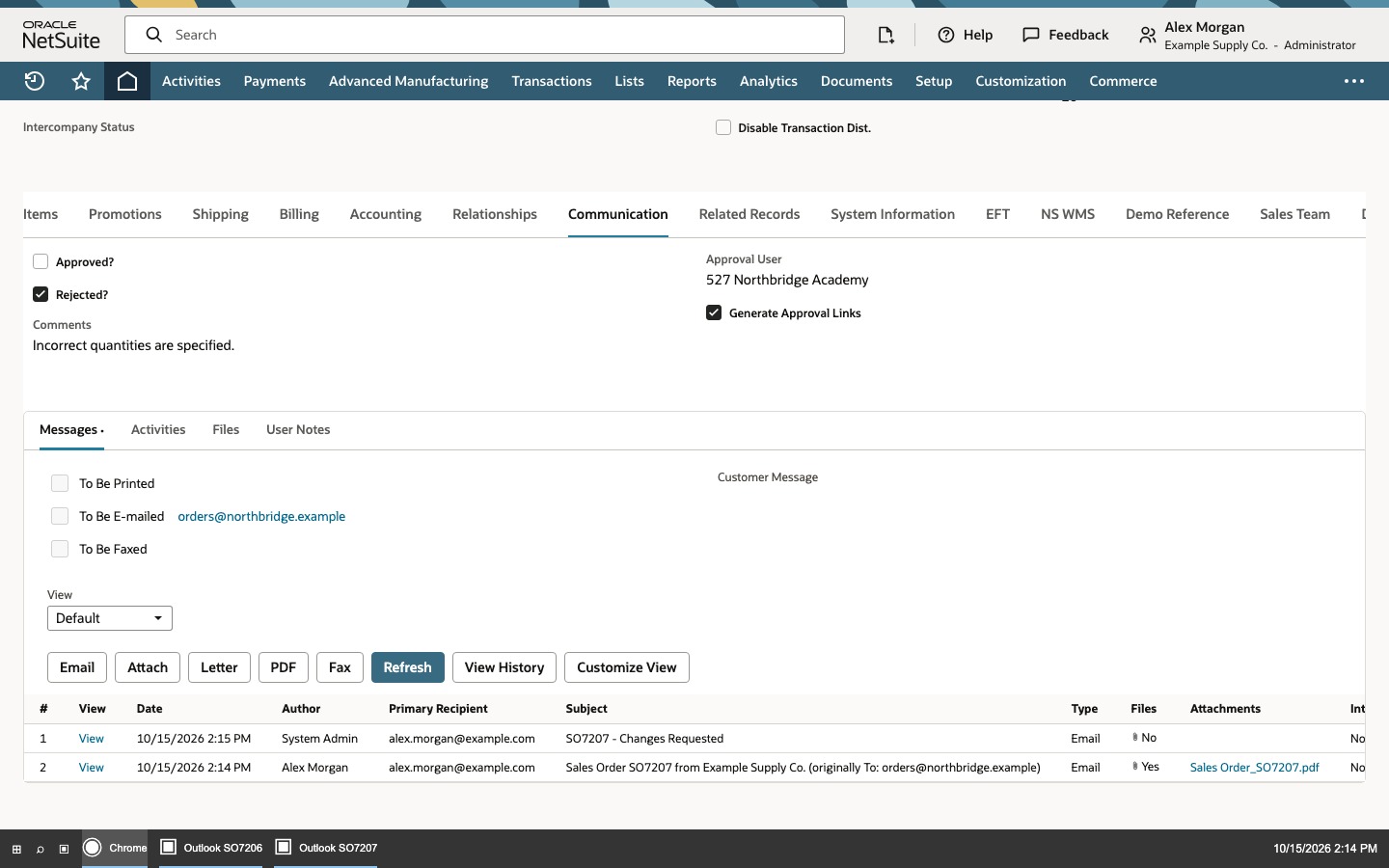
Under Communication, Rejected? is checked and Approved? is unchecked. Comments retains Incorrect quantities are specified., and Approval User contains the displayed customer value. The SO7207 - Changes Requested message row is recorded.
The demonstrated result is custom customer feedback alongside an unchanged native state. Before relying on the response as an operational hold or approval control, verify the automation and enforcement configured in your own account.
Common questions
Why does the order stay Pending Approval after the customer clicks YES?
In this demonstrated custom implementation, YES updates customer-response fields. SO7206 remains Pending Approval and still offers the native Approve action. The walkthrough does not execute automation that connects the custom response to native approval.
Does clicking NO cancel the order or prevent fulfillment?
The observed SO7207 remains Pending Fulfillment after NO, with Fulfill still visible. No cancellation, hold, fulfillment attempt or rollback is tested. Enforcement based on the custom response would need separate verification.
Does Approval User prove who clicked the link?
It shows the attribution value stored by the custom process. This walkthrough does not establish authentication, customer authorization, forwarded-link behavior or token controls.
Do the confirmation and Changes Requested rows prove delivery?
They show recorded message metadata associated with the order. Their presence does not establish mailbox delivery, reading or receipt by the intended customer.
Do both channels support every decision combination?
The demonstrated combinations are YES in the received email body and NO in the attached PDF followed by a comments form. Other channel and decision combinations are outside the walkthrough.