The quick answer
Match the mobile expense report’s number and expense line on desktop. Check Customer, Billable, Receipt and Attach File before selecting that report in Approve Expense Report. After saving the approval, confirm that the report leaves the queue and the approval email names the same report and reviewer.
This example follows Morgan Ellis’s 86.75 USD meal expense from an existing mobile receipt thumbnail to desktop accounting review. The saved report is EXP18. People and operating-company names are fictional example data.
Before you start
Use an expense-report form and role that expose the fields and approval queue shown here. Mobile access, classifications, approval routing and notifications depend on your account’s configuration. Customer billing must be configured for a Billable line to become eligible for later invoicing.
The receipt has already been captured when this walkthrough starts. The thumbnail and named file reference are visible; the file’s contents are not opened or validated. A logged mobile expense can remain local until it is submitted with a report, so verify desktop availability on the saved account record.
01. Start with the existing logged expense
On the mobile Expense screen, check amount 86.75 USD, category Business Meals & Entertainment, memo Dinner with Client and the existing receipt thumbnail. This example starts after capture and does not demonstrate the camera.
02. Keep customer billing and receipt details together
Tap the check mark to open New Expense Report. Keep the expense account, choose Sales for Department, and choose C0042 Harbor Retail for Customer. Enable Billable. Check that Receipt is on and Attach File still identifies meal-receipt.jpg.
Billable marks the expense as potentially chargeable to the selected customer. Creating a customer invoice is a separate process.
03. Complete and save the mobile report
Select Add, then enter report memo Meal with Harbor Retail (billable). Check Complete. Here, Supervisor Approval is already on and Accounting Approval is off. Leave those approval values unchanged; this walkthrough does not establish how supervisor approval was generated.
Save and note EXP18 for Morgan Ellis. Follow your form’s submission steps and verify that the report is available in the desktop account.
04. Review the same report on desktop
In the Controller desktop session, open Approve Expense Report from Home. Match EXP18, Morgan Ellis, memo Meal with Harbor Retail (billable), amount 86.75 and Ready for Accounting Approval. Open its date link, then check the saved report number, employee and memo.
Scroll to Expenses and across the line as needed. Match C0042 Harbor Retail and Billable = Yes on the same expense line.
Check Receipt = Yes and the meal-receipt.jpg link. The named link supports the retained attachment reference. This walkthrough does not open the file or check its contents.
05. Approve only the reviewed report
Return to Approve Expense Report. Select only EXP18; leave the other report unchecked. Choose Save.
EXP18 leaves the queue while EXP07 remains. This is the accounting-review action shown here; the supervisor value was already set before it.
06. Match the approval notification
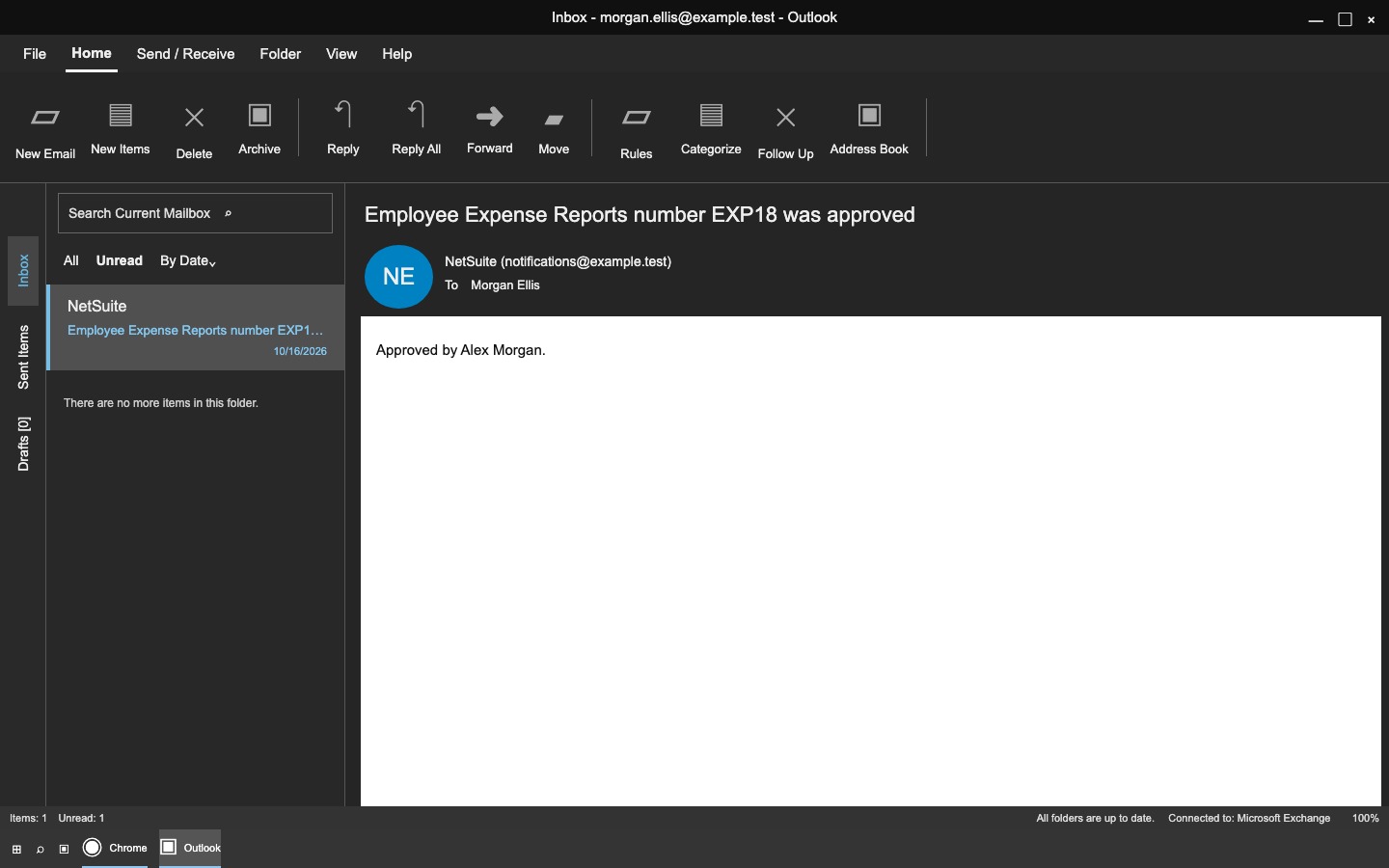
Open Outlook and match the subject Employee Expense Reports number EXP18 was approved to the report you reviewed.
The message names Alex Morgan as the reviewer.
The queue result and matching email support the observed approval action. Payment, posting and a saved final transaction badge are outside this walkthrough.
Common questions
Does taking a receipt photo make it available on desktop?
Not necessarily. A logged mobile expense can remain local until it is submitted with an expense report. Check the corresponding saved record on desktop; a thumbnail alone does not prove account synchronization.
Does checking Receipt attach or validate the file?
No. Receipt and the file reference are separate evidence. In this example, the thumbnail and named JPG link support a retained attachment reference. The file is not opened, so its contents and readability are not verified.
Does Billable create a customer invoice?
No. It marks a potentially chargeable expense line. The account’s customer-billing configuration, eligibility rules and later invoice process determine whether it is billed.
Why is Supervisor Approval on while Accounting Approval is off?
They are separate approval values in this flow. The supervisor value is already set before the demonstrated accounting review. This example does not show who set it or how approval routing works for another report.
Does leaving the queue mean the employee was reimbursed?
No payment is demonstrated. The selected report leaves the approval queue and its matching email names the reviewer. Verify reimbursement or a final saved status separately when you need that evidence.
Supporting references
Oracle describes logging mobile expenses and creating an expense report from logged expenses. The fields and approval path above follow the account shown in this example.