The quick answer
Open the AvaTax Address Validation Assistant, choose Customer, set the subsidiary and address filters, then name the batch and select Finish. In the saved batches list, wait for Update Completed and open View Details. Check the totals and every result row. The example completes with three addresses: two Validation Saved rows and one Error.
The screenshots use fictional company data. They illustrate a connector workflow shown in a 2022 NetSuite account; the AvaTax menu, installed bundle, and form labels can differ by account. The current reference account did not expose this utility, so verify your own connector installation and role access before following the steps.
Before you start
You need access to the AvaTax Address Validation Utility and permission to run a batch for the intended subsidiary. Confirm which customer records and address types should be included. Validation may use an external service and may update records in your configured connector; review the scope with the owner of your customer data before running a broad batch. Use a limited selection when first checking the workflow.
01. Select customer records
Open the connector's Address Validation Assistant. In Select Type, choose Customer and continue. The example utility also offers Subsidiary and Location, which are different validation scopes.
02. Set the address filters
In Set Data Filter, keep the customer type that matches your intended records. The example uses Customer, Both individual and company customers, one subsidiary, All address types, and Only Active Records. Name and date filters are blank, so they do not narrow this example batch. Review these choices carefully before continuing; a different combination can process a different set of addresses.
03. Start the batch
On Summary Information, check the record type, party type, subsidiary, address type, and active-record choice. Enter a descriptive Batch Name, then choose Finish. In this example the name is Validate current customer addresses.
04. Wait for completion
Open View Saved Batches. The example row first appears as In Progress. Refresh the list and wait until it shows Update Completed; then open View Details. The status confirms the batch ran, but it does not mean every address validated successfully.
05. Review each result
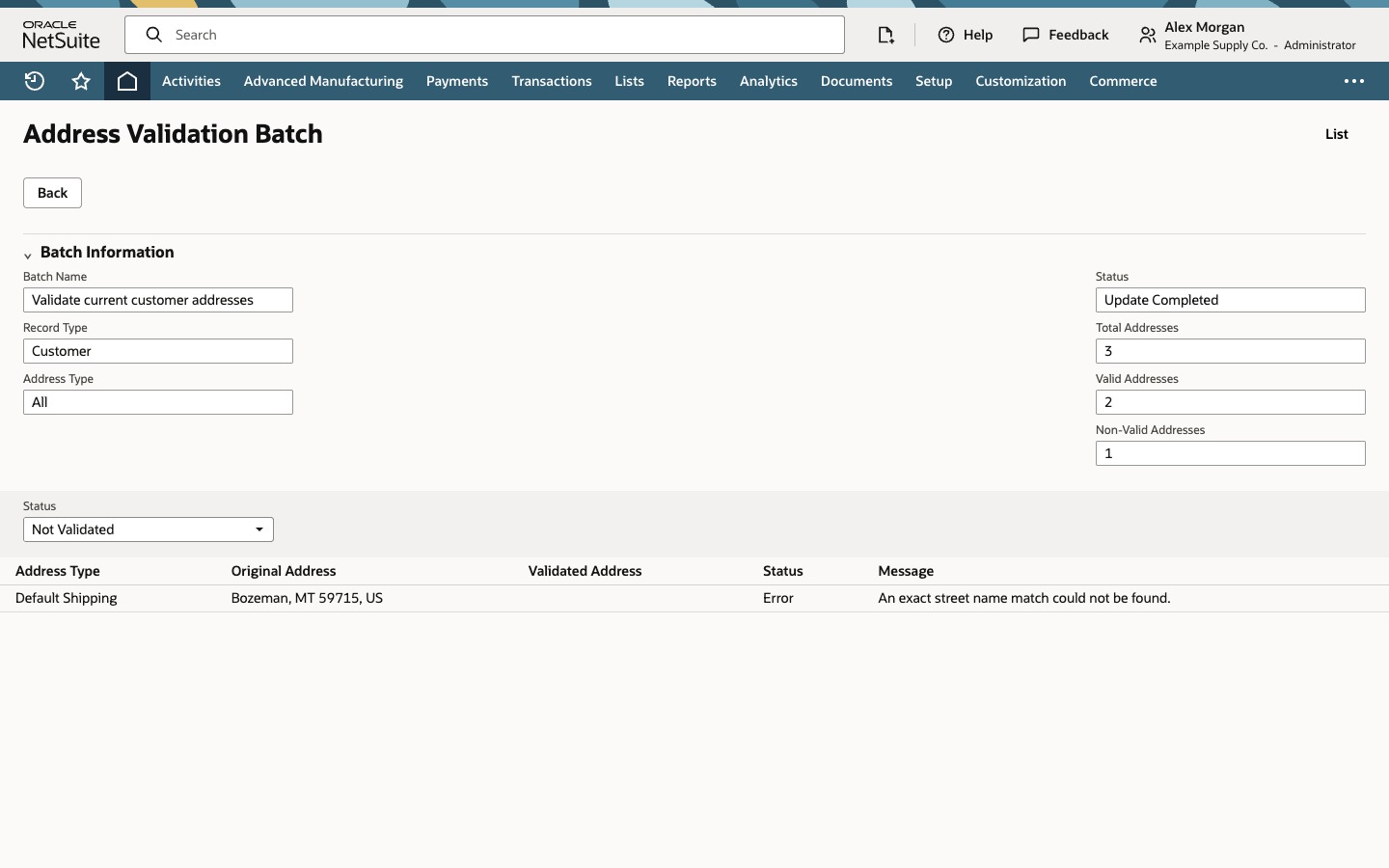
The example detail shows 3 total addresses, 2 valid, and 1 non-valid. These are this batch's counts, not a standard outcome. Two rows say Validation Saved. The third says Error with a message that an exact street-name match could not be found. Reconcile your own total and statuses before treating the batch as successful.
Use the Status filter to select Not Validated and isolate the failed row. Read its message and correct or investigate that address through your normal customer-data process. The batch screen does not prove that a customer record's address fields changed; verify a customer record separately if that is the outcome you need to establish.
Common questions
Does Update Completed mean all addresses passed?
No. It means the batch process finished. Check the valid and non-valid counts and the status of each address. The example has one Error even though the batch status is Update Completed.
What does Validation Saved prove?
It is the status displayed by the validation utility for that address. This walkthrough does not open the underlying customer record after the batch, so it does not establish a before-and-after change in customer address fields. Read back the exact customer address-book row and fields if you need to confirm a saved correction. A transaction's shipping-address snapshot is a separate record and is not verified by this customer batch.
Why is the Address Validation Assistant missing from my account?
This is a connector-specific utility. Check the bundle or SuiteApp installation and deployment state, account features, role permissions, and whether your connector version uses a different menu path. The current reference account did not expose the utility, so its availability cannot be assumed across NetSuite accounts.
How should I handle an Error row?
Read the row's message and compare its original address with an authoritative customer source. The example reports that an exact street-name match could not be found; that message alone does not prove the address is nonexistent or undeliverable. Correct incomplete or inaccurate source data through your approved customer-data process and rerun a suitably scoped validation when appropriate.