The quick answer
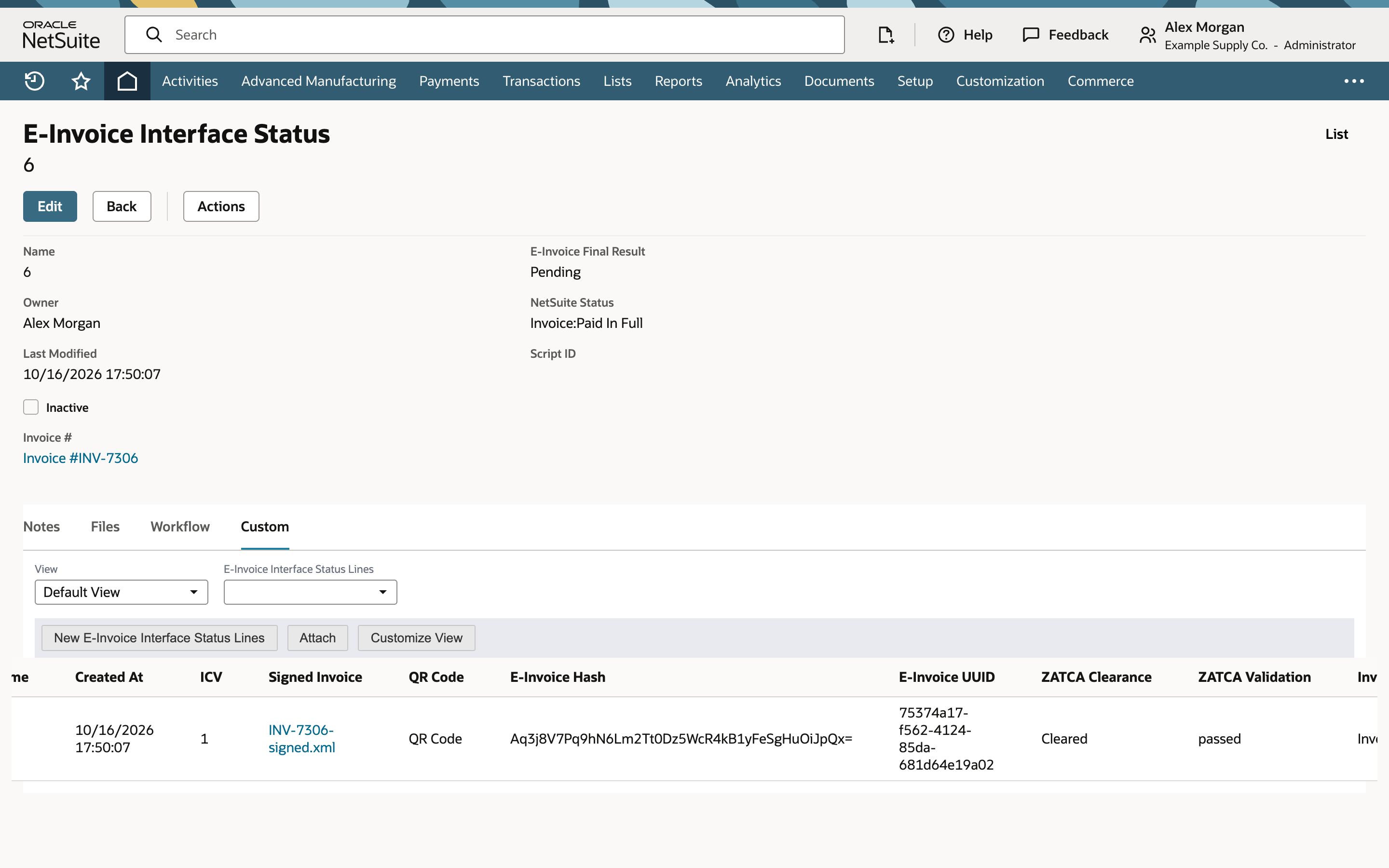
Open a saved invoice in the configured Saudi subsidiary, click Proceed to E-Invoice, and choose Normal in Generate & Verify E-Invoice. Check the E-Invoice tab for the generated XML, ICV, hash, and UUID. Then open the related E-Invoice Interface Status record. In this example, its child line reads ZATCA Clearance: Cleared and ZATCA Validation: passed, while the parent E-Invoice Final Result is still Pending.
The screenshots reconstruct a 2023 partner walkthrough with fictional invoice, customer, user, and account names. Its Saudi e-invoice controls and status fields belong to that integration; other providers, subsidiaries, forms, and roles may use different labels and processing steps. A current US NetSuite account showed saved invoices but did not expose or verify these partner screens.
Before you start
Confirm that the invoice belongs to the intended Saudi subsidiary and that the provider integration is active for it. Check the seller and buyer tax and identification details, invoice type, tax, amount, dates, and any provider-required configuration or credentials. The user also needs permission to generate the document and inspect its status. This example uses INV-7306 for Dune Industrial Services, with a SAR 4,600.00 total. Those values are fictional; the invoice happened to be paid before the recorded action, which is not established here as a universal prerequisite.
01. Open the saved invoice
Open the invoice in view mode. Confirm its number, customer, Saudi subsidiary, and total. The configured partner action appears as Proceed to E-Invoice in the action bar. If that action is missing, check the record state, integration setup, subsidiary, invoice form, and role permissions before proceeding.
02. Choose the invoice type
Click Proceed to E-Invoice. In Generate & Verify E-Invoice, choose Normal for this invoice. The dialog also offers Debit, which this walkthrough does not use. Wait for the invoice record to update before looking for its XML.
03. Inspect the generated XML
Open the invoice’s E-Invoice tab. The example now has a preview and download link for INV-7306-signed.xml. The same tab shows an ICV, e-invoice hash, and UUID. These fields establish that this configured workflow generated an invoice document; they are not a final authority decision.
04. Read the child checks and parent result
Open the related E-Invoice Interface Status record and its Custom tab. On the child line, this example shows ZATCA Clearance: Cleared and ZATCA Validation: passed. Read those values on the line for the same invoice and XML.
Now read E-Invoice Final Result at the top of the parent status record. It still says Pending. Wait for or retrieve the provider’s final response according to this integration’s process, then check its audit history and any errors. Do not regenerate just because the result is pending; duplicate-submission handling depends on the provider. The recording does not show a final ZATCA acceptance decision.
Common questions
Does Cleared mean ZATCA accepted the invoice?
The child line shows Cleared for ZATCA Clearance and passed for ZATCA Validation in this example. The parent E-Invoice Final Result still says Pending. Check the partner’s final response and audit record for the disposition of the submission.
Where is the signed XML?
In this demonstration, open the saved invoice’s E-Invoice tab. It shows preview and download links for INV-7306-signed.xml alongside its ICV, hash, and UUID. Another integration may store the file on an E-Document tab or related record. A signed XML file alone does not prove final acceptance.
Why is Proceed to E-Invoice missing on my invoice?
That action comes from the configured Saudi partner integration. Check whether the invoice is saved and viewed, whether the subsidiary and transaction qualify, the integration setup, custom form, and role permissions. The action’s visibility may also depend on record state or prior processing.
Should I choose Normal or Debit?
The recorded invoice uses Normal. Use the type required by your transaction and integration configuration; this walkthrough does not demonstrate the Debit path.