The quick answer
In an account configured for this custom flow, choose Reject on the sales order, check the prefilled Sales Order link, enter a Name and Reject Reason, then save the separate custom record. Follow its Sales Order link back and find the saved reason under Related Records > Reject Reason. Check the order's actual status separately: it remains Pending Approval in this example.
Person and operating-company names in these screenshots are fictional example data. Use your own records and reason text.
Before you start
This procedure uses a configured Reject action, a custom record type named Reject Reason, a field linking that record to a Sales Order, and a related-record sublist on the sales order. You must be able to open the configured action, create the custom record and view the linked sales order. Exact permissions depend on the account configuration and role.
Confirm that your account provides those controls. Their labels and behavior depend on the account's configuration. This guide shows how to save and retrieve the linked explanation; it does not configure the approval workflow.
01. Open the configured reason form
Start on saved Sales Order SO48261 for Ridgeway Equipment Co. Check Pending Approval and confirm that the configured Reject action is available to the reviewer. Choose Reject.
The action opens a Reject Reason custom-record form. Check that Sales Order is already Sales Order #SO48261. If the association is missing or points to another order, do not save the record. Confirm the association with your administrator.
02. Save the reason record
Enter Freight review in Name and Freight charge requires review before release. in the Reject Reason textarea. Leave Script ID untouched. The screenshot marks Name as required; this example does not test whether a blank reason would be rejected.
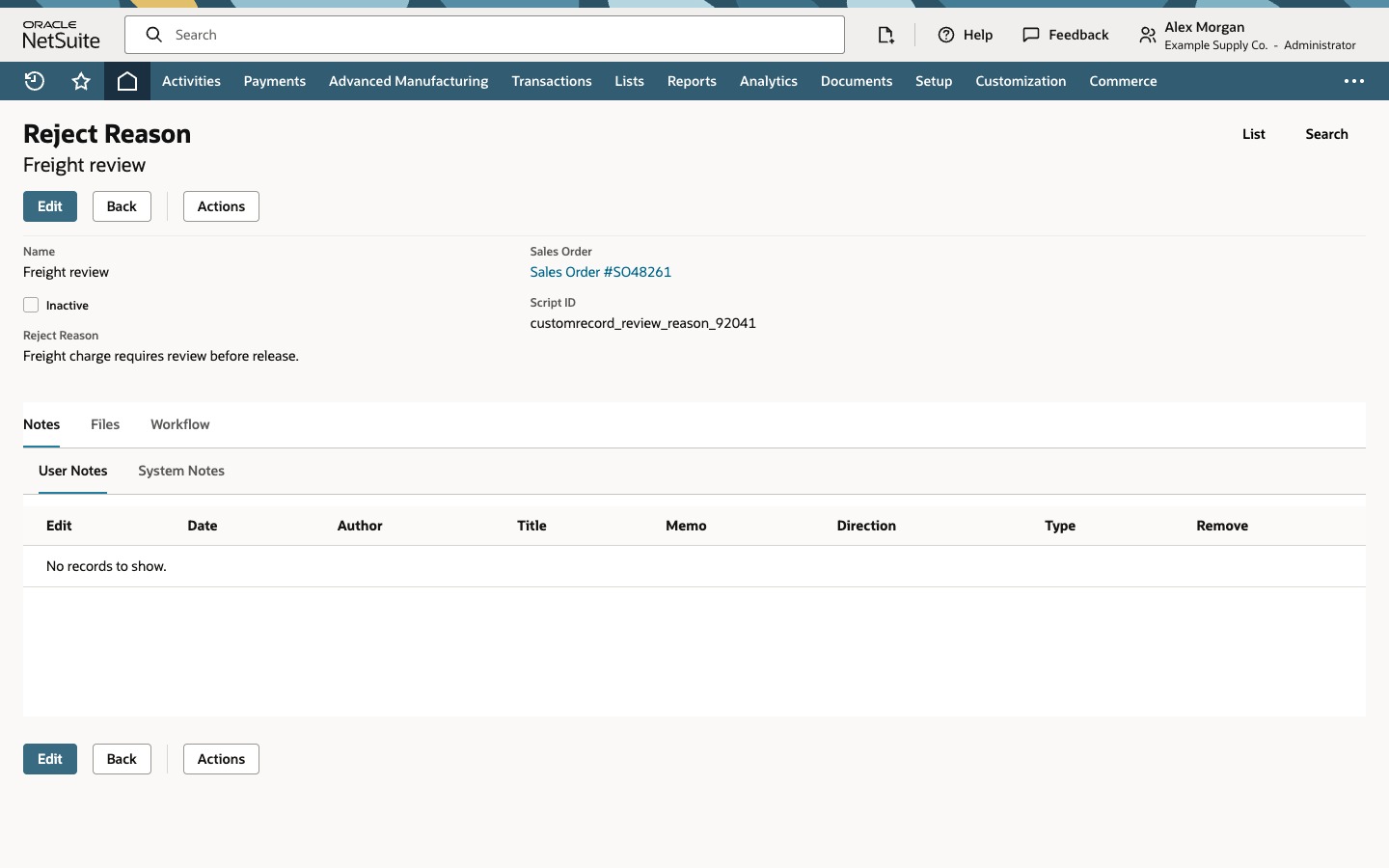
Leave the separate User Notes grid empty and choose Save. On the saved record, verify the name, complete reason text and Sales Order #SO48261 link. An administrative Script ID is displayed after saving; it is not part of the explanation.
Under Notes > User Notes, the saved grid says No records to show. The reason was stored in its custom record field; no separate User Note was added in this procedure.
03. Return and check the order status
Follow the saved reason's Sales Order link. The returned order still reads Pending Approval. Edit and Submit for Approval are visible in this configured example. This procedure does not use Submit for Approval or establish what it would do.
The label Reject on a custom action does not establish a native Rejected status. Read the status shown on your actual order and check your account's configured approval process when a transition needs to be verified.
04. Revisit the linked reason
In this configured example, open Related Records > Reject Reason on the sales order. Find Freight review and check its full reason text. Choose the record's Name link to reopen it, then recheck the saved text and Sales Order association.
This check confirms the saved explanation and transaction relationship. Email delivery and a completed resubmission cycle require their own verification.
Common questions
Is Reject Reason a standard sales order rejection dialog?
In this example it is a configured custom record opened by a custom action. The record type, fields, prefilled transaction link and related-record sublist must exist in the account. Another approval process may use different controls.
Is the Reject Reason textarea the same as User Notes?
The textarea is a separate field on the custom reason record. User Notes is a separate related grid. This procedure saves that field and leaves User Notes empty.
Why does the order still say Pending Approval?
That is the status observed after this custom reason was saved. The demonstrated result establishes a saved explanation and transaction link. It does not establish a native rejection or identify a workflow-state transition.
Where can I find the saved reason later?
Use the sales order's configured Related Records > Reject Reason sublist, match the name and text, then open the linked custom record. If that sublist is missing, check its configuration and your role's access with your administrator.
Does Submit for Approval prove that resubmission works?
Its presence shows that the control is available in this configured example. This procedure does not click it or verify an approval restart. Test the intended transition separately before relying on it.