The quick answer
Open a saved invoice with the Spain outbound e-document template. On the E-Document tab, confirm For Generation, then click Generate E-Document. After the XML is generated, click Certify E-Document to use the configured sending workflow. Check the Veri*Factu transaction URL, then return to E-Document for the generated XML and Sent status. Sent alone does not prove acceptance by the Spanish tax authority.
The screenshots reconstruct an official product walkthrough with fictional invoice, customer, account, and user details. The example uses an Avalara Veri*Factu outbound template. A current US account provided only a generic invoice comparison, so the Spain-specific controls shown here are supported by the walkthrough rather than a live Spanish account check.
Before you start
You need a saved invoice in the right Spanish subsidiary, accurate customer and tax details, an assigned outbound template, the required Spain localization and provider setup, and a role allowed to run these actions. Confirm that the customer has the applicable e-document package and that the template is assigned to the subsidiary. Check approval state and the provider’s response process before using this on a real invoice. The example starts with invoice INV-4082 for Costa Norte Equipment, EUR 242.00, and an Avalara VeriFactu template. Those are fictional values.
01. Open the saved invoice
Open the saved invoice in view mode and confirm its number, customer, subsidiary, and amount. This example is INV-4082 for Costa Norte Equipment in the Spanish subsidiary. The saved record exposes Generate E-Document in its action bar.
Open E-Document. The outbound template is assigned and E-Document Status reads For Generation. If the template or action is missing, stop and check the subsidiary, e-document configuration, custom form, and role permissions before trying another invoice.
02. Generate the e-document
Click Generate E-Document and wait for the generation confirmation. The example then shows a Generated E-Document link for INV-4082.xml, with preview and download actions. Open the XML if you need to inspect what the template produced; the button click alone is not evidence that a usable file was generated.
03. Run the certification action
Click Certify E-Document after generation. In this Avalara example, that action hands the document to the configured certification or sending workflow. Response timing and intermediate statuses vary by provider and account. Read any error or pending message before retrying; repeated submission can create a second attempt.
04. Check the URL, XML, and status
Open Veri*Factu. The example records a Veri*Factu Transaction URL plus issued-invoice type, taxable-transaction qualification, special regime key, and recipient identification type. The example.com URL in this guide is a dummy tracking value, not a tax authority response.
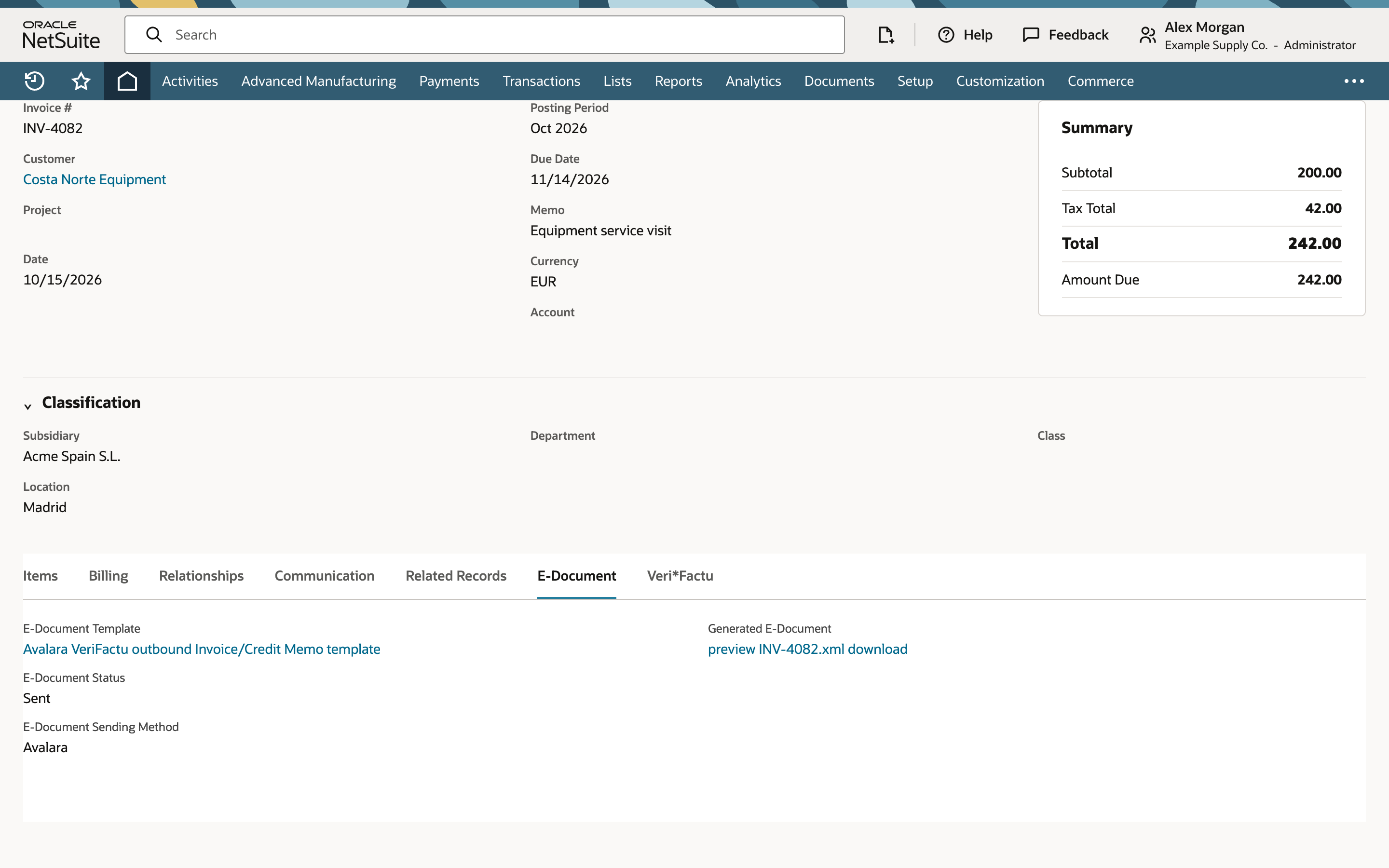
Return to E-Document. This recording ends with E-Document Status: Sent and the generated XML still available. Check the E-Document Audit Trail and provider or authority response to establish whether the submission was accepted, rejected, or remains pending. The recorded screen does not show an AEAT acceptance decision.
The XML link remains on the same invoice after the status changes to Sent.
Common questions
Does Sent mean the invoice was accepted by AEAT?
No. Sent is the status shown in this NetSuite example. Check the audit trail and the provider or authority response for the actual outcome. The recording does not show an acceptance decision.
What if Generate E-Document is missing?
Check that the invoice is saved and open in view mode with For Generation status. Then check the Spanish subsidiary and outbound template, customer e-document package, approval state, localization and provider configuration, and role permissions. Custom forms can also change what appears on the record.
Where is the generated XML?
Open the invoice’s E-Document tab. The example has a Generated E-Document field with preview and download links for the invoice XML.
What does the Veri*Factu URL prove?
It gives you a reference to investigate the submission. The URL by itself does not prove that the tax authority accepted it. Compare it with the provider response and the E-Document Audit Trail.