The quick answer
In an account with a custom item-consumption landed-cost utility, inspect the template's raw-material rule before receiving. Save the finished item's receipt, read the per-line landed-cost detail, then compare its raw-consumption charge with the separate inventory adjustment. Finally, open the receipt's GL Impact and check the finished-inventory debit and raw-inventory credit. A standard NetSuite receipt does not create this adjustment on its own.
This walkthrough uses fictional example data. Person and operating-company names in the images have been replaced. The underlying demonstration shows a customized PRI utility in an older NetSuite account. The current account used for surface comparison showed standard receipt and adjustment pages but did not verify that exact utility or template.
Before you start
You need an installed consumption utility and an existing PRI Landed Cost Template configured for the finished item and its raw component. Confirm item types, units, inventory-detail requirements, the 2:1 factor, location, subsidiary, landed-cost categories, accounts, and available raw stock. You also need a saved purchase order ready to receive. Check the transaction dates, open posting period, costing method, and any approval or script requirements. This example receives a finished inventory item through a purchase order; it does not demonstrate a native assembly build. The utility's timing and posting details depend on the implementation, so use the saved records as checks rather than assuming the receipt creates every result immediately.
01. Check the rule and purchase order
Open the existing template. The example's Raw Consumption row uses Item Consumption Reference with a factor of 2 and references RM-210 Sensor Core. That means the intended charge is based on two raw units for each finished unit received. The video inspects this existing template; it does not create or edit it.
Open PO8401. It contains one FG-410 Drive Module at 120.00 and is ready for receiving. Check the item and quantity, then choose Receive.
02. Receive the finished item
On Item Receipt, keep the module line selected. Confirm quantity 1, North Plant as the location, the custom template on the line, and Landed Cost per Line checked. Save the receipt. In this example it becomes IR8402.
03. Read the landed-cost detail
On the saved receipt, open the received line's Landed Cost Detail. Four charges appear: 12.00 clearing and forwarding, 45.00 freight, 360.00 raw consumption, and 2.40 insurance. Together they equal 419.40. The receipt still has one finished unit. The detail shows the configured charges; it does not by itself establish the item's final average cost.
04. Trace the raw-material adjustment
Open the separate inventory adjustment IA8402, observed after the receipt workflow. It removes 2 RM-210 Sensor Core units at an estimated 180.00 each; Estimated Total Value is -360.00. The memo names the landed-cost utility and its receipt and template IDs. Check the raw item, location, quantity, and amount against the receipt detail, and look for duplicate or reversed adjustments. The memo supports a manual trace, but this view does not show the adjustment's own GL Impact or prove a native transaction link.
On its Adjustments line, Adjust Qty. By is -2 and Est. Unit Cost is 180.00. The negative quantity is the raw-stock movement; the displayed cost remains an estimate until costing and the adjustment's own GL are checked.
05. Check the receipt GL Impact
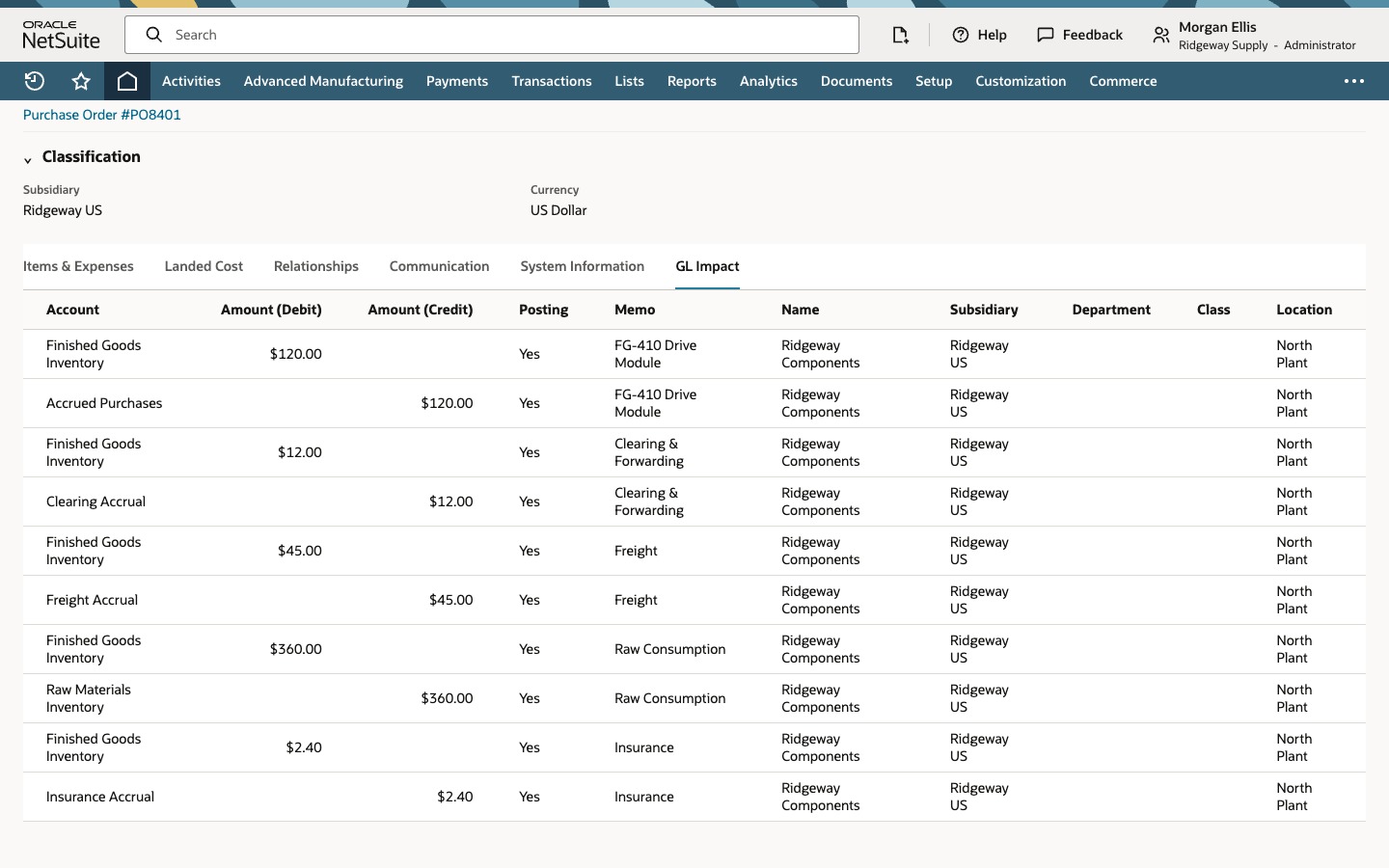
Return to IR8402 and open GL Impact. Its 120.00 goods posting is separate from the landed-cost pairs. The Raw Consumption pair debits Finished Goods Inventory 360.00 and credits Raw Materials Inventory 360.00 in this configured example. Clearing, freight, and insurance have separate account pairs. Check the adjustment's own GL Impact, completed costing, item/location valuation, and any clearing-account balance across the relevant period before calling the process fully reconciled; those later results are not demonstrated here.
Common questions
Does a normal item receipt create this raw-material inventory adjustment?
No, not as a standard consequence of receiving an item. The demonstrated adjustment comes from the account's custom consumption utility. Confirm the utility and its template before relying on that behavior.
Why compare the adjustment with the landed-cost detail?
The adjustment shows the raw-item quantity and estimated value removed. The receipt detail shows the charge applied to the finished-item receipt. In the example, one finished unit corresponds to two raw units, and both raw-consumption amounts are 360.00. A mismatch needs investigation; matching amounts do not prove a formal record link.
Should I add the adjustment's value to the receipt's raw-consumption charge?
No. 419.40 is the saved receipt-detail total and -360.00 is the saved adjustment's estimated value. They answer different questions; adding them would double-count the same raw-consumption movement. Check the underlying postings before reconciling your own books.
Does the receipt GL prove the final item value?
No. It shows this receipt's displayed posting lines at the time reviewed. Existing stock, costing method, later adjustments, and recalculation can change item valuation. Inspect the item and location valuation separately.
Is the adjustment formally linked to the receipt?
The memo names a transaction and template ID, which helps manual tracing. Treat the records as formally linked only if your account exposes a native relationship or documented custom reference field. The recording does not show one.