The quick answer
Trace the statistical journal or schedule output into Allocation Detail, inspect every linked monetary journal, verify its approval and GL Impact, and reconcile the journal’s expected net posted effect by subsidiary and location to an Income Statement with matching report context. Treat the statistical balance date, allocation Date Basis, Next Date, journal date and posting period, and report period as separate controls.
This workflow is for reviewing a payroll allocation that uses employee counts across subsidiaries and locations. The accepted walkthrough uses fictional names and synthetic figures. Use the records and account settings in your own role to verify the result.
Before you start
For an intercompany allocation, confirm OneWorld, the applicable expense-allocation and dynamic-allocation features, and the intercompany accounts and subsidiaries used by the schedule. The statistical account must carry the dimensions used for weighting; an account without location balances cannot supply location-level weights. If a statistical schedule uses an employee saved search, check its population and subsidiary/location grouping and confirm its latest run completed. Statistical balances can also be maintained another way, so use the process configured in your account. Your role needs access to the schedule, source and destination accounts, subsidiaries, and generated journals. Confirm the journal period is available. Approval settings, accounting books, subsidiary restrictions, and period controls can affect whether the journal can be created or posted.
The steps below review a saved result. The walkthrough does not create a search, refresh a statistical schedule or run an allocation. Check the prerequisites that apply to your account before relying on saved detail.
01. Check the dynamic allocation schedule
Use global search or the allocation schedule list available to your role, then open the schedule used for payroll. Check the source subsidiary and expense account, Weight Source, Unit Type, Unit of Measure, Date Basis, and Next Date. The statistical journal or balance date, the allocation’s weight timeline, the generated monetary journal date and posting period, and the report period are separate controls. Align them intentionally for the payroll period you are reviewing.
For a dynamic allocation, Date Basis selects the statistical balance timeline used for weights. Next Date can also define the end of that timeline and affect the generated journal date, depending on the account’s configuration. Confirm each expected destination has the intended statistical balance, including an intentional zero, and that its subsidiary and location dimensions match. The example schedule uses a fictional employee-count account; its values are illustrative.
02. Review the saved allocation detail
Open the run from the schedule’s History subtab, then select Destination on Allocation Detail. Check every expected subsidiary and location, the accounts, the statistical Balance, the configured Weight, and the linked journal or journals. The meaning of Weight depends on the schedule: it can be a literal percentage, a relative value, or a dynamically calculated weight. A displayed sample balance is a check on the setup; inspect the generated monetary journals for the actual result.
The accepted walkthrough shows eight synthetic destination rows. One run can link to multiple journals, often by destination subsidiary. Check that every intended destination appears, and investigate missing or zero rows against the account’s date basis, statistical segments, schedule run, source filters, and subsidiary/account availability. Detail alone does not prove that the journals are approved or posted.
03. Verify the linked journal
Open every linked monetary journal. Check its date and posting period, accounting book if applicable, accounts, subsidiary and location on each line, approval/workflow state, and GL Impact. Confirm the journal balances and, for cross-subsidiary activity, check the reciprocal due-to/due-from or clearing entries by subsidiary. Statistical journals are a separate source of weighting data; do not test them as monetary debits and credits.
A generated journal can still be pending approval, blocked by a period control, or excluded from the report context. When approval is enabled and a journal is pending approval, it is generally not included in the posted ledger; check the actual status and GL Impact in your account. The recording’s fictional journal shows one configured approval state, period and total, and the frame shows only its first visible lines. Scroll through every line and the GL Impact before signing off.
04. Compare the Income Statement by Location
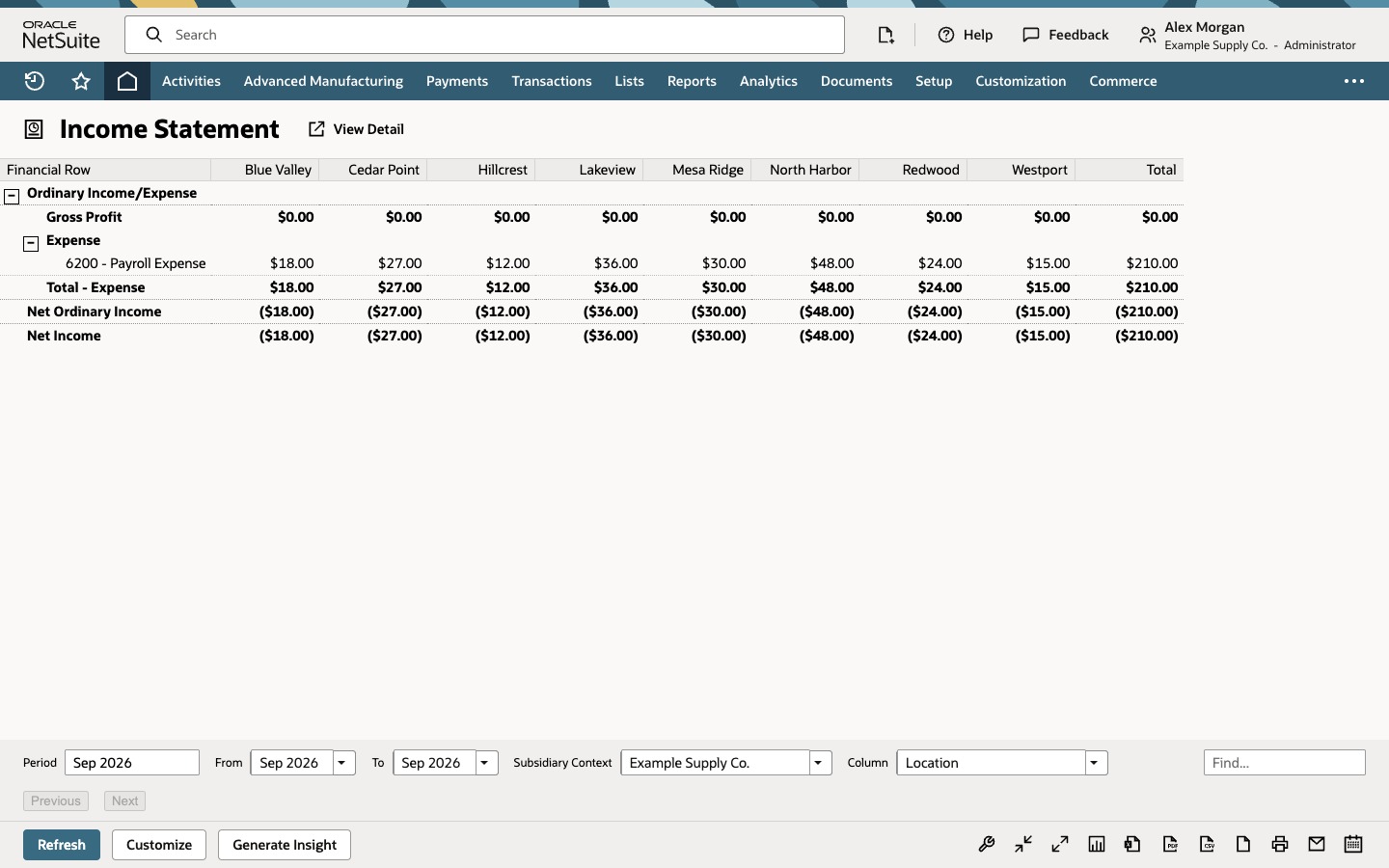
Open the Income Statement and match its accounting book, period, subsidiary or consolidation context, currency, location column, and relevant account filters to the journal. Refresh, find payroll expense, and compare the journal’s expected net posted effect by subsidiary and location. Reconcile source credits, destination debits, and intercompany clearing separately. The report may include other activity, so a location total will not always equal one journal line. If the journal is unposted or pending approval, it may not appear in the report.
The reference walkthrough’s saved detail and report disagree on two destination amounts. Treat its report as a reconciliation check, not proof that the saved weights and amounts are correct. Trace an unexplained difference through the statistical balance, detail row, journal line, and report context. The report image below is from a separate synthetic fixture and does not resolve that source mismatch.
A complete review has a traceable chain: statistical balances for the intended date and segments, detail rows with expected destinations and weights, every linked journal with the required approval/posting state and GL Impact, and a report whose context matches the journals. Reconcile the report to the journals’ net posted effect and account for other activity. Resolve any unexplained difference before relying on the report.
Common questions
Does saving the allocation schedule post payroll expense?
No. Saving the schedule records its rules; it does not normally create the monetary allocation journal. A later manual, scheduled or batch run can create journals, depending on the account configuration. History can show allocation executions and links to generated journals. Open each journal to check its approval state, posting status and GL Impact.
Which dates should I compare?
Compare the date on the statistical journal or balance, the allocation’s Date Basis and Next Date, the generated journal date and posting period, and the report period. They describe different parts of the process and do not have to be equal; align them intentionally with the payroll balance you intend to allocate.
What should I check when the report does not match Allocation Detail?
Check that the linked journal is posted and included in the selected accounting book. Compare its expected net effect, not only the detail rows, and reconcile source credits, destination debits, and intercompany clearing separately. Match the report’s period, subsidiary/consolidation context, currency, location column, account filters and elimination settings; allow for other activity in the same account and location. Resolve any unexplained mismatch before relying on the report.
Does a linked journal mean the allocation is posted?
No. Open the journal and check its approval/workflow state, posting state and GL Impact. A generated journal can still be awaiting approval or blocked from posting, depending on period controls and the account’s configuration.
How do I check whether each location had a valid headcount weight?
Check that the statistical account uses the intended unit, its latest journal or schedule output completed, and the balance carries the expected subsidiary and location for the allocation’s Date Basis and Next Date. If a saved search drives the schedule, verify its population and grouping; also confirm the account supports the destination dimensions. Compare the relevant balances with Allocation Detail, then verify the generated monetary journal amounts. A zero balance may be valid, but it should be intentional.
Supporting source
The reference walkthrough demonstrates a dynamic intercompany allocation schedule, its saved destination detail and an Income Statement by Location. The figures in that source do not reconcile at two destinations; this guide keeps that discrepancy visible and does not present the source result as accounting proof.